Media Bypass – Do you need it?

In my last post I gave an overview of Media Bypass in Lync/SfB and Teams, as well as the new Local Media Optimization functionality. In this post I’ll dive into Media Bypass, and we’ll save LMO for the next post.

First things first – this is MEDIA Bypass. It’s just the media that we’re messing with, not the signaling. Signaling will always involve Teams and the SBC.

Without Media Bypass, our traffic looks like this:
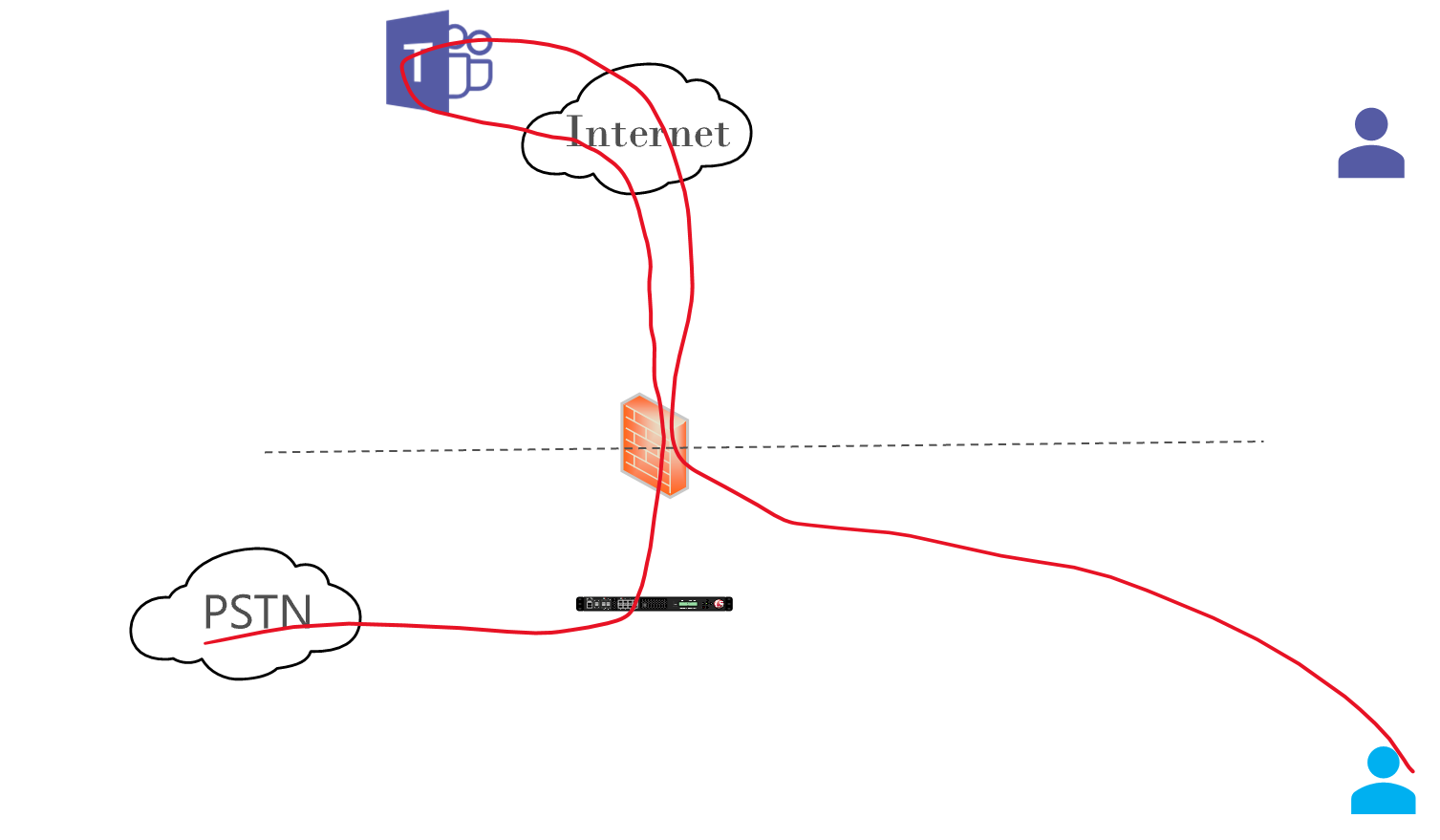
Media Bypass involves sending media from your Teams endpoint directly to the outside interface of the SBC. That media will come from two places, the Internet if you’re remote, or the LAN if you’re inside your organization’s network.

Remote

If you’re remote, your media path looks like this:

This looks nice and simple. The remote client can find the outside of the SBC since we have an FQDN, DNS, firewall rules, and certificate already in place for the Direct Routing connection. What we don’t have though are firewall rules to allow traffic from the remote users to the SBC. That is an “any” as the source, and most security teams are hesitant to permit that. If they don’t allow this, you could still permit your own public IP ranges so your LAN users can take advantage of Media Bypass. If the Teams client tries Media Bypass the connection directly to the SBC would fail and the default path (above) through Teams would be used – but do read on!

There’s another point to consider here, and that’s the difference in the network path between a remote user reaching your SBC directly, and a remote user reaching your SBC through the Teams cloud/Microsoft infrastructure. Chances are that your remote staff are at home, a coffee shop, or a hotel. Something with a general purpose, consumer grade Internet service. Their media would traverse that link and the general purpose Internet to reach the SBC. If their traffic took the default path, it would enjoy a smooth and luxurious ride on the Microsoft network, appropriate prioritized as Teams voice traffic. Having Media Bypass turned on may not actually benefit their call quality,

Why a nice ride on the Microsoft network/ Microsoft has an amazingly large, fast, high quality global network that peers with ISPs early and often. For quality, they want Azure/M365 bound traffic on their network as soon as possible. This also gives Microsoft the ability to place Teams resources in locations other than major Microsoft datacentres. Everything is microservices after all, so your media traffic may not be flowing from your client to a major datacenter then down to your SBC.

Internal

If you’re on your organization’s LAN, your Media Bypass connection looks like this:

We need to do some pretty funky firewall hairpinning here to make this work. It’s easy enough to permit your own IP ranges back in through your firewall, but a lot of firewalls don’t like accepting traffic inbound if that traffic has just egressed – it just doesn’t seem normal or right. Some firewalls can’t even do this, period. Make sure you shut off deep packet/application aware everything, because it won’t be useful to your security posture and will just clobber your traffic and generate helpdesk tickets.
In this scenario, you should also consider the bandwidth being consumed by the media traversing the firewall and Internet twice. This shouldn’t be spectacularly high and may not be an issue, but it is something to consider.
This is a better scenario that the outside user in terms of potential call quality improvements, since there’s no external traffic at all.

SBC isn’t in your site

There’s another factor of Direct Routing to consider here as well. If your SBC is not in your own building (ideally the same one as those light blue users), you are in a scenario that’s very close to the remote user scenario – your traffic needs to traverse the Internet or Microsoft’s network to reach the SBC, and Microsoft’s network is probably better. If your SBC is hosted in Azure, then the traffic doesn’t need to leave the Microsoft network.

If you as using a Direct Routing as a Service provider, Media Bypass is likely not available to you as an option – the setup and complications would consume too much time.

The Verdict

Given the above, what should you do? My recommendation is that you NOT enable Media Bypass. Leave media paths at their defaults, and monitor your call quality through the Call Quality Dashboard. If you are seeing results in CQD that indicate you may benefit from Media Bypass for external users, turn it on and see if there’s a change (and if things improve, drop a comment below as this is, in my experience, rare). If you see results in CQD that indicate you may benefit from Media Bypass for your internal users, don’t implement Media Bypass, but instead read my next post on LMO.

Media Bypass and Local Media Optimization – Do you need them?

Media Bypass has been around since Lync 2010, however the implementation in Teams is different in many regards. In Teams in comes in two flavours, Media Bypass and Local Media Optimization. In the next couple of posts, I’ll cover what these are, and why you might want or need to use them, and why you might not.

In Lync and SfB, the basic voice path is from the device to the Mediation server and then off to the gateway/SBC. Media Bypass allowed media to flow directly between the device and the gateway/SBC. There were two main reasons to do this:

  • To reduce load on the Mediation server.
  • To reduce WAN bandwidth usage by preventing tromboning of traffic to the Mediation server and back, in scenarios where the user and gateway are not located in the same site at the Mediation server.
  • Tromboning or hairpinning, is where traffic leaves a devices and proceeds to another, usually in a different site, and then returns to the original site

10+ years ago, these were serious considerations for organizations.

With Teams, we have a very different architecture. There aren’t any servers, and traffic to/from the PSTN doesn’t (usually) traverse the WAN. If it does, something is probably wrong if your media is tromboning through your WAN.

In Media Bypass for Teams, media traffic from a devices connects to the outside interface of a Session Border Controller (SBC). Local Media Optimization (LMO) allows traffic from the device to connect to the inside interface of the SBC. A more advanced configuration of LMO creates a 2-level hierarchy of SBCs that can help in scenarios where remote sites have no (or terrible) Internet, and when two remote sites have no direct WAN connectivity.

In the next post, I’ll dive into Teams Media Bypass.

Main Numbers – answered by technology or people

There are two main types of organizations that I come across when it comes to handling a main line. The first are those who strongly prefer a human to answer the calls, and the second are those that would rather have automation handle the call, with humans jumping in only when needed.

Either of these scenarios are easily achieved with Teams. For the first, I create a call queue and assign the main number to it. I have the receptionist(s) added as agents in the queue. I then setup an auto attendant, and user this as a destination for overflow and timeout actions from the queue. I include an option to press 0 to get back to the receptionist queue, in case the caller prefers that versus the options presented in the auto attendant. One of these options can be to leave a voicemail.

For the second scenario, implement the same auto attendant and call queue, but I assign the main number to the auto attendant.

A third scenario that I come across is usually only found in small offices or organizations. Here, the main number for the office is assigned to the receptionist as their personal number. I don’t like this for many reasons, including:

  • The receptionist can’t tell if the call is for them or the main number, and must always answer as if it’s an outside call to the organization.
  • Anyone who covers for the receptionist (too many calls, on a break, sick days, holidays) gets access to the receptionists phone and voicemail – and if this is Teams, everything else too.
  • It doesn’t scale if the organization grows
  • It can’t take advantage of ANY of the features of Teams (auto attendants, call queues, bots…) Sure, bots may be a stretch for a small org or office, but AA and CQ are not.

And so in this scenario, I assign a new number to the user and configure one of the other scenarios for the organization.

How to handle phones for roles rather than users

A question that I have a lot from organizations that I work with, is how to setup phone service for what I call “roles” versus “users”. For example, a factory shift supervisor. There’s always one on duty, and their shift lasts 8 hours, then the next one takes over. Someone in the organization who needs to reach that supervisor doesn’t want to have to consult a schedule or call 4 or 5 different numbers to reach the right person. Another example would be a security line (or two, one urgent/emergency and one administrative) for a security department. A third could be a main reception line versus the receptionists (and their relief) who staff it.

There are two ways to handle this type of scenario. The first is to create a user account or common area account for the “role”, drop a phone on the desk and you’re done. I like this solution when the staff involved aren’t information workers or don’t have their own network accounts at all – the security team, for example. This does require either a Common Area Phone or user license (depending on if you want the user level features that a Common Area Phone doesn’t offer, like voicemail).

The other solution is to create a call queue for the “role”, and have the staff be assigned as agents in the call queue. The staff can hot desk onto phones or logon to the Teams client on their computer, and can make and receive calls as either themselves or the “role”.

In more complex scenarios such as if the security team needs both administrative and emergency lines, the “role is a phone” solution doesn’t scale well. The Call Queue option works well here. Finally, you could also create a hybrid where there’s a desk phone as an agent in the call queue, so that there’s always a “bat phone” that can be picked up.
 

Call Queue – Call Routing and Agent Option Pain Points

The last two posts covered the options available for distributing calls to agents in a call queue. In the first of those, I mentioned that there are some gotchas that can cause you some pain. Let’s cover those, and provide a few tips and tricks to make life easier.

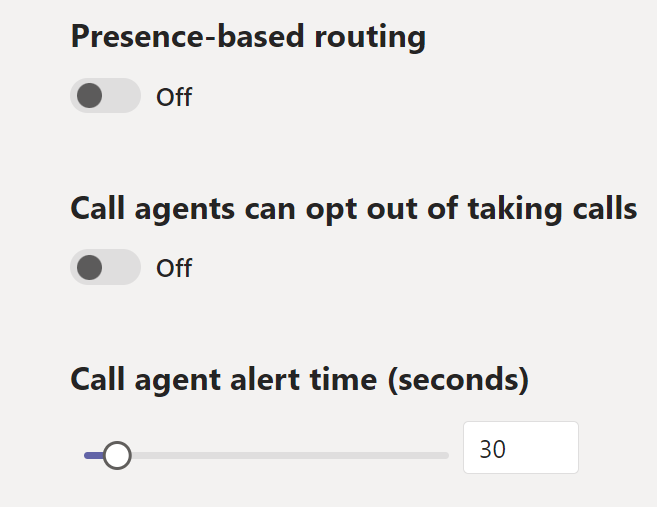
Presence-based routing is a hot-topic for some of my colleagues. One has been bitten by having a Call Queue trigger the timeout action because no agents were available. Why? They were all either in meetings, or had populated their calendars, causing their presence to be “busy” or “in a meeting”. This could be a legitimate scenario and a good use of the overflow options (to another queue or to voicemail, perhaps), but is probably sub-optimal if all of your agents have items populated in their calendars. Perhaps they’re staff at a Microsoft partner and have their time allocated for various projects and tasks throughout the day, but need to be agents in a support queue. Turning presence-based routing off would make sense here. On the other hand, if your agents are less calendar focused, perhaps they’re helpdesk staff, then presence based routing would make sense. There’s no point in ringing a helpdesk agent who’s on a call to take another call!

Round Robin and Serial routing need to have an ordered list of agents. That’s in another spot in the Call Queue configuration in Teams Admin Center, and it gives you three options:
 

For round robin and serial, you will want to add only users here. There’s no way to prioritize agents in a group, or in multiple groups. (And choosing Team here is an entirely different set of blog posts!)

Call Agent alert time seems straight forward enough. Ring an agent for x seconds, and then move on to the next agent, again for x seconds. If you have a timeout configured for the queue, the timeout action will only take place at the end of a full agent alert time. For example, if your queue timeout is 20 seconds, but the agent alert time is 15 seconds, the first agent will ring for 15 seconds, then the next agent will ring for 15 seconds, then the timeout action will trigger.

When cycling between agents, the caller doesn’t notice anything different in the ringback that they hear. Agents will see the call come and then go. If for some reason an agent is offered the call again – maybe they’re the only ones that are Available and you’re using presence based routing – the ringing will stop briefly and then start again.

If you have an agent alert time that’s less that a queue timeout value and you’re using Attendant mode, all of your agents will ring for the alert time, then ringing will stop, and then it will start again. This is annoying, so sync up those timers to get rid of this.

If you’re coming from the Skype for Business world and are familiar with Response Groups, you’ll notice some similarities with call queues, and a few differences. First off, SfB has an Attendant routing mode. The Teams equivalent to that is “Attendant with presence-based routing off”. SfB has a mode called Parallel, and that is Teams “Attendant mode with presence-based routing on”. You’ll also note that there aren’t any IVR options or schedules in Call Queues. If you need those, you should build an Auto Attendant, and have the auto attendant send calls to the call queue(s). Why this change? I’m not certain, but it likely had to do with Auto Attendants being an Exchange item that SfB (and other systems) could take advantage of, and now Teams has Auto Attendants, not Exchange. It doesn’t make a lot of sense to have schedules and IVR functionality in both Auto Attendants and Call Queues, when you can easily snap them together into whatever combination of objects you’d like.

And finally, the docs article for call queues is FULL of all sorts of different exceptions and limitations and recommendations. Make sure you read through the exceptions and limitations. I don’t put a lot of weight in the recommendations like “use presence based routing” as there’s no explanation as to WHY that is recommended. And as explained above, there are legit reasons to not use it. Similarly, there’s a recommendation to use longest-idle or round robin, and yet I can list out a handful of reasons to use other methods without too much effort. If you’re not sure about these, run a proof of concept and try them out.

Call Queues – Presence-Based Routing, Agent Opt-out, Agent Alert Time. What do I pick?

In a recent post, I covered the 4 methods that can be used to assign calls to agents of a Call Queue. In this post, we’ll continue with the rest of the configuration bits that can affect call distribution. Unlike the 4 methods, there’s no information buttons beside these options to help explain.

First up is Presence-based routing. This one is fairly easy – if you turn this on, only agents who are Available are offered calls. Agents who are in any other presence state will be skipped.

Next is a setting that allows agents to opt-out of being offered calls. This is done via the Teams client, and is a couple of clicks deep in to the options menu. The choices for the user are to receive or to not receive calls. There’s no option to set an expiry or schedule for this timer. In my experience, users will opt out of the queue and forget to opt back in. If your agents need to set different statuses for breaks or wrap-up time after handling a call, you can fudge these instead by setting presence to away or busy, and using the expiry timers there. Or, consider one of the many contact center options for Teams.

And finally, Agent Alert Time. This setting is used to establish how long a call is used by the serial and round robin options to determine when the call should move to ring the next agent in the list.

Up next is tips, tricks, and gotchas when configuring these settings

Call Queues – Call Routing and Agent Selection

Call Queue Agent Selection is the section of Call Queue configuration where you establish how calls to the queue are assigned to your various agents. There’s a lot of flexibility here, along with some ways you can inadvertently cause some issues.

Let’s run through the four routing methods. Note that each one has an information hotspot beside it to help explain what they do.

  • Attendant Routing is where a call to the queue rings all of the agents at the same time.
  • Serial Routing will ring the agents in your agent list (more on that in a future post) one at a time, from the start of the list down. The next call will start again with the first agent in the list. This is a great option for things like a receptionist who might be away from their desk or on another call. You can have the call move on to the next agent – say someone in accounting – and then have the next call start again with the receptionist.
  • Round Robin is similar to Serial Routing in that it starts at the top of the list and moves down, however call assignment keeps moving down the agent list and does not return to the start for each call. This is a great option to spread calls between multiple people in a relatively even fashion.
  • Longest Idle assigns the call to the agent who has been available (in terms of their presence) the longest. I feel this option is poorly named. It has nothing to do with a user being idle, but rather the user being available. “Longest available” would be a better name. The term “idle” is also used in Microsoft documentation on presence to refer to how long someone has been inactive on their computer, including when they flip into the “away” state.  Here’s what the information button says about longest idle:

Up next, we’ll cover Presence-based routing, agent opt-out, and agent alert time.

Cool Tools – DomainHelp.com

Easy DNS has long been a favorite of mine for domain, DNS, and light-weight mail services. The prices are great, service is excellent, and they’re Canadian, eh.

Recently, they’ve expanded their whois tool to a new domain, domainhelp.com. It’s still in beta, but I’ve already put it to good use. There are a number of tools including classic whois domain lookup, DNS and IP (v4 and v6) lookups, DNS resolver, RBL checks, SPF wizard, a “what is my IP” function, and more.

Check them out at https://domainhelp.com

Office 365 is now Microsoft 365 – Business Voice Changes

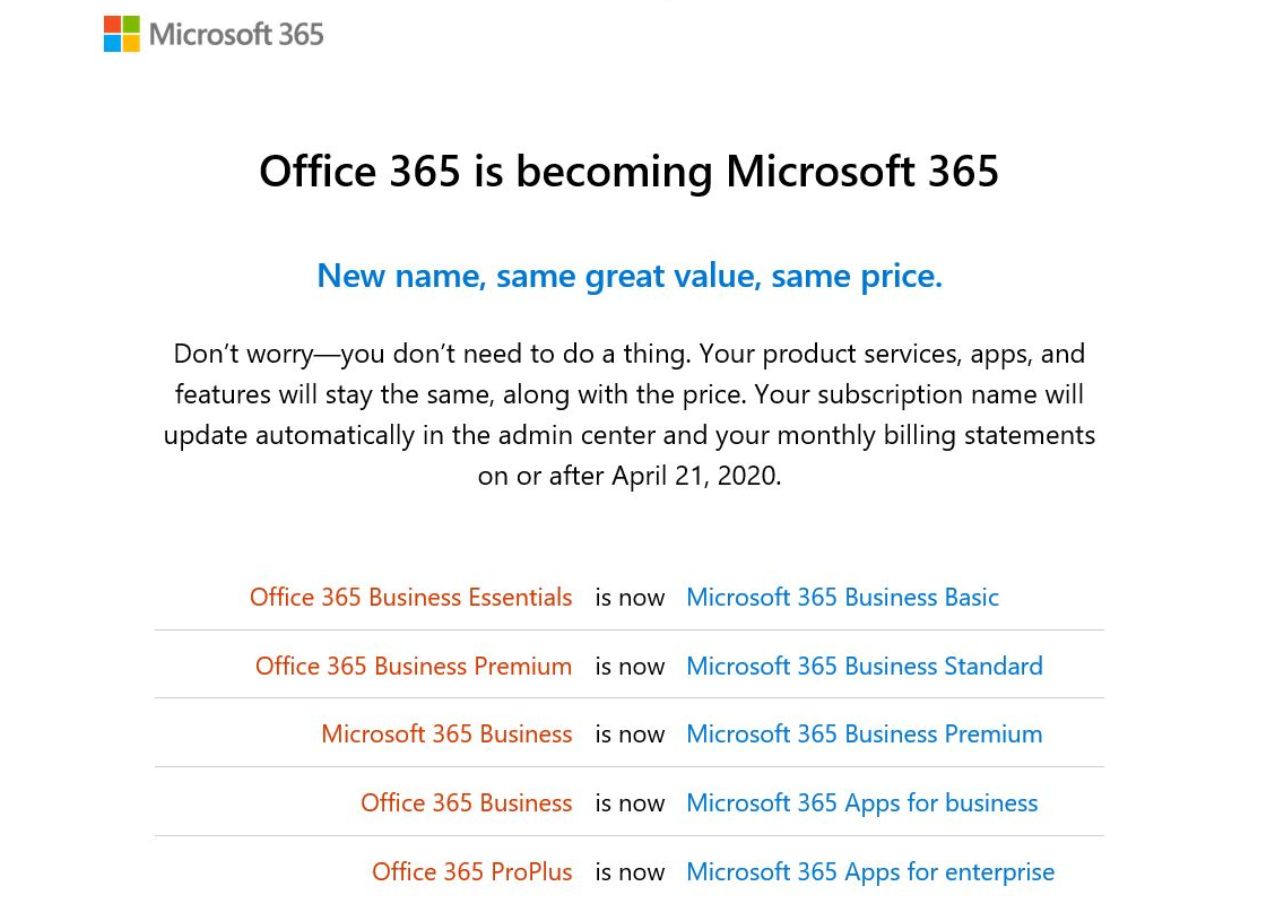
It looks like it’s time to rename something at Microsoft again. Today’s change is Office 365 becoming Microsoft 365, especially around the Business plans that Business Voice packages work with, the first three on the list:

O365M365

Despite some possibility for confusion with the “Premium” moniker shifting spots, I’m please to see “Basic, Standard, Premium”, which makes far more sense than “Essentials, Premium, Business”.

Remember that you can add Microsoft 365 Business Voice calling plans to any plan that has Teams, with the exception of the F series of licenses for Frontline workers. You can add up to 300 to any organization, then you need to step any additional users up to the fully Cloud PBX and Calling Plans(or Direct Routing)

And finally, Business Voice is coming to the US market as of April 1, 2020.


Channel vs Chat Smackdown

During one of those long, philosophical conversations with a colleague, we were discussing governance/guidance around the usage of channels vs chats.  That spawned a few other conversations Here’s what we came up with:

First, chats will store documents in the OneDrive for Business of the person sharing the file. Channels will store documents in the SharePoint library for the Team/channel. That could be impactful if you are applying different retention policies on the Team/channel.

One very adamant opinion was that if there is a Team that the post could possibly belong to, it should be posted there so it can be seen by other Team members, whether or not it’s felt that this is something they “need” to see. This was described as “working out loud” in another discussion on private channels.

To the contrary, others felt that only very specific “final” content should be posted to a channel conversation, and that “drafts” or “side discussions” should take place in chats.

A rule of thumb that one person uses, is that if the conversation is private or can be “easily forgotten” about by the organization without any impact, then a chat is fine.

In a discussion, someone felt that chats were useful to make sure that someone responded to an item, and that things would get lost in a channel. While this could happen, it was pointed out that use of @mentions should work to prevent the conversation from getting lost. Others contributed that there were still some misgivings or reluctance to @mention people in Teams (or even Outlook). Finally, it was mentioned that threads in channels provide for a much more scalable multi-conversation experience than multiple chats.

Another person commented that a chat might be used if you think the person you are contacting has the answer to a question, which a channel would be for a multi-person “help me! Who knows XYZ”.

Finally, one person compared the difference to Facebook wall posts vs a Messenger chat.