How emergency calling works from various deployment scenarios: SfB Online and MS Teams with PSTN Calling

This is part II of a series of posts on the differences in emergency call handling between various deployment scenarios. Part I covers SfB Server (aka on-premises deployments).

If your user is homes in SfB Online or MS Teams and uses PSTN Calling, things are simpler but also have much less functionality. With PSTN Calling, Microsoft handles your emergency calls, based on static location information that you configure when you setup a user. When you place an emergency call, an operator answers and verifies your address, before directing the call to the appropriate PSAP. If you can’t speak, they will assume the address you’ve input is where you are at and forward the call to the PSAP for that location.

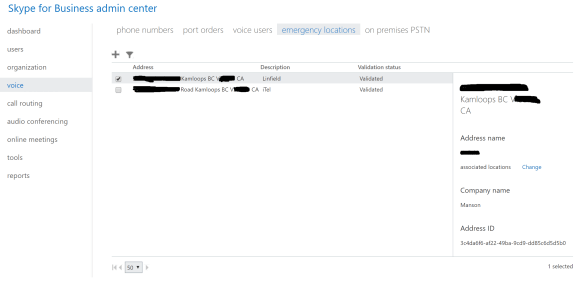
Emergency location information in the admin center of Office 365

You can add emergency location information in the admin center.

This scenario is clearly less than ideal, in that it’s neither automatic nor dynamic. It does, however, meet all e911 legislative requirements for the time being – the call is routed to the appropriate PSAP, and the user only needs to dial 911. In the United States, Kari’s Law comes into effect on Feb 16, 2020, and will require some additional capabilities, mainly an notification to a responsible party (reception, security desk) at the site of the caller. I cover what Microsoft is/needs to do in this regards in another post.

If you’re wondering why you need to bother with inputting the emergency locations if an operator answers each call, there are two reasons. One, it’s easier for the operator to read the address and have you confirm it versus you having to know it (or find it, if you’re not in your usual office). Two, it’s needed for the scenario where you can speak.

Next post, we’ll cover Cloud Connector Edition (CCE) and Direct Routing, where your online user gets PSTN service from on-premises.

Teams, e911 dynamic locations, and Location Based Routing

Two features that have been noticeably missing from Microsoft Teams are LBR (Location Based Routing) and dynamic location support for e911. Both have been available for on-prem deployments since the days of Lync. With this announcement https://techcommunity.microsoft.com/t5/Microsoft-Teams-Blog/Additional-Voice-Features-for-the-New-Year/ba-p/295062 LBR is now in preview and is expected to be generally available by the end of Q1.

What is LBR
In Skype for Business, users are assigned a voice policy. That policy links usages and routes. Together, these determine whether the user is permitted to call a number, and what path through the system the call will take. If William from New York is in his office and calls a customer down the street, that call will travel through the SfB system and exit to the PSTN in New York. If William travels to Los Angeles and calls that same customer, the call will flow back to the New York office (via the WAN if William is on the corporate network, otherwise via the Internet and Edge server) and will exit to the PSTN in New York.

In some countries, this type of routing isn’t permitted. When William is in Los Angeles, the call to his customer in New York must flow via the PSTN. There may also be restrictions on when you can blend PSTN and SIP calls in a conference. For example, you may be able to have PSTN callers join a SfB meeting, but only from one location. Thus, instead of call routing being done via the policies assigned to the user, we have Location Based Routing – the call routing is determined by the location of the caller.

In SfB, configuring LBR meant entering your IP subnets and assigning them to sites. Each site would then be configured to route PSTN calls via a particular gateway. Further policies within SfB would do things like block two PSTN sites from joining a conference.

The challenge in trying to build something like LBR in Teams versus in SfB comes down to the uniqueness of the IP address, which is used to establish the users location. In SfB, your office and favorite coffee shop might share the same IP subnet, however SfB knew if you were on the corporate network or not based on whether your client was connected directly to your Front-End pool, or was connecting via the Edge pool.

With Teams, the Edge and Front-End infrastructure isn’t there to help disambiguate the subnet that a user is on. Reading through the LBR documentation https://docs.microsoft.com/en-us/microsoftteams/location-based-routing-configure-network-settings we can see a new cmdlet

New-CsTenantTrustedIPAddress

This cmdlet lets you define your external IP address and assign them to your tenant. For example

New-CsTenantTrustedIPAddress -IPAddress 198.51.100.0 -MaskBits 30 -Description “HQ Internet”

When your Teams client or device traverses a NAT firewall and has a matching public IP, the tenant now knows that this Teams client/device is on an internal network, and it can apply LBR according to the internal subnets and sites that you’ve defined.

What about e911?

Emergency calling (e911) and LBR both require the same underlying technology to be able to identify a user’s location. With this basic foundation in place, we can likely expect to see subnet-based location policies for e911 soon. There’s still some additional work to be done, as at a minimum Teams will need to provide for masking/translating a user’s DID and replacing it with a number that’s unique to the location of the user when 911 is called.Subnets may not meet legal requirements for the granularity of the location that’s reported. In Skype for Business Server, there’s the LIS (Location Information Service) database and the ability to embed PIDF-LO (
Presence Information Data Format Location Object) – aka your location – into SIP packets. These allows a client to be located by the access point, switch port, or switch that they’re connected to. SfB Server talks to external LIS databases that may be provided by vendors like West or Redsky, who take on the task of determining the users location and providing it to SfB.

None of this functionality exists in Teams yet, and it’s all required to do proper granular, dynamic location determination for emergency calling, natively in Teams.

LPE vs 3PIP vs Teams Native Phones

When OCS (or was it OCS 2007 R2?) first really featured enterprise voice and had deskphones, there were two types. One was the Tanjay, a futuristic, right angled obelisk of discomfort, and Aries.

Tanjay was interesting in that it would allow you to type your AD credentials on the touch screen, if you had the patience. It was a terrible interface for sure. More often than not, the USB “better together” over ethernet function was used. The receiver (the part you hold in your hand, for those that might not share this same terminology) was uncomfortable to hold in your hand, to press against your head, and to squish it between your head and should was agony. I screamed in terror when one customer advised me that they had found 50 of these units on sale on eBay or some other site for “cheap cheap cheap!”.

The Aries phone was less edgy (literally and figuratively), and the Polycom CX500 and CX600 series were perhaps the most deployed (and most loved) phones of the group. They worked well, felt comfortable, had enough features without being rocketships, and just worked.

Both Tanjay and Aries devices are part of Lync Phone Edition, or LPE, family of devices. The software for these devices was provided by Microsoft – as were some initial physical design – with the manufacture and support of the devices left to the manufacturer – Polycom, Aastra (since acquired by Mitel), and HP. I think it’s fair to say, however, that these devices were underspec and thus underpowered when it came to doing true enterprise level telephony. Specifically, the lack of ability to any soft of programming or customization, and the woeful response time for call setup in a response group.

Under the hood, the LPE devices ran Windows CE. Win CE (or wince, if you weren’t a fan) hasn’t been a desired or supported development platform for some time now. It doesn’t support TLS 1.2 and above, which means that it’s soon to be no longer supported with Office 365 (to be clear, this means “will no longer work” versus “don’t call us if something doesn’t work right, but it might be ok”), nor in most on-prem or hybrid environments with a basic understanding of the risks of running out-of-date security protocols like TLS 1.1.

LPE devices were managed natively through Skype for Business. Initially, this was via a HORRIBLE nightmare of SharePoint team services ugliness, then directly supposed through later versions of Lync/SfB. I should clarify that by “Managed”, I mean chunky and clunky firmware update processes that were about as graceful as an elephant on figure skates. Reporting was iffy, and embarrassing, to be honest.

Rewinding a few years, we saw the introduction of 3PIP, or 3rd Party IP Phone, in late 2011 . These devices didn’t run the Microsoft provided Win CE software, or run the Microsoft dictated hardware under the hood. Instead, Microsoft provided a framework for IP Phone vendors to develop their own devices that would be certified to function with Lync and then Skype for Business. These devices offered a much increased level of customization, were faster, and with a number of different manufacturers producing a number of different models, 3PIP provided more than an adequate spectrum of devices for your telephony pleasure.

3PIP phones can mostly be managed the same as LPE devices, or instead you could (and should) manage them through the manufacturers management software. This approach can be hit and miss. For the ability to configure all kinds of functionality on the devices from a central platform, we give two thumbs up. For those who had to suffer with multiple vendors, and thus multiple management servers and differing feature sets, feature support, and ability to not hate your job, we are obliged to give two thumbs down, and more if we could.

With the introduction of MS Teams, we’re about to see the introduction of phones that again run Microsoft provided code, like the LPE, on vendor provided devices. The really interesting part here, is that the platform for this code is Android. Yup – the platform for “Microsoft Teams” phones is Android. Microsoft had indeed changed!

When it comes to Microsoft phone systems online, there may be some gotchas. First, LPE is soon to be out of the picture. It’s unrealistic to update the decade old software on the decade old hardware to support modern encryption and provide user experience that feels good and doesn’t involve smashing the device with a hammer.

Next up, let’s talk about 3PIP. The 3PIP devices all talk SIP, and work very well natively with Skype for Business – online and on-premises. When it comes to MS Teams support, you can expect basic phone functionality, but not much more than that. 3PIP devices run SIP, and MS Teams runs MNP24 with SIP for backward compatability. 3PIP devices are connecting to MS Teams through a gateway for Teams connectivity. There will be some MS Teams functions that will likely never reach these devices. Specifically, modern portal device management, media bypass (Teams, not SfB Server media bypass), and less mainstream calling features like call park/retrieve.

And now on to MS Teams devices. These are the future of the Microsoft phone product line, including desktop phones, conference room phones (“starfish”), and for some room system devices. I expect lots of feature growth here, including when beefier hardware is needed – this is just a Teams app running on Android, which is a much more agile platform than the legacy days of Win CE.

The moral of this post, is that you should avoid LPE devices at all costs, including for on-prem (how long until the OS/Skype for Business Server app no longer support that laughable “security” that TLS 1.1 and below provide?). 3PIP devices are great, but going forward I be cautious. While they’ll work with SfB and SfBO and MS Teams, the fact that they connect via a gateway to MS Teams and have limited MS Teams modern portal support means that some caution is warranted. Make sure that they’ll be able to do what you require in terms of functionality, but also management now and in the future.

Branch Offices in Hybrid and Online Environments

In my previous two posts, I’ve covered branch office solutions including the SBA and the alternatives. No discussion on branch offices could be called complete without including hybrid environments.

The hybrid conversation is the same as on-prem when your user is homed on-prem and not online. As soon as your user is homed online, you have two seperate considerations

  1. User connectivity to the Cloud for all functions but PSTN
  2. Cloud connectivity to Cloud Connector Edition (CCE), Direct Routing (DR), or On-Premises Call Handling (OPCH)

For the first point, local Internet is what Microsoft recommends. Recall from earlier posts that you can use your router/firewall to direct O365 traffic out locally, and send all other traffic across a WAN, if that’s what your organization requires. If this Internet connection fails, your options are to route across the WAN, a 2nd Internet connection, mobile clients with LTE, or head elsewhere to work.

For the second point, things can get a bit more complex. The routing and high-availability of CCE, OPCH, and DR varies. Other factors will be centralized PSTN breakout vs a more localized approach – you’re more likely to have a business class or redundant connection for a centralized service than if you have distributed services.

Cloud Branches

One common solution that I see a lot of, is a hybrid scenario with branch office users hosted online, and main office users hosted in the on-prem pools. This eliminates the cost and administrative overhead of running branch office solutions, while keeping some infrastructure around for financial, compliance, interoperability with other services/devices and other reasons. Cloud-homed branches are also a great stepping off point when you’re moving a larger organization to a pure online environment.

Pure Cloud Considerations

At this point it shouldn’t be surprising to you that there really aren’t any new or unique considerations for branch offices when your entire organization is cloud based. From a branch office perspective, there’s no local infrastructure different versus hybrid scenarios.

Edge Cases and Wrap-up

In the past couple of posts, I’ve covered branch office considerations for high-availability. The range from SBAs, redundant WANs, redundant Internet, full pools, and more. While comprehensive, I didn’t cover every use case. When considering the solutions that best apply to you, draw up a simplified map of your environment, get a bunch of copies of it, and have at them with a red pen to indicate failure points. Work through these outages using your most important use cases to establish what works, what’s limited or hobbled, and what’s entirely broken. If a scenario doesn’t work for your use cases, put it aside.

You’ll now have two piles – works for me, and doesn’t work for me. Next, review the scenarios that do work, and establish which one best fits your business needs, including pricing. If the mighty dollar sign knocks all of these scenarios out of contention, you now need to sort through the “doesn’t work” scenarios, and work through them to find “the best of the worst” that does the best job of fitting your business needs and budget.

Surviving the Skype for Business to Teams Transition, for the IT Pro

Okay, so you’re an IT Pro who does Skype for Business stuff, and you’re a bit freaked out by Teams and a reduction in your demand. Worry not! First have a crack at my previous posts aimed at the organization and IT department.

In the organization post, I point out that SfB on-prem isn’t quite dead yet. In fact, it won’t be for a while. Feel free to do nothing, and you should have a number of years of success with SfB on-prem skills. However, if you do that, at some point you’ll find yourself in a career cul-de-sac.  Don’t do that! (But do read Will Rowe’s book, it’s good, and I’m not getting paid to say this). As the book title suggests, you need to evolve or your career will die.

Did you see a ton of stuff in my two previous posts that you could pick up as skills, and stay on top of your game? You should have! If you’re the gal or guy who can confidently answer questions about how Teams works, what a SfB to Teams transition might look like, and how to help navigate your organization or IT department through that, you are in a great spot!

Other than focusing on learning what I’ve already covered, here are some other suggestions for you to consider.

If you’re on on-prem IT pro, get thee to the cloud! Learn the basics of Office 365 and hybrids. You can follow the learning paths for exam 70-346 Managing Office 365 Identities and 70-347 Enabling Office 365 Services. Microsoft is all about the Cloud, and you may find you need hybrid configurations for migrations, compliance, or to appease office politics.

Do you know anything about Azure? Check out this site for a great, uh, Azure overview. You can also get a free Azure account, which gives you no excuse for not expanding your knowledge. While Azure may not be directly related to SfB and Teams, it’s full of Bots/Machine Learning/AI, IoT, and other great stuff that does, will, or could (if you make it) integrate with Teams and drive value. You knowing about this stuff makes you more valuable that someone who doesn’t have a clue how the Bot Framework and what you can do with it and Teams.

Security and compliance are also big deals. GDPR is everywhere right now, and even if you’re not in Europe it can most certainly apply to your organization. Knowing how GDPR (or any other compliance regulations) applies to Teams gives you an edge and keeps you relevant.

Microsoft is Cloud first, Mobile first, which means that anything you can learn about mobile devices and clients will help you. Go find out how MFA (MultiFactor Authentication), Conditional Access, and MDM (Mobile Device Management) and impact not only mobile phones & tablets, but also laptops and boring desktop PCs. If you’re an iPhone user, get your hands on an Android and figure out how SfB, Teams, MFA, CA, and MDM work on the “other” platform. Likewise if you’re an Android user. Only knowing about half the major mobile platforms makes you LESS that half as useful as someone who knows about both.

And lastly, much my last IT department focused post was network centric. If you don’t have your CCNA, consider working towards it. Once upon a time to get your MCSE you had to write a “Network Essentials” exam. CCNA gives you that knowledge and more. You don’t have to be a network guy working on Cisco gear to derive value from the CCNA classes or certification. CCNA is full of background knowledge, and the part that’s “specific” to Cisco gear isn’t that specific since almost everyone copies Cisco’s interface, or is “influenced by an industry standard interface” as I’ve heard one vendor explain it.

The bottom line is that IT evolves, and this is just another evolution. SfB used to be Lync, which used to be LCS, which used to be OCS… Go learn something cool!


Surviving the Skype for Business to Teams Transition, for the IT Department

In my previous post I talked about what I feel an organization should be doing during the SfB to Teams transition. In this post, I’ll cover what an IT department should be doing to support the organization.

There are several things that an IT department needs to consider when moving from Skype for Business Server to SfB Online or Teams. The biggest by far is shifting from servers – and the associated maintenance and operations – to a focus on the network. In particular, we’ve been spoiled by 1G and faster LANs with SfB on-prem. Fantastic network performance on the LAN meant we could run a bit looser, not needing to worry about bandwidth or QoS. With SfBO and Teams, that’s a different story. You should be looking at:

Internet bandwidth – is it enough? Is it symmetric, so that upstream traffic doesn’t suffer?

QoS – While it’s true that the Internet doesn’t do QoS, you can certain have your firewall prioritize traffic based on DSCP values. You should also have it classify and mark inbound traffic from the Internet, so that it’s prioritized by the rest of your network.

Subnets – Like SfB Server, SfB Online and Teams use subnets and their associated locations in a couple of spots: e911/emergency calling locations, and for Call Quality analytics and reporting. If you don’t know your exact subnets (NO SUPERNETTING!), and the areas they serve, start documenting this. If you have subnets that span locations, plan to remedy this. Spanning floors is sorta okay in a small building, but inter-building spanning is a bad thing. While e911 dynamic location isn’t turned on yet (it’s complicated, and involves life safety. And lawyers), you’ll want things ship-shape when it is.

Policies – Teams uses many other O365 services, and they include a variety of policies for things like naming, compliance, and deactivation. You need to understand what these are, and how they work, so that you can support your organization in making sound decisions. And because at the end of the day, if you don’t, you’re the ones who will have to clean up a mess of Teams with bad names and no expiration or lifecycle.

Internet Connectivity – Centralized Internet is a bad thing for Teams and SfBO. This forces traffic from branches to have to transit your WAN ($) to a central Internet breakout, then off to the Cloud. The extra distance traveled also leads to quality issues. Central Internet breakout is sorta okay in a municipal area, worse within a country, and terrible between countries. If your security department is arguing against this, you can always configure policies to allow Teams traffic locally and send Bob and Sally’s web traffic to the central breakout.

Become friends with this webpage that details the URLs and IP ranges for various O365 services.

You should fire up the bandwidth calculator often. And maybe do a Network Readiness Assessment.

How about a handy Network Assessment Tool.

And who doesn’t want Success with Teams? So get started with Skype and Teams!


Surviving the Skype for Business to Teams Transition, for the Organization

By now you’ve probably seen and heard all kinds of rumors, leaks, plans, guidance, announcements, and roadmaps for Skype for Business and Teams. Well, here’s one more! In this post, I’ll focus on what I think organizations should be doing over the next couple of years.

Yup. Years. One of the first things that you should do, is Keep Calm and Skype (for Business) On. There is no “end of life”, “sunset” or “get off or else” date for SfB.

If you visit the Microsoft product lifecycle pages, you can see that SfB Server 2015 is in mainstream support until October 2020, and extended support until October 2025. We know that Skype for Business Server 2019 is coming later this year, and that’ll take you a few more years out for mainstream and extended support. At Ignite last year, an attendee asked if SfB Server 2019 was the last planned version, and the response was that was “unlikely”.

If you’re looking at SfB Server 2019, be aware that there are a few changes. Alas, the list of changes keeps changing, so until the product is finalized there will continue to be some speculation. You can view the Ignite announcement from last year as a general guide to what to expect, though it has been announced that Standard Edition will be available for SfB Server 2019.

So what kind of things should an organization be thinking about then? Well, in case you’ve missed it, Microsoft recommends that you pilot Teams. I have to agree. I was iffy a year ago, but the product has seen massive feature updates since then, with many more to come. The collaboration experience of working within Teams is entirely different that other application and platform combinations from Microsoft and other parties. I find myself spending more time in Teams. If you’re not currently piloting teams, check out https://teamsdemo.office.com and then start your evaluation.

Teams features compliance, security, extensibility, collaboration and mobility stories that are unmatched by other platforms.

If you’re wondering when Teams will have all of the features that you current get in SfB Online, check out this page.

If you’re looking for guidance on how to pilot Teams, this is the spot along with this page.

And if user adoption is important to you (that’s a rhetorical statement! User experience, training and adoption are key!) follow Karuana Gatimu on twitter. Karuana is the Patterns, Practices & Adoption PM in Microsoft Teams, and is a wealth of knowledge.

Office Online Server/Office Web App Server Pool Certificates

I’m working on a deployment that’s using a farm of OOS servers behind a load balancer (actually, behind a high-availability pair of load balancers!) for high-availability. If you’re just using one server, this is a great guide to what you need to implement. If you’re using a farm with 2 or more servers behind a load balancer, there are a few more considerations.

To start with, the subject name on the certificate needs to be the URL that you’re defining in the SfB topology. You might use oos.example.com, for example. Now the fun part – the first SAN listed on your certificate also needs to be oos.example.com.

Everything will work at this point, but you don’t have a very good high-availability story. The load balancer will need to be configured to monitor each server in the farm to determine if the server is functional. Otherwise, a server could stop functioning and the load balancer would continue to send traffic to it – that’s no good. The load balancer will most likely monitor the servers by trying to access https://oosnode1.example.com/hosting/discovery (and the same thing for oosnode2, etc.), and watching for a 200 OK to be returned.

Most load balancers have setup wizards that will set the monitoring up for you as part of the configuration process for OOS, SfB, Exchange, SharePoint, and more. Check the vendor’s website.

In order for the HTTPS request to oosnode1.example.com to success, oosnode1.example.com needs to be a SAN on the certificate. The same holds true for the other servers in the farm.

You could cheat and monitor your OOS servers by using HTTP and thus not require a certificate. This is a bad thing to do. You should be monitoring the actual URL that will be accessed on the server for a true indication of the server status.

To summarize, your OOS certificate needs to have:

Subject Name (SN) of the URL you will use in the SfB topology, such as oos.example.com

The first Subject Alternate Name (SAN) needs to be the same as the SN.

Then, you’ll need a SAN entry for each server in the farm, such as oosnode1.example.com and oosnode2.example.com.


Teams And SfB, (oh my) but no Lions or Tigers

Ignite 2017 has wrapped up, and for those interested in Skype for Business and Teams, it was either exciting or frightening. Microsoft is very definitely about to unleash a bump in the net, but there’s no reason to be afraid!

Over the next couple of posts, I’ll recap what was announced in the SfB and Teams space at Ignite – and since Ignite, then I’ll cover what this means for organizations using, or thinking about using, SfB and Teams. Finally, I’ll wrap with a bit of a strategy for IT Pros who might be wondering what just hit them, and what’s next.

Teams is NOT Replacing Skype for Business. (Yet)

There was some discussion prior to Ignite, fueled by an accidentally-released banner message for some Office 365 users, that Teams was replacing Skype. For some, panic ensued. The reality is that Teams is not capable of replacing Skype for Business, and as there is no Teams server for on-premises deployments, Teams could not replace SfB on-prem.

Presentations at Ignite and in the roadmap released shortly after, made Microsoft’s intentions clear: while Teams is the future of Microsoft’s “Cloud first, Mobile First” strategy, Skype for Business is not going away.

Skype for Business Server Roadmap

The next version of on-prem SfB, Skype for Business Server 2019, was announced at Ignite. The highlights of the next version are:

  • There will only be one edition, with Standard Edition being eliminated.
  • There is no director role.
  • There is no PChat role.
  • Only Server 2016 and SQL Server 2016 will be supported.
  • No in-place upgrades.
  • Upgrades from 2013 and 2015 are supported, and as in the past, only two versions are supported in an environment.
  • The 2019 client will be C2R only, no more MSI

SfBS 2019 is based on the SfB Online code, which will allow for a significantly improved hybrid interoperability story. This is also likely behind some of the role removals outlined above.

For Teams, the roadmap announced in late October is all about driving toward feature parity with Skype for Business, including:

  • Better IM chat controls
  • Contact Groups
  • Unified Presence between SfB and Teams
  • Federated Chat
  • Tonnes of updates to the meeting experience
  • Most SfB calling features brought to Teams
  • Support for calls between Skype Consumer and Teams

You can see the full roadmap here

Up next: Guidance for organizations.

Main Number Handling – Putting it all Together in Large Offices, reception coverage

In the previous post, I covered how to have a receptionist have first kick at answering a call, then for the call to be handled by an Auto Attendant if they weren’t available. You might want to have a backup for the receptionist if they’re not able to answer the phone. The easy solution is to also add this person to the Response Group group as an Agent. The trick here is to specify the two agents, and set the Routing Method to Serial in the Group configuration:

Serial Agents

Wit this setup, calls will always first ring “AApple”, then after the Alert Time has expired, the call will go to “BBlueberry”, and finally to the overflow destination. Be sure to watch your Queue and Group timers as discussed here to make sure your call doesn’t bounce around between the users.

This solution works well if you only need a main person and one backup. If you need a main group and a backup group, you would configure two groups, and then create an ordered list in the Queue settings:

Reception Queue

Make sure that the sum of the Group timeout values equals the Queue timeout value, otherwise your call with ring “Reception_Main”, then “Reception_Backup”, and then “Reception_Main” again. For example, I might set the Reception_Main group to 10 seconds, the Reception_Backup group to 15 seconds, and the Queue timeout to 25 seconds.

You can include the users in the “Reception_Main” group as agents in “Reception_Backup” if you want the users in the main group to be able to answer the call if it’s ringing the backup group.

I’ve seen this approach used for a shipping/receiving door buzzer. The driver pushed the door buzzer, which automatically dialed the Response Group (this behaviour was configured in an AudioCodes MediaPack). The Response Group had the shipper/receiver as the main group, and then some other nearby staff who could act as their backup.

Up next: Sending a call from a Response Group to a PSTN or other PBX phone