Inclement Weather or Special Function/Night Mode Auto Attendant Configuration

A function from PBXs that’s not available to the same degree in Teams is a “night mode” button. This button would be on a receptionist’s or supervisor’s phone, and would trigger the PBX to use the “night mode” or “after hours” greeting and configuration instead of the business hours greeting and configuration. While Teams does have scheduling available that can do this automatically, this function is handy when there’s a one-time special event. That may be planned, such as a company BBQ, or it may not be in the event of a building evacuation or being closed due to inclement weather.

Teams now offers “Authorized Users” who can be delegated certain permissions to an auto attendant. That allows a non-admin user the ability to adjust greetings but not the schedule. Honestly this isn’t a bad thing, scheduling setup isn’t something that should be open assigned to non-admins.

If changing the greeting isn’t sufficient, that leaves us back with IT needing to take action. Rather than adjusting schedules and greetings, I recommend use (or is it maybe abuse?) of the Holiday settings.

The holiday schedule for an auto attendant is the first thing that’s checked when it receives a call. If the current time falls within an active holiday, the appropriate holiday call flow takes place. If not, the current time is checked against the after-hours schedule, and then finally the default call flow is used.

We can take advantage of this by setting up a “Special Event” holiday, with a custom greeting and schedule. Calls during the company BBQ will follow this schedule. We could also create another holiday called “Inclement Weather” with an appropriate greeting. When the organization will be closed because of the inclement weather, the schedule for that holiday can be updated, and it will be the call flow that is used.

Here’s an example inclement weather greeting.

In your auto attendant, select Call flows during holidays, then click the +Add button:

Now in the Holiday drop down, select “Add”

Give your “holiday” a name, then set the start and end dates and times. Note here that I’ve picked a date in the past. You must have at least one date/time for your holiday, however since this is for future use at an unknown time, I can’t put the actual event time here. If this was a company special event like that BBQ, I could put the actual date and time here.

Enter a name for your holiday call setting (I’ve also called it Inclement Weather), and what call flow you want. In this case, I want to play a greeting and disconnect the caller. You may want to offer other options for the caller, after all Teams allows you to work from any location and staff may be able to work from home.

Now should a decision be made to close the organization due to inclement weather, IT can edit the holiday schedule to be in effect, and the inclement weather call flow will be selected.

How to Properly Architect a Main Number/Reception Number

When I’m working with clients to migrate from their existing phone system to Teams, that phone system can sometimes be pretty old. And with old phone systems come old phone system habits. Those habits don’t translate well into Teams. One of the biggest items is how to set up the reception phone – or now, the reception user.

Old School

In older systems, reception is a phone on a desk, and that phone owns the main phone number. The receptionist doesn’t get their own phone or their own number. The phone rings, they pick up the handset, mash a few buttons for a transfer, and done. That phone might have some extra buttons for line appearances for frequently called users. It might also have a headset attached to the phone. In some cases, the headset plugs into an external box, so the main receptionist can unplug their headset and wander the office, or ensure that nobody else uses their headset (for hygiene and fit/adjustment reasons).

Trying to bring that scenario into Teams is like putting a round peg into a square hole. Or maybe a round peg into no hole at all – you need a really big hammer to try and make it work, and you’re left with a mess.

Teams is Different

Everything in M365 is integrated – M365 account, email access & address, Teams channels and phone number assigned. A receptionist could not use the reception phone number as their own phone number without the implementation being messy – anyone needing to cover the reception desk needs to be able to access the receptionists accounts. Email is no longer an infrequently used, separate application. The person in the reception role likely needs their own network, email, and Teams account for Intranet, chat, and HR/payroll purposes. Messy.

Let’s also layer on modern security. The reception account should be MFA enabled. As a key account in the organization, logging and monitoring for odd behavior should be in place. All of this become challenging (and messy).

If the organization is larger and has multiple people answering the reception number, things really start spiraling out of control and get very messy.

The Solution

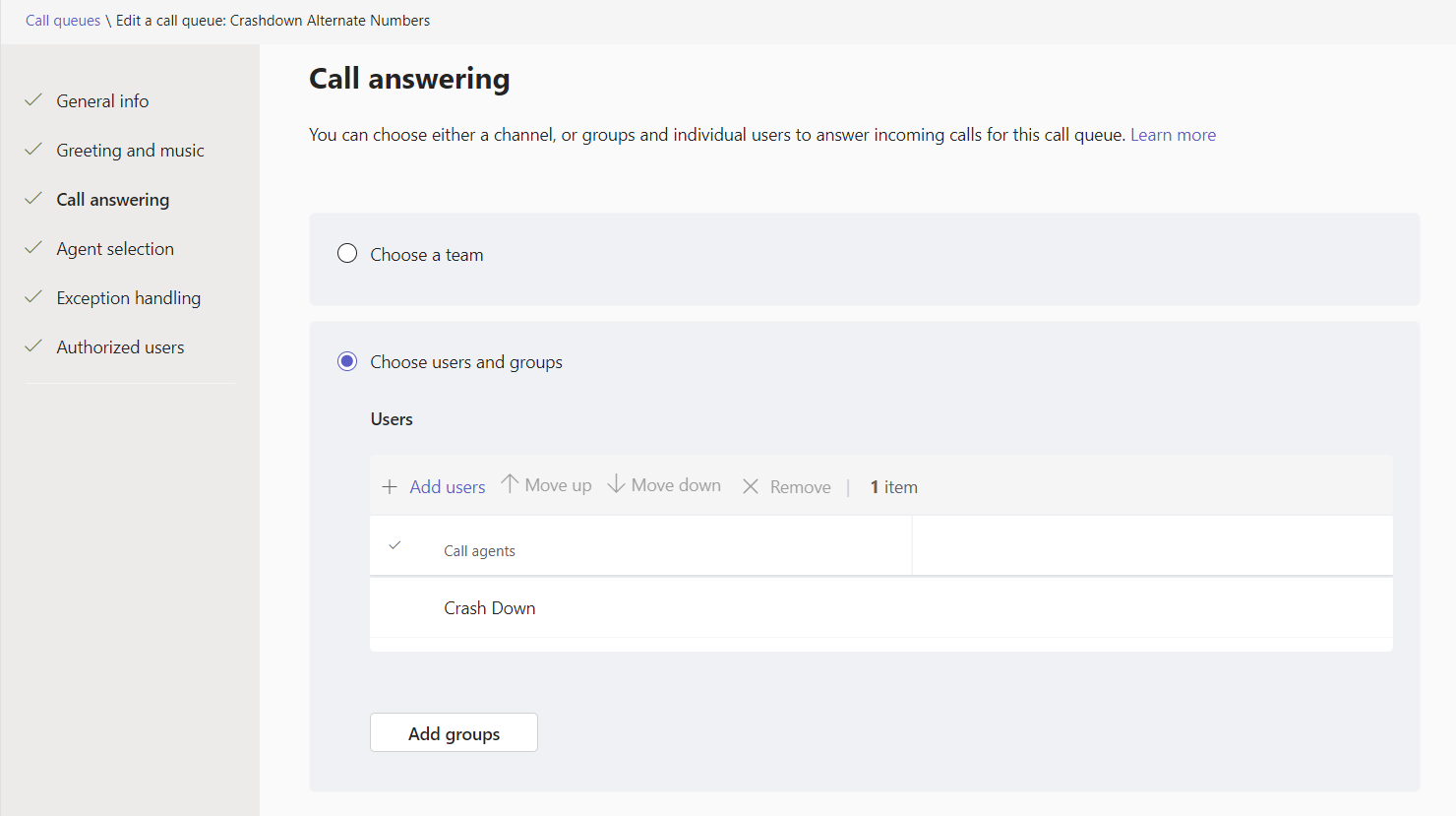
The people who work at reception get their own full user accounts. The reception function or role is best implemented as a Call Queue, with the reception staff added as agents to the call queue. Each reception user now has their own full M365 account, with appropriate security measures like MFA.

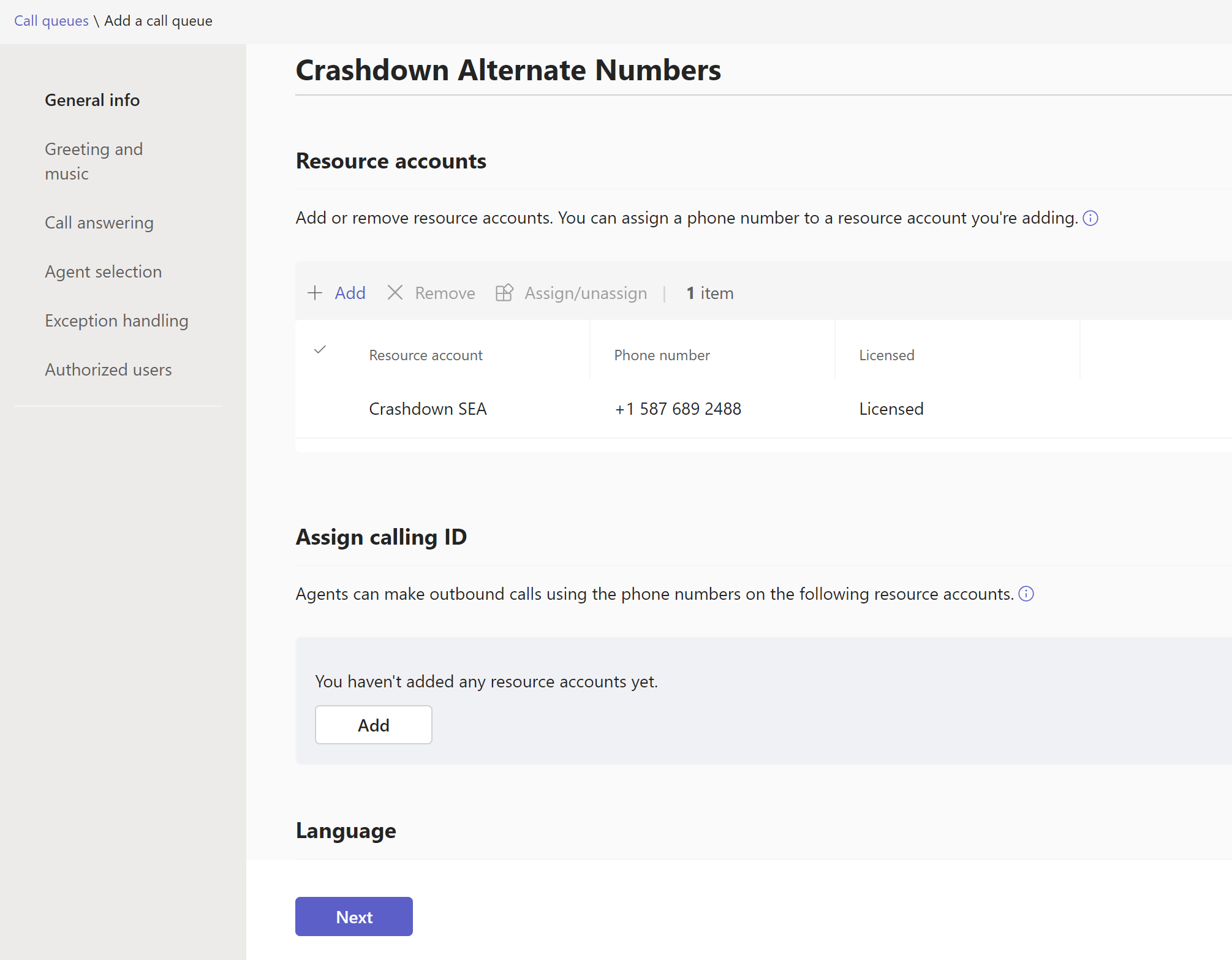
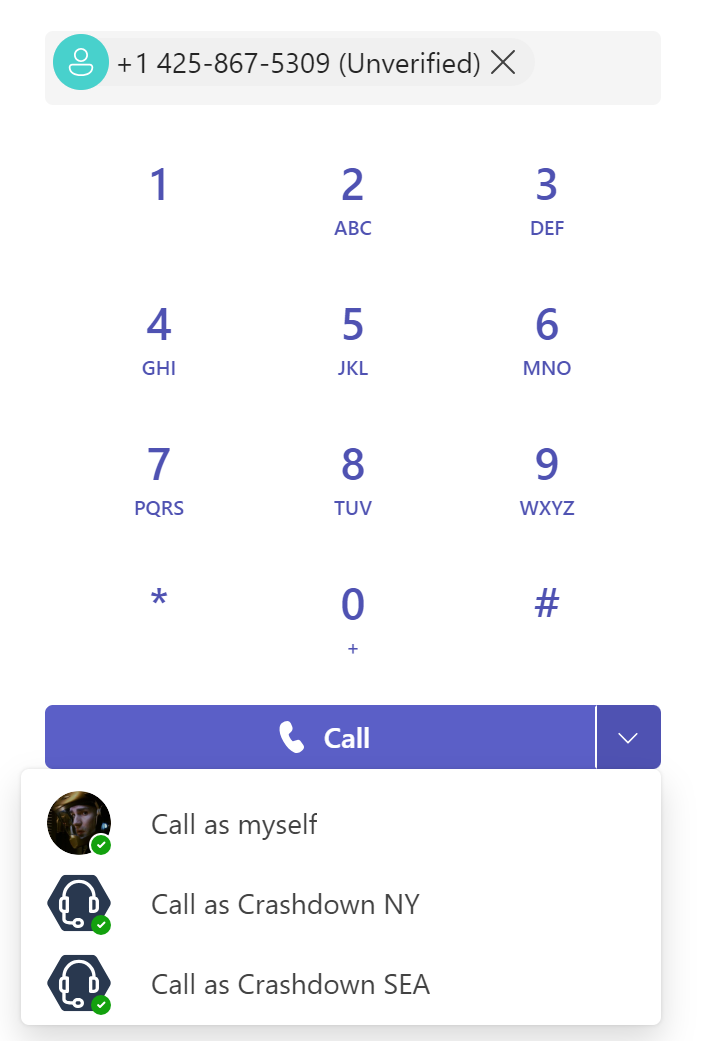
Call queues allow agents to place outbound calls as the call queue (vs their own account and phone number), further keeping “receptionist staff” and “the reception function” apart.

Reception voicemails go to an M365 group mailbox (vs the receptionist’s mailbox), where multiple people can be granted access.

What Devices to Use

For a small office with one receptionist, they get the Teams client and a nice headset. A mid-range phone with a shared device license should also be configured as an agent in the call queue. This allows the phone to be answered if the PC is rebooting, locked, the headset battery is dead, etc.. It also allows someone else to cover the reception desk/phone during the receptionists breaks without needing to logout and login as a different user on the PC. The shared device account needs to be configured with a Caller ID policy so that calls are placed with the call queue number.

In a busier or larger office, that phone can be a higher-end model that can accept one or more sidecars to facilitate transfers and viewing presence of frequently-contacted users.

Multiple users could also be added to the reception queue. The organization can take advantage of the call distribution methods like “serial” to have one user be the primary call taker, and other be their backup. I’ve seen accounting staff often added here for this purpose.

If that “phone on the desk” does not have a side car, then a shared device license would be suitable. If the phone has a sidecar, the users on that sidecar are usually administered through the Teams desktop client. You can logon to the Teams client to do this. An in-private web session lets a user do this without logging out of their own Teams app.

Renaming Call Queues, Auto Attendants, and Their Resource Accounts

When I’m working in my lab tenant on things that I write about here, I often want a different name for a Call Queue or Auto Attendant or the associated Resource Account, to make them more meaningful for the scenario I’m working on. That’s a quicker, nicer prospect than building new ones each time, and shuffling licenses and phone numbers around.

Outside of my lab environment example, there a few reasons you might want to do some renaming. The first would be a change in naming scheme used in the organization – perhaps “Main – Seattle” needs to now be called “US-WA-SEA-Main”.

Another would be that you’ve made a typo or other error during creation. A third might be that the purpose of the CQ or AA has changed, and a different name would be more reflective of the purpose. For example, if Teams is rolled out to one office, the Auto Attendant might be called “Contoso Seattle”. Later on, another office might open that uses the same Auto Attendant, but it isn’t located in Seattle. Renaming to “Contoso US-Pacific Northwest” might make more sense.

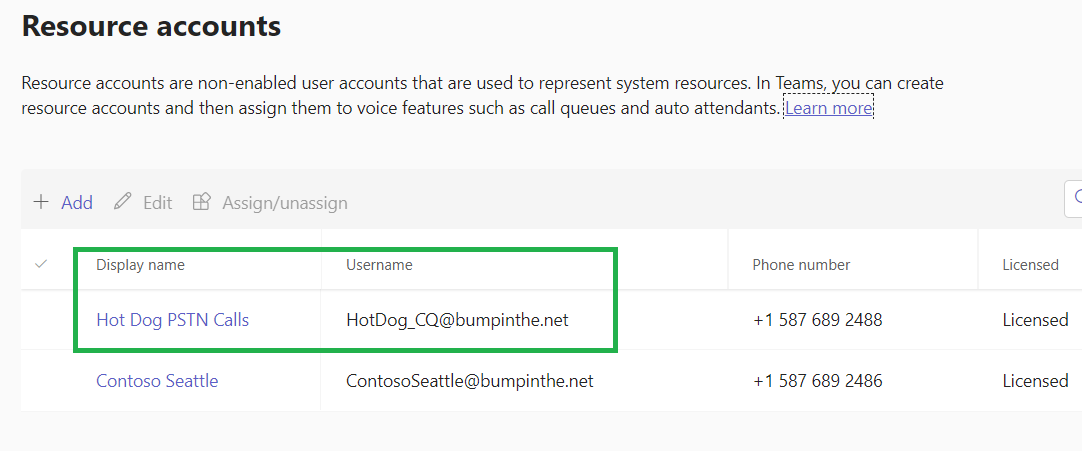
And finally, remember that the name of a call queue or auto attendant is only for the “under the hood” IT admin work. Users/callers never see these names. What users see is the resource account display name, and they may also interact with the username/UPN, though that’s rare.

With that, let’s get changing!

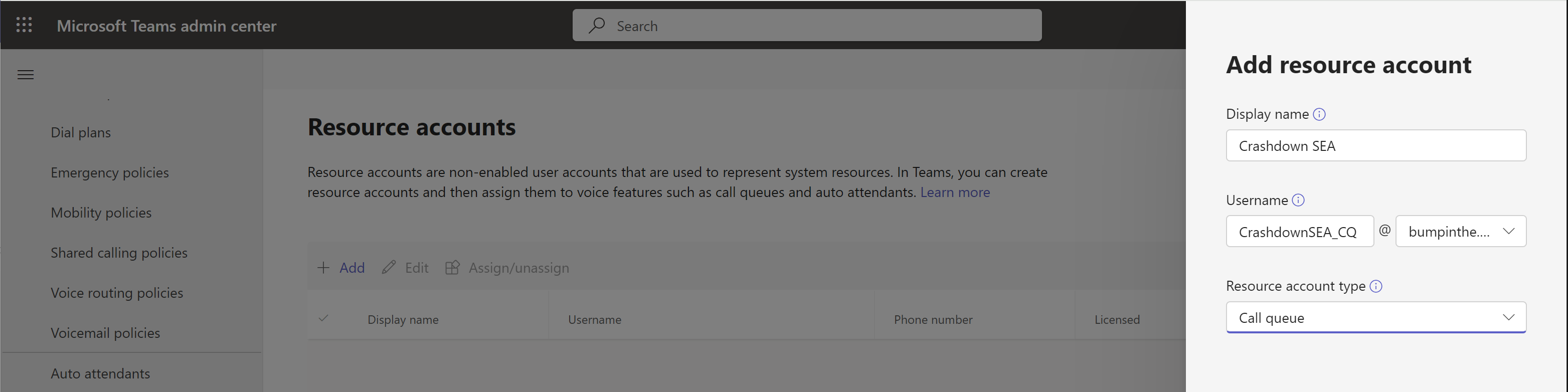
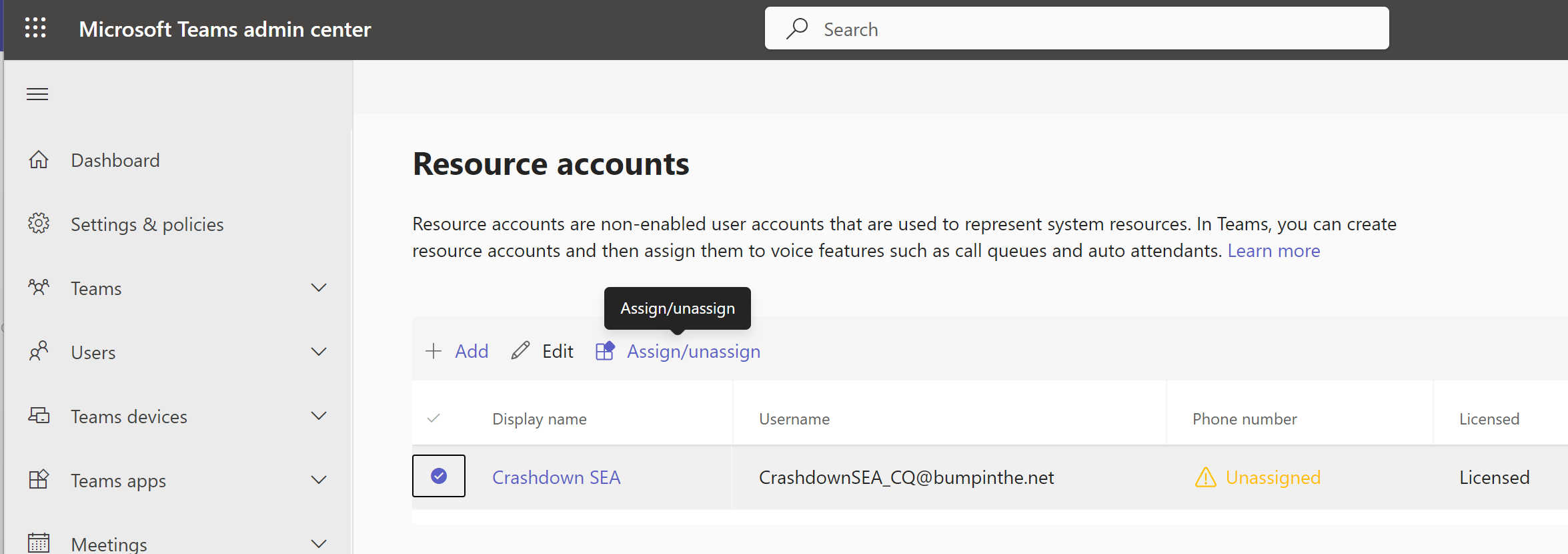
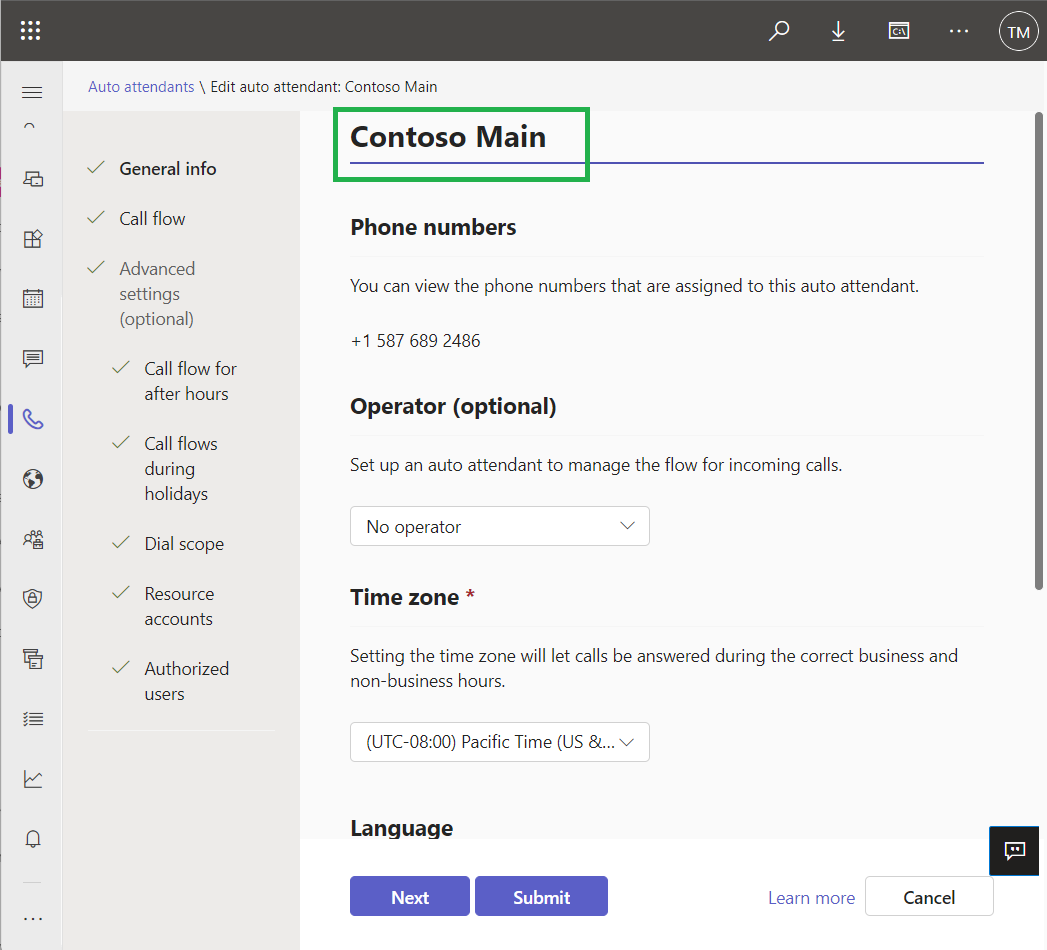
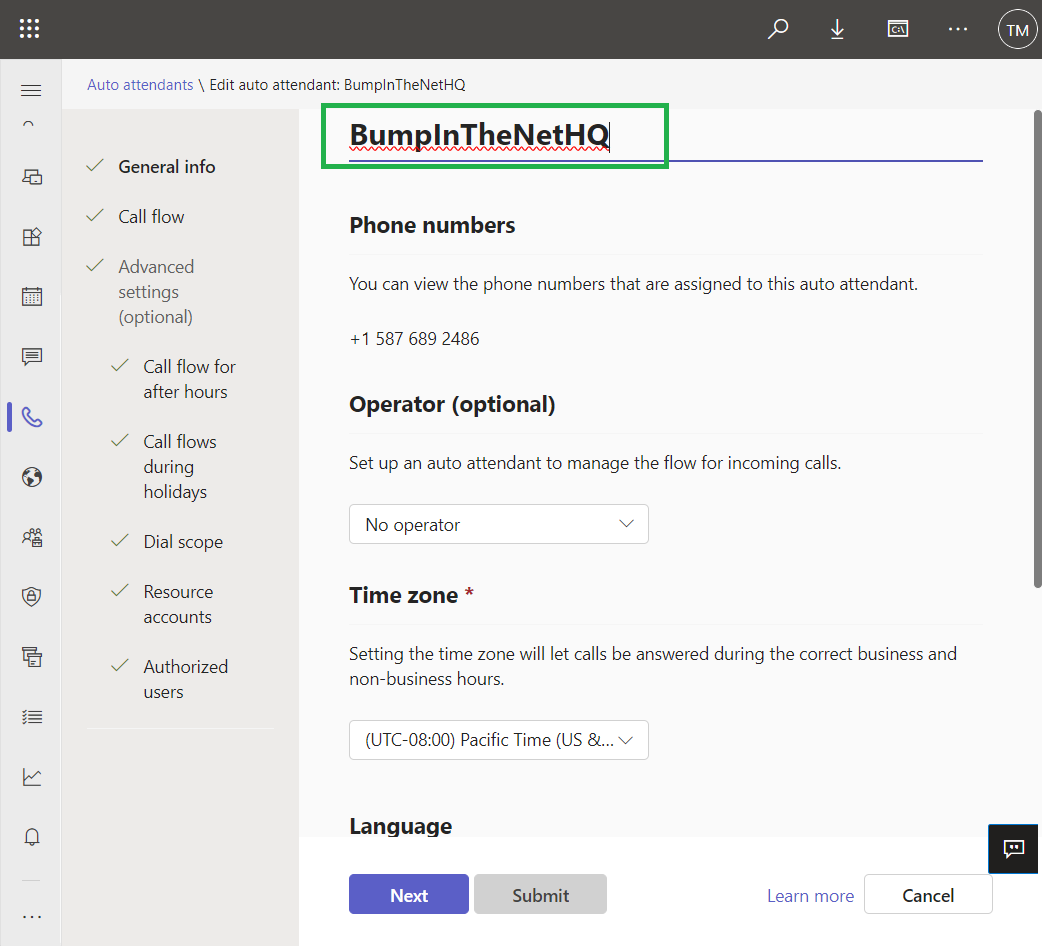
Within Teams, you can name Call Queues and Auto Attendants in TAC:

The name is freely editable.

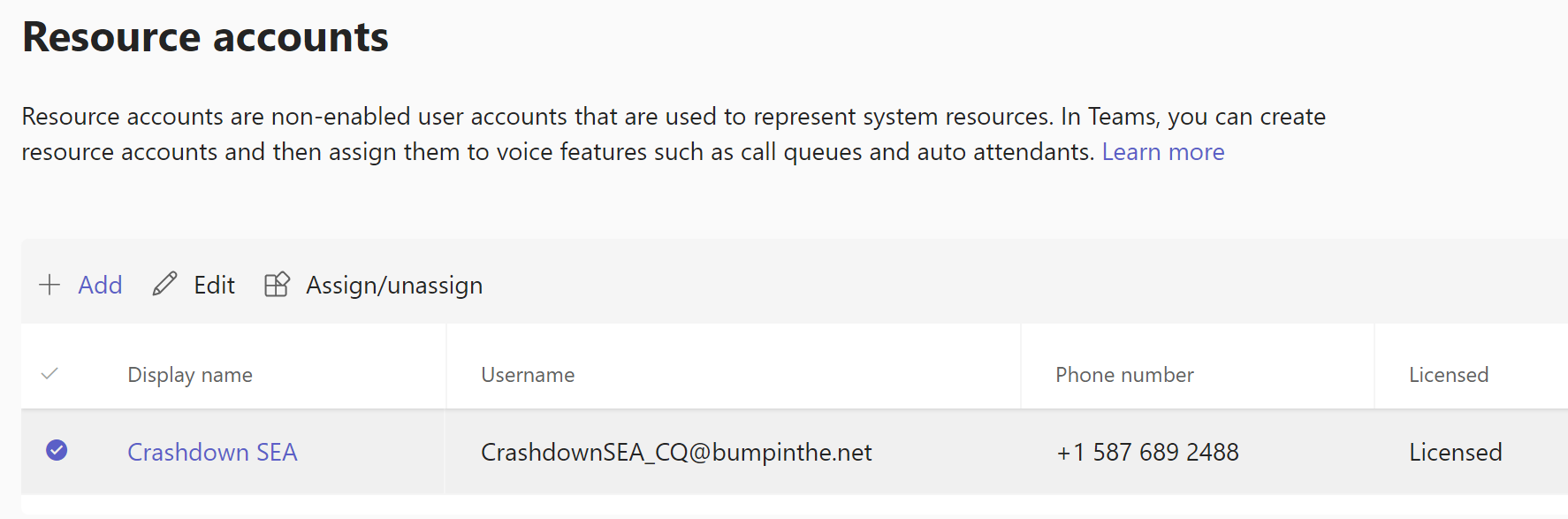
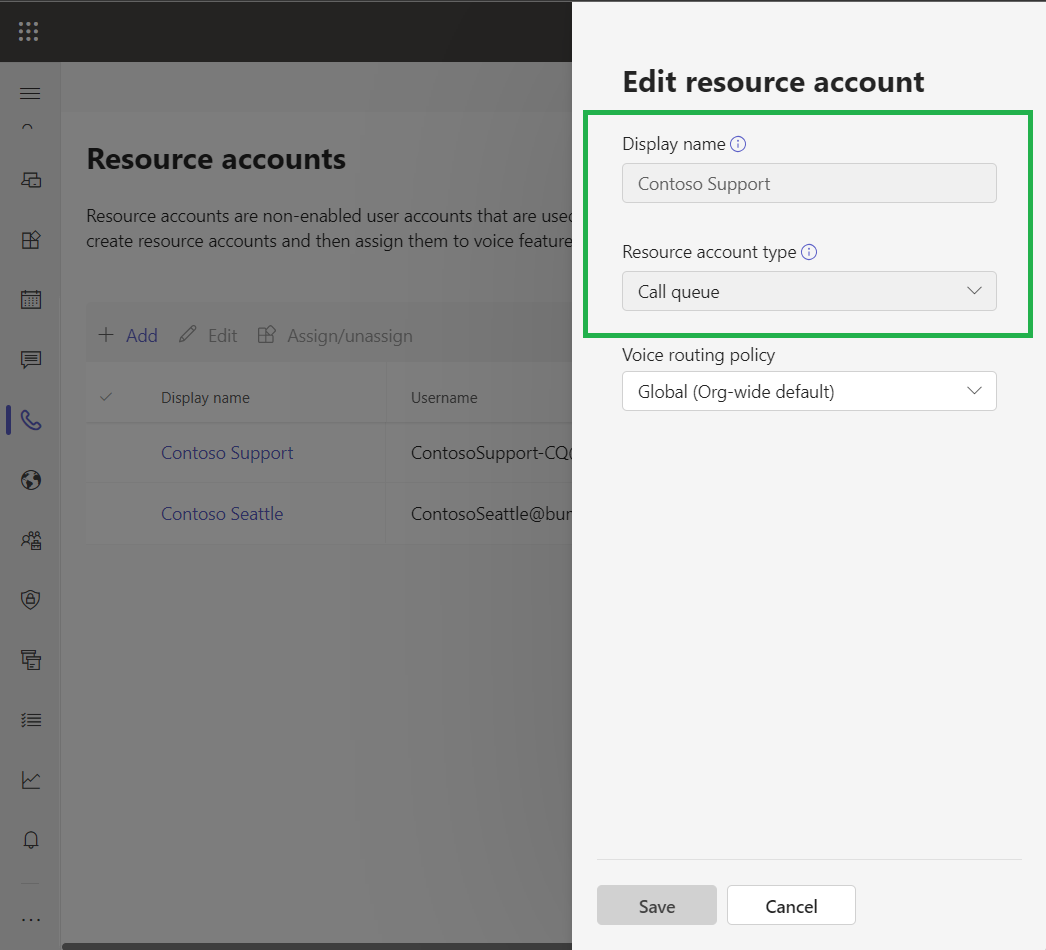
Resource accounts associated with the AA or CQ are a different story. They can’t be edited, either the Display Name or the Username. Well, at least in Teams they can’t.

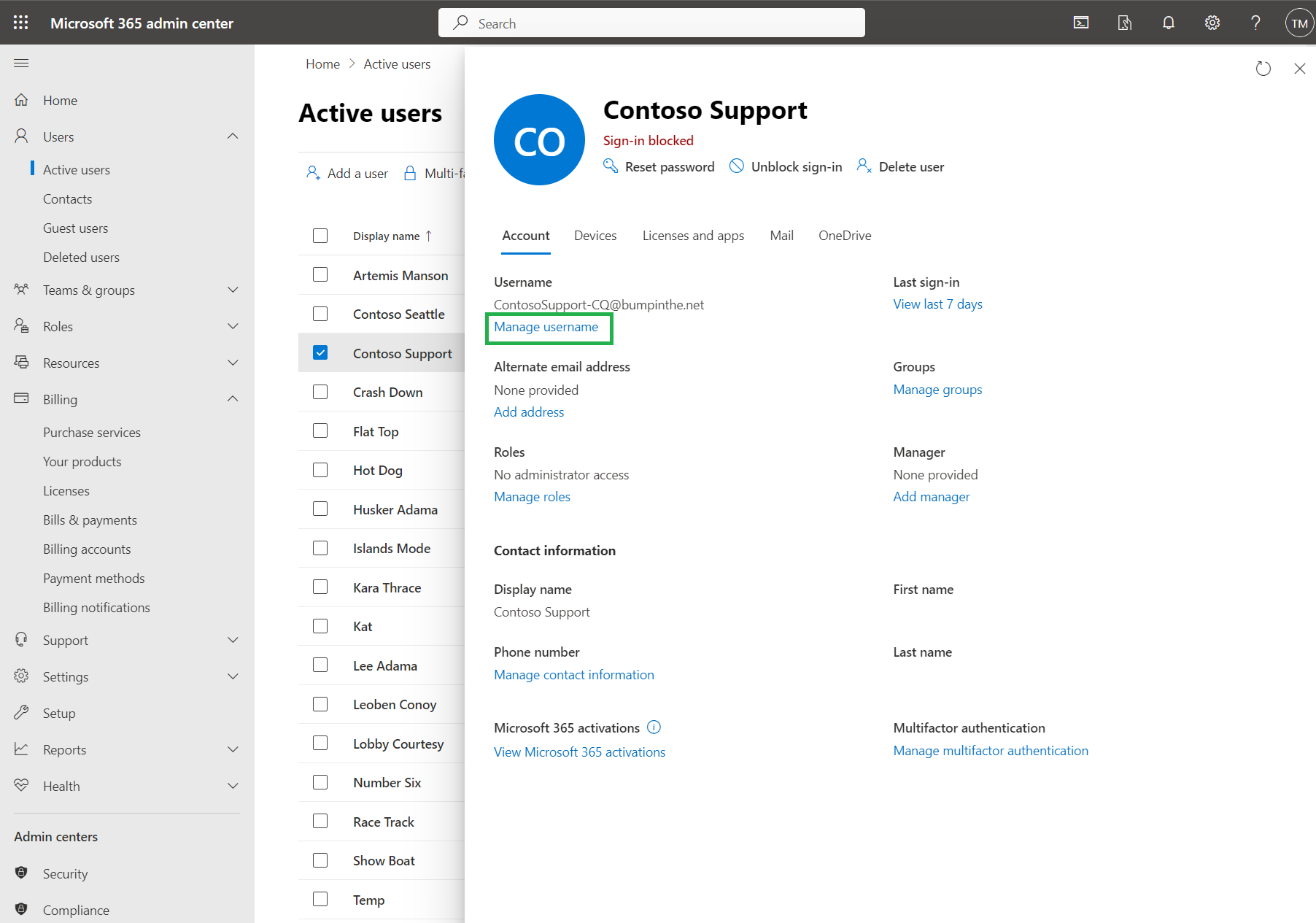
If you head to the Microsoft 365 admin center, Users, Active Users and select the user object associated with your resource account, you’ll see this screen.

From here you can click on Manage Username and you’ll be able to edit away. Click “Save changes” and you’re done, and TAC reflects the change:

But now our Display Name is still a mess. Head back to the Microsoft 365 Admin Center, and this time click on “Manage contact information”, near the bottom of the screen.

And from here you can update the Display Name

And our change is reflected in Teams

Note that it might take a few seconds (or even a couple of minutes) for Teams to reflect your updates. Hit refresh after a while and you should see the changes.

Happy updating!

Self-help diagnostics in Teams Admin Center

Microsoft has quietly released what I think is one of the most amazing features to ever hit Teams.

Head to https://admin.teams.microsoft.com and you’ll see a widget that looks like this:

Click on one of the 5 topic areas on the left. Let’s stick with voice. On the right, you see a list of common issues. “Dial pad is missing” comes up All. The. Time. So, click on it.

You’ll see a nice long sidebar menu:

And how awesome is this? There are “Insights”, letting you know what’s required for the dialpad to be visible. There’s also recommended articles for deeper learning. And finally, right up top is a lovely area where you can enter the username or email address for your problem user and Teams will diagnose it for you, letting you know if it’s found something that’s wrong.

Now, this isn’t perfect. For example, the insights list “make sure the user has a calling plan assigned”, and that would only be true for Calling Plan users, and not Direct Routing or Operator Connect users. If you’re not a Calling Plan user, you reaaaaly don’t want a calling plan license assigned. And if you’re a Direct Routing user, you need to make sure you have a Voice Routing Policy assigned, and that needs to be a valid Voice Routing Policy, and not just some random placeholder you’ve created.

However, I still feel that this is an absolute goldmine for organizations and admins new to Teams, and also grizzled veterans like myself. I will absolutely head here first if I have a user with no dialpad, rather than splunk around inside Teams looking to solve the problem on my own – I’m not lazy, I’m efficient!

Phone Deployment Tips

If you have a large number of physical phones for a Teams deployment, you may have some logistical challenges in getting the phones deployed at cutover time. This could be physical access to a building, not having enough staff, or significant travel time between sites.

Layering users on top of that, you have further complications – the users need to be present in order to logon, especially with 2FA (you ARE using 2FA, right?). From experience, I can tell you that users will not be at their desk when you need them to be, so you will always need to plan to handle these exceptions.

There are a few ways to arrange things to make life as easy as possible.

If you are lucky enough to have free PoE ports so that you can deploy the phones ahead of a cutover, do that. This lets you get the users logged in before the cutover, and still maintain their existing phone. The old phones can be collected after the cutover – this doesn’t require technical staff to do, nor any particular schedule.

If you need to do a phone swap at cutover time, you may be able to pre-configure the user devices. You’ll need an office, room or space for this, at least 1 PC or laptop, and some PoE network capacity. Users can logon to a phone in this area or room, then label the phone so you know where it needs to be deployed later.

Staffing

Not having enough IT staff for a large phone deployment, or for a deployment in distant sites, is a challenge that often needs to be sorted. You’ll need to hire extra support or recruit some non-IT staff from the sites you’re deploying to. They’ll need to know the logon process for the phones, how to factory reset the phones (in case you need to “start again” with one, or if there’s a glitch), and to ensure the right jacks on the back of the phone are used (for the network and PC connections). This help could be all at cutover time, or you could use the phone pre-configuration approach followed by physical deployment, mentioned above.

If those options don’t work, you can help remotely. You may have to try and walk users through the steps over the phone. Have a PDF ready of the steps they’ll need to take, including a picture of the phone showing what keys they’d need to press/hold for a factory reset, what the ports on the bottom of the phone look like, and what the URL is that they’ll need to enter in their browser.  You could take a step up from the phone call and do a Teams meeting with video using a USB webcam, so you can see what they’re seeing and doing rather than trying to have them describe what they see. This same document and set of steps will be helpful for your helpdesk team for the initial deployment efforts, as well as for ongoing support.

And lastly, if it’s possible to have the phones logged in and to remain powered up, you should head to Teams Admin Center and push firmware updates. If this isn’t possible, then do play for firmware updates to be pushed at the end of the business day for the site(s) you’ve deployed.

Emergency Calling: Trusted IP Addresses

When you’re configuring Microsoft Teams emergency calling, there are two end-user experiences. One is where Teams automatically establishes where the user is, based on network information that you’ve configured in Teams. The other is where the client depends on the OS location services and/or the user for a physical address.

For Teams to automatically establish your location, there are a number of pieces of network information that are required. The first of these is what Teams calls a “Trusted IP Address”. That’s maybe not the clearest name, but to be fair the name would get pretty huge if it was any more description.

A Trusted IP Address is any of your organizations public IP addresses that are dedicated, typically statically assigned. When a Teams client accesses Teams using one of these public IPs, Teams can trust that your client is inside your network. There are a few key points here:

Dedicated – The address cannot be shared like some cloud security services do, nor can it be dynamic and change at the whim of your ISP. Fixed IP addresses are typical, though we do sometimes see DHCP assigned “fixed” addresses.

Any – Yes any. Configure the entire range in Teams, not just one IP that clients typically use. This saves your bacon should the firewall guys change which IP clients egress from. It also means you’re covered if someone does something weird like plugging a phone into the server VLAN in the server room.

Trusted IP addresses are configured in TAC under Locations, Network Topology, Trusted IPs. If you click add, the dialog looks something like this:

Pretty straight forward! In the description field, put something meaningful to human. This has nothing to do with your location for emergency calling, but something meaningful like I’ve shown above is very helpful once you have more than one Trusted IP range.

If you’re a PowerShell fan, check out New-CsTenantTrustedIPAddress.

Note that your organization may already have assembled a nice list of these addresses in Azure for Named Locations in the MFA/Condition Access settings. You can spot-test if you’ve got an address in your list by having someone in a site browse to https://www.whatismyip.com. If their public IP address isn’t listed as a Trusted IP Address, you should first investigate if it meets the “dedicated” criteria above, then add it to the Trusted IP Address list.

I’ve been asked “If we monitor our dynamic public IP address for changes, can’t we just have a script run to update that in Teams?”. Well yes you could, except there will be a period of time for the IP change to work its way through Teams and down to all of the clients that require it. So, don’t do this. Instead, sites with dynamic public IP addresses will need to use the “work from home” or “External location lookup mode” as it’s more properly called. I’ve already posted a bit about this function, stay tuned for more.

Office 365 is now Microsoft 365 – Business Voice Changes

It looks like it’s time to rename something at Microsoft again. Today’s change is Office 365 becoming Microsoft 365, especially around the Business plans that Business Voice packages work with, the first three on the list:

O365M365

Despite some possibility for confusion with the “Premium” moniker shifting spots, I’m please to see “Basic, Standard, Premium”, which makes far more sense than “Essentials, Premium, Business”.

Remember that you can add Microsoft 365 Business Voice calling plans to any plan that has Teams, with the exception of the F series of licenses for Frontline workers. You can add up to 300 to any organization, then you need to step any additional users up to the fully Cloud PBX and Calling Plans(or Direct Routing)

And finally, Business Voice is coming to the US market as of April 1, 2020.


Channel vs Chat Smackdown

During one of those long, philosophical conversations with a colleague, we were discussing governance/guidance around the usage of channels vs chats.  That spawned a few other conversations Here’s what we came up with:

First, chats will store documents in the OneDrive for Business of the person sharing the file. Channels will store documents in the SharePoint library for the Team/channel. That could be impactful if you are applying different retention policies on the Team/channel.

One very adamant opinion was that if there is a Team that the post could possibly belong to, it should be posted there so it can be seen by other Team members, whether or not it’s felt that this is something they “need” to see. This was described as “working out loud” in another discussion on private channels.

To the contrary, others felt that only very specific “final” content should be posted to a channel conversation, and that “drafts” or “side discussions” should take place in chats.

A rule of thumb that one person uses, is that if the conversation is private or can be “easily forgotten” about by the organization without any impact, then a chat is fine.

In a discussion, someone felt that chats were useful to make sure that someone responded to an item, and that things would get lost in a channel. While this could happen, it was pointed out that use of @mentions should work to prevent the conversation from getting lost. Others contributed that there were still some misgivings or reluctance to @mention people in Teams (or even Outlook). Finally, it was mentioned that threads in channels provide for a much more scalable multi-conversation experience than multiple chats.

Another person commented that a chat might be used if you think the person you are contacting has the answer to a question, which a channel would be for a multi-person “help me! Who knows XYZ”.

Finally, one person compared the difference to Facebook wall posts vs a Messenger chat.


Private Channel Use Cases

I love the concept of private channels. Working with Microsoft partners to deploy Teams solutions for customers, it’s a natural fit to have a Team per customer and then project based channels underneath that. Key staff from the customer are usually added as guests. With the release of private channels a few months ago, we can now have an “Internal Only” channel for discussions and drafts. Previously, we’d have to set up a second Team to achieve this same security boundary.

I was curious about what other organizations were using private channels for now that we’re a few months in. I posted on a social media, asked around at user groups, and here’s what I found:

For events, private channels can be used for speakers, or groups of speakers. Organizers or staff with different roles might have their own private channels. Overall though, Team members were able to access non-sensitive areas to promote “working out loud”, which serves as a sort of replacement for hallway conversations.

A managed services organization uses a Team per customer approach, with channels to organize various aspects of services for the customer. A private channel is used for internal conversations and planning.

Another use was to allow guests – from various partners or sub-contractors to interact with the main organization, or possibly each other, without needing to create numerous Teams. This approach does require that nearly every channel would be private, since there is no way to invite guests to just a channel.

Some organizations don’t feel that private channels are ready yet, and disable them. Reasons were around information protection and the ability to properly control their intellectual property. Others had concerns over “SharePoint Sprawl”, as each private channel gets its own site collection. Along these sames lines, one organization did like the lack of ability to “privatize” and “publicize” channels – they felt the lock-in once the channel was created could cause pain down the road if they made the wrong choice.

Others noted that some features, like Planner, are O365 group based and aren’t supported in private channels. Private channels (and “vanilla” channels) don’t have O365 groups, while the Team is O365 group based.

I think it’s fair to say that private channels are useful for many who need an administrative way to separate things. It’s likely also fair to say that private channels currently fall short of what other organizations need in terms of governance and compliance.


Calling Plans vs Direct Routing

A significant decision for any organization looking to deploy Teams voice workloads is whether they will use Calling Plans, Direct Routing, or some combination of the two. I couldn’t find a decent comparison between the options, so I wrote this one.

Calling Plans

Calling plans are where your PSTN calling services are provided by Microsoft. Essentially, Microsoft becomes your telco (telephone company). Currently Calling Plans are only available in less than a dozen major countries, with no plans to roll out service to more.

Direct Routing

Direct Routing is where you connect a certified SBC to Microsoft Teams, and then any service you wish can connect to the SBC. This includes PSTN access from a telco, but can also include other PBXs (I’m looking at you Avaya and Cisco) or analog devices like enterphones/door buzzers and overhead paging.

Mix and Match

A user can be assigned a phone number from Calling Plans or Direct Routing. This is a per-user decision – Kim in cube 123 can be on Calling Plans, while Sam in cube 124 is on Direct Routing.

Note here that we’re talking about the user’s phone number. A user who’s PSTN services are provided by Calling Plans can use Direct Routing to reach an Avaya system or analog devices. Calling Plan users cannot be reached via the Direct Routing trunk. If an Avaya user calls a Calling Plan user, the call must be routed via the PSTN.

Here are some other comparisons:

Calling Plan

Direct Routing

Pay per user, per month. Multiple plans available, minutes pooled between users in same country with same plan.

Usually pay per channel. Generally cheaper as more users are added.

No channel limit

Connections will have hard channel limits, or limits with burst capability, but are not unlimited

Users are allocated a number of minutes per month

Generally no minute limitation

Microsoft is your telco, billed with the rest of O365 services

Can use any telco service available, separate bill from the telco

Does not require additional equipment

Requires a Session Border Controller – purchase costs (physical or virtual), ongoing maintenance, channel limits, hosting costs (in your office, a datacenter, or cloud based). Multiple will be required for HA. Will need SBC located in same country as services (typically)

Some telcos offer hosted SBC services along with SIP trunk services.

Cannot provide access to on-prem equipment

Can provide access to on-prem equipment

May have limited advanced emergency calling capabilities for your country

Excellent options for emergency calling in all countries. Usually via SBC but sometimes via feature-rich 3rd party integration.

Limited number translation inbound/outbound

SBC provides for wide array of number translation options

Hit me up in the comments or @bumpinthenet on Twitter and let me know if I’ve missed anything!