
In my last post I talked about changing the “organization name” reflected in an emergency address. If you try to do this in Teams Admin Center, you’ll run into a brick wall:
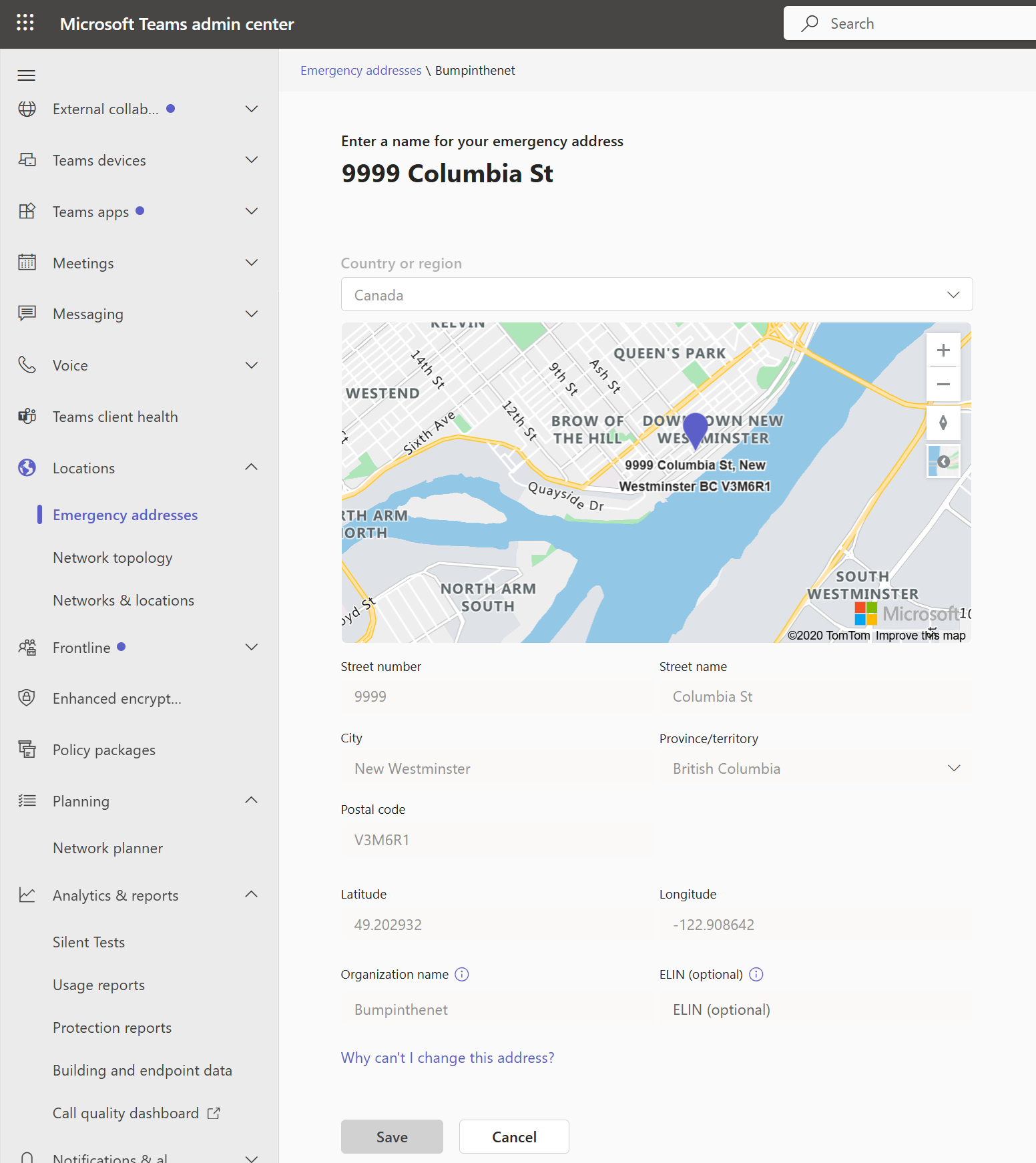
Note the little “Why can’t I change this address?” at the bottom. Well, the good news is that you can indeed change it, but you need to use PowerShell.
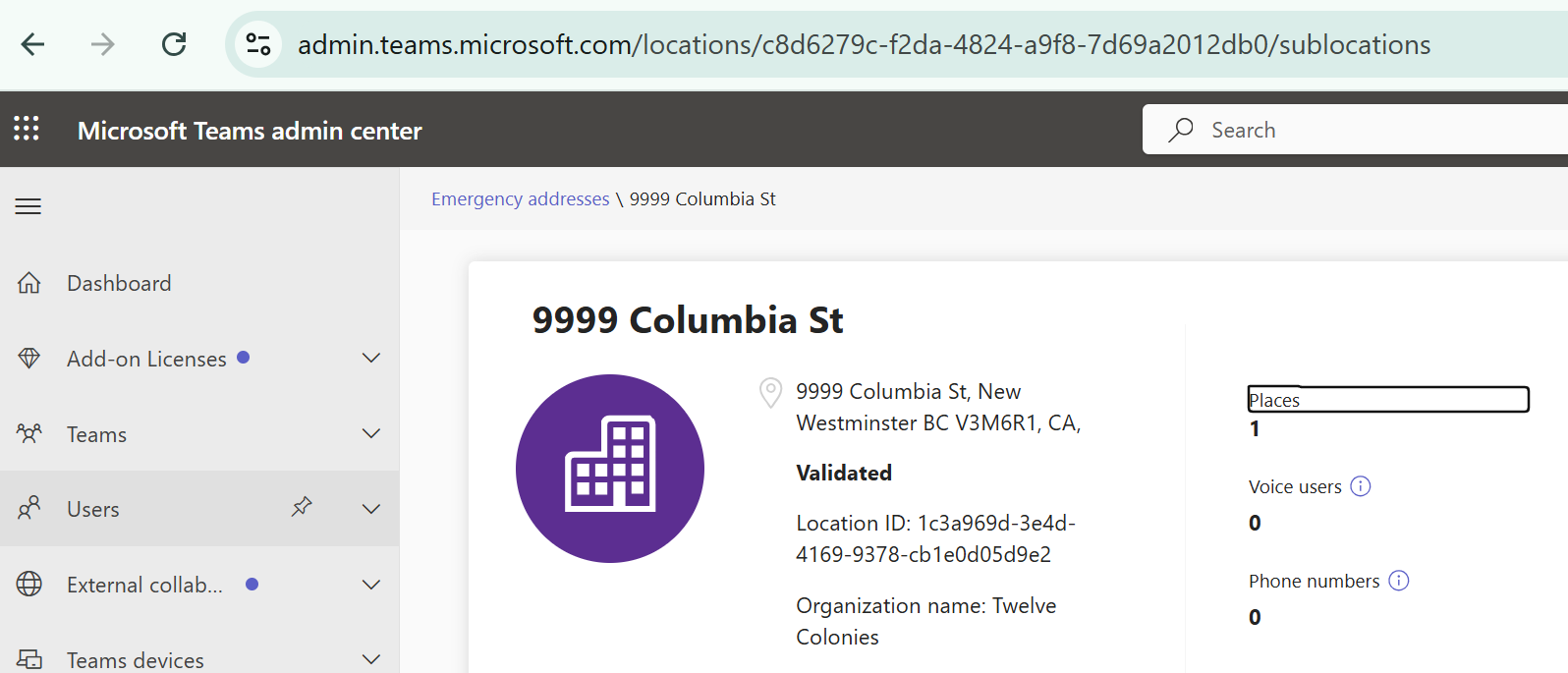
First, head back to the Emergency Addresses page in Teams Admin Center and make note of the Location ID
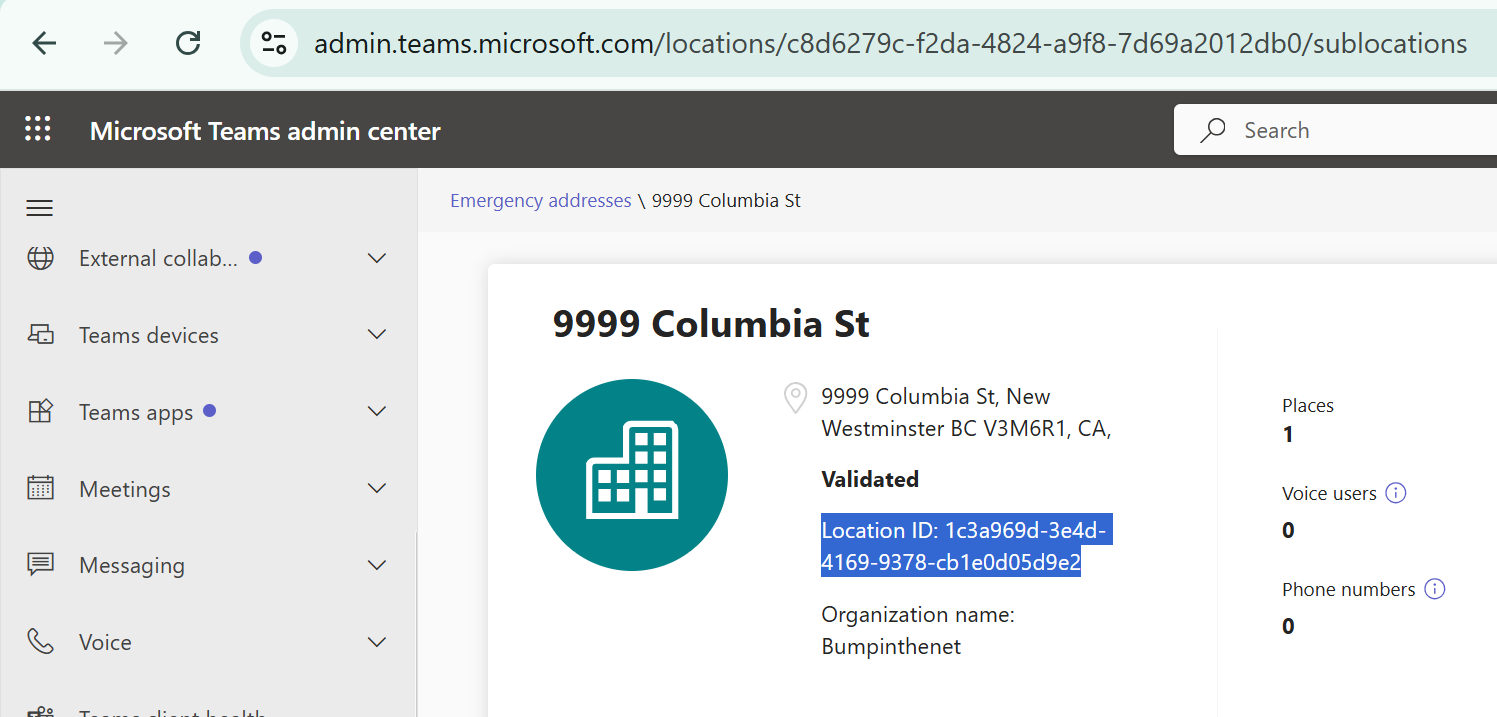
We don’t want to modify the Location, we want to modify the Emergency Address. However, the Civic Address ID that represents the emergency address is no longer displayed in TAC. So, we’ll connect some dots in PowerShell to get what we’re after.

Now we have our CivicAddressID and can use that to view our Emergency Address/Civic Address
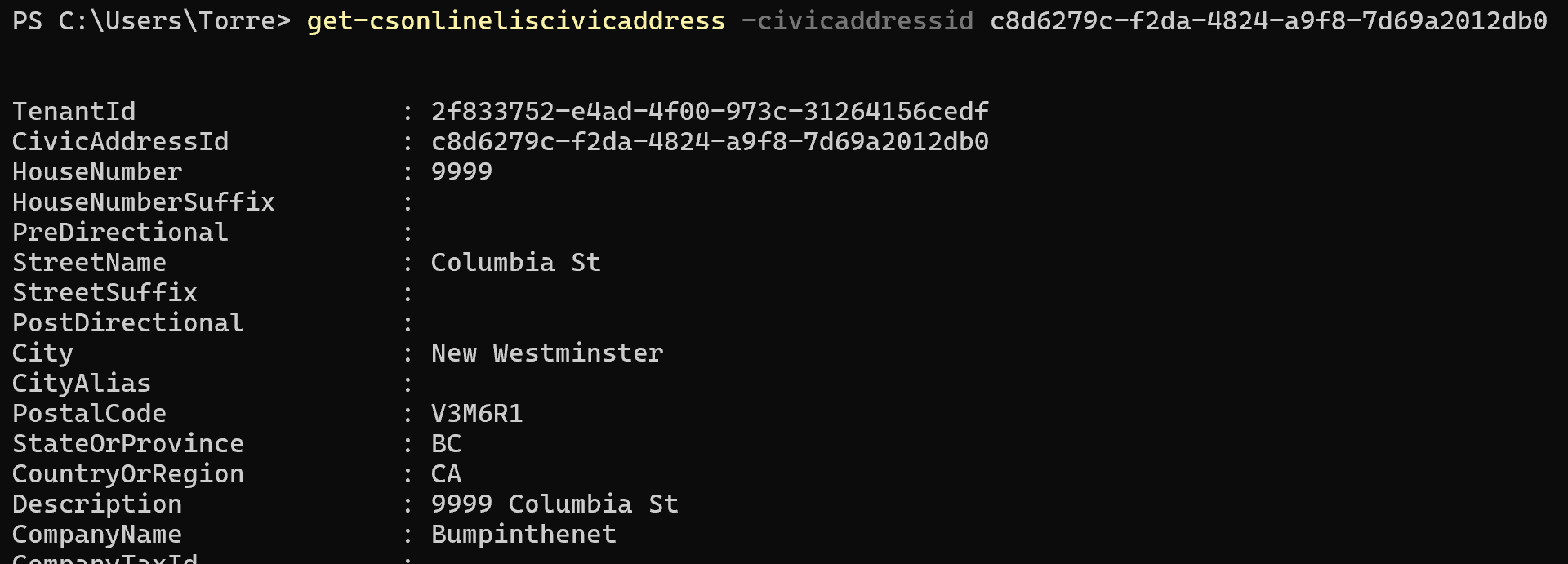
And here we can see our Organization Name/Company Name (sooo many things with different names in TAC vs PowerShell vs M365 Admin Center…)
Now, we want to ensure we’re making changes to the correct object. So hit the up arrow and edit that get- command to be a set- command, and add -CompanyName and the new name string

Triple check you have the correct Civic Address ID, then hit enter. Success!
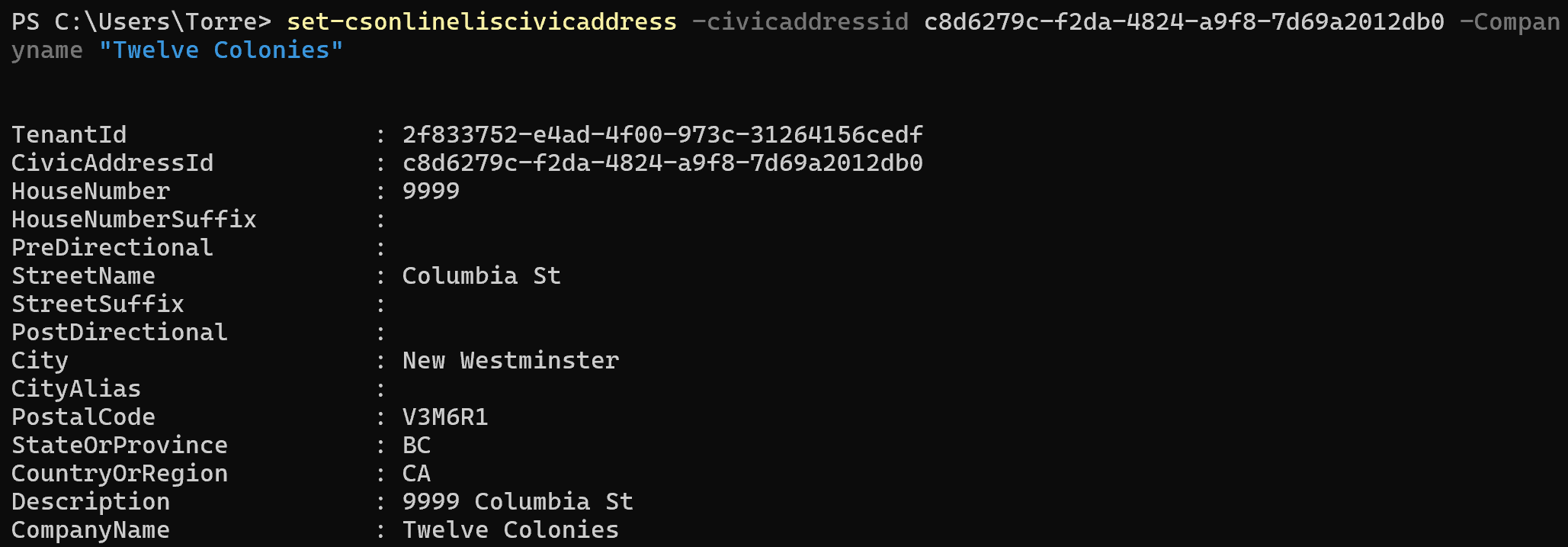
And we see the same in TAC
You can use the same process to change most of the other fields that you see when you did the Get-CsOnlineLisCivicAddress. This is great for fixing typos, updating addresses or names, or just tweaking capitalization in spots because not having everything is painful to you.

