Normalization and Translation with Gateways and SfB

Skype for Business has a number of areas where you can normalize or translate a number. When we’re dealing with users, normalization is the process of taking the number that they’ve entered or “dialed”, and converting it to a standard format for further processing. This normalization allows the user to maintain local dialing habits, and convert them to a standard format. That standard format is E164, which also ensures the number is globally unique. When we’re dealing with calls received from the telco or PBX, normalization refers to the process of converting the called number into E164 standard format.

Normalization is a form of translation, but not all translation is normalization. When we’re sending a call out of SfB, we might need to translate to a format that’s expected by the device we are sending the call to. That format might not be standard or globally unique. This translation can take place on both the called and calling numbers. This translations is configured in Trunk Translation Rules.

Trunk Translation rules can only match and translate same field. For example, SfB cannot match on Calling Number and translate the Called Number. However you can match and modify a called number and match and modify the calling number, on the same call.

Outside of SfB, number translation can happen

  • At a PSTN gateway or SBC
  • At an analog gateway
  • At a PBX
  • At the telco (few and far between, but some do!)

The options you have within these systems will vary. Generally speaking, the gateways and SBCs are very flexible, PBXs somewhat flexible, and telcos are something that you shouldn’t count on.

Depending on what are we’re talking about, there are a number of overlapping options available, so which ones should you use?

In general, you’ll want to avoid a smattering of different translations. Where ever possible, keep all of your translations in one system. Which system? Usually SfB, because most organizations have more people that understand SfB more thoroughly than gateways. For example, when you’re sending a call to +14258675309, the telco probably wants you to send only 4258675309 to them. You could strip the +1 within SfB before you had the call to the gateway, or you could strip it at the gateway before you hand it to the telco. SfB is my preferred option here.

Sometimes, your hand will be forces. Let’s say you want all calling numbers (your caller ID) to be changed when you call to a certain area code. You need to match on the called number, but change the calling number. SfB doesn’t handle complex translations like this, so you’ll have to use a gateway.

When you’re considering analog devices dialing through SfB, you can perform normalization in the gateway or in SfB.  If you use a dialplan within SfB, you can take advantage of the “select” feature to select normalization rules that already exist in SfB. Generally, you would want to use the same rules that are in the Dialplan that apply to the local users.

There’s some confusion over how to assign a Skype for Business Dial Plan to an analog device. Technet states “you can then manage the analog device by assigning policies and dial plans to the contact.” It turns out that you can’t apply a dial plan to a CsAnalogDevice. Well, you can apply it, it just won’t work.

When you look at how user level dial plans work, this makes sense. User dial plans are applied at the device level: your SfB client on your PC, your mobile client, or your AudioCodes 440HD phone – any SfB client. An analog phone isn’t an SfB client, nor is the gateway that it plugs into, so there is no place for the normalization rules to be downloaded to and applied. Instead, you need to use a pool level, site level, or global dial plan. These dial plans will apply at the server level for inbound calls, but will also be used for users if a user level dial plan doesn’t exist.

For gateways, I’ll use the Global Dial Plan in smaller environments, and Pool level Dial Plans in more complex or geographically diverse environments. The Global Dial Plan can quickly get messy if you try to stuff in enough rules to handle larger, global deployments.

Analog Devices – Skype for Business Routing

In my previous post I talked about options for routing calls within gateways. In this post, we’ll take a look at how Skype for Business routing options work with the gateway.

When you’re working with analog devices, you have two ways of configuring routing in SfB. The first is the standard SfB routing, which is flexible and resilient. However, analog devices don’t require this flexibility – they are attached to just one gateway by a pair of copper wires. It’s possible to simplify the routing to analog devices by the use of CsAnalogDevices, which is a SfB object you create with the New-CsAnalogDevice PowerShell command. A CsAnalogDevice object registers to a pool, allows a SIP address and display name for an object to be added to contact lists, specifies the gateway that the device is plugged in to, and offers fax handling.

When you place a call to a CsAnalogDevice, the SfB routing process will route the call to the specified gateway, and not via the normal SfB routing process. This helps keep your routing configuration tidy if you have a number of analog devices, since you would need to specify routes manually for each number. You’re entering that same information when you use CsAnalogDevice, just in a much nicer format. If you’re in a large organization, you can also use Role Based Access to allow helpdesk admins to create CsAnalogDevices, but you probably wouldn’t want to turn them loose with making routing changes in SfB.

When you place a call from the analog device, the call is handled via SfB. This means that you can also now easily apply Voice Policies to your analog devices, leveraging the configuration that you’ve already built. Without CsAnalogDevices, you would have to build out your policy manually on each gateway.

When you configure a fax as a CsAnalogDevice, you need to specify “-AnalogFax $True”. This causes SfB to route the call differently, so that the fax call is sent back to the gateway that it came from, instead of routing through SfB.

I recommend this excellent blog post on Lync Faxing. Don’t worry, nothing has changed from Lync to SfB with regard to faxes.

While I’m sending you off to other Blogs, be sure to check out Greig’s post on M:N Routing and CsAnalogDevices. Greig explains a gotcha with naming your trunks and gateways in Topology Builder that may interfere with calls when using CsAnalogDevices.

Routing is an interesting topic of its own, however you can’t really consider much about routing without also considering number translation and normalization, which is the topic of my next post.

Analog Devices – Gateway Routing Options

Gateway routing

Whether gateways have SIP trunks, PRIs or analog lines and devices, they all need to make routing decisions. In very simple architectures, a gateway only connects two systems – usually the PSTN and SfB – so there are no decisions to be made. Calls coming in one interface are sent out the other.

When you have multiple interfaces and systems to route between, you have a number of options for routing choices. In most cases, you can combine these choices.

Static Routing

Static routing is the least technical option is the most administratively demanding. You build a list of numbers, and assign them a destination. Static routing could include listing every single number, or it could be patterns like 425555xxxx or 74xx.

Analog devices that are connected to a larger gateway, possibly the same gateway used for your telco connection, are easy to route to. When a call reaches the gateway, it checks what numbers belong to devices connected directly to it, and delivers the call their rather than routing it to another destination. These gateways tend to not have very many analog ports, and you might also not be able to connect all of your analog devices to one gateway because of cable runs and gateway locations.

Gateway/SBC Registration

Analog only gateways such as the MediaPack from AudioCodes and Tenor from Sonus can integrate into their respective larger gateways. This integration allows you to treat the ports on the MediaPack or Sonus as if they were on the larger gateway. This gives you the simple routing of “connected” devices, yet allows you to have a number of different gateways in different locations. In this configuration, the analog gateway registers each analog device as a SIP endpoint in the larger gateway or SBC.

Active Directory Lookups

Both Sonus and AudioCodes offer the ability to use Active Directory to determine where a call should be routed. In the simplest SfB configuration, the gateway queries AD to see if the destination phone number is assigned to the msRTCSIP-Line attribute of any user. This attribute is the SfB LineURI, so a match indicates that the number belongs to a user in SfB, and that the gateway should route to the call to SfB. Calls that don’t match can be directed to another location, perhaps a legacy PBX. It’s possible to use more than the msRTCSIP-Line attribute, and build some very complex and dynamic route configurations. Be sure to account for other attributes for different devices like dial in conferencing, auto attendants, and other endpoints that don’t use the msRTCSIP-Line attribute of a user object.

Brute Force Method

If you don’t want to deal with Active Directory lookups, or are in a scenario where that method might not be suitable, you can take advantage of failover behavior. If you configure a gateway to deliver all calls to one destination – say a legacy PBX – and the number isn’t a valid endpoint on that device, the call should be rejected. The gateway can then delivery that call to the next destination in the route table, and so on, until the call is delivered or the destinations in that table are exhausted and the call fails.

And that covers gateway routing. Up next, SfB routing options.

Analog Devices in Skype for Business

Analog devices are one of the least understood aspects of a Skype for Business deployment. In this post, I’ll provide a 30,000 foot overview of how analogs work with SfB on-prem deployments.

An analog device is anything like a phone, fax, alarm system, door buzzer or overhead paging system that uses an analog phone line. That phone line is a pair of wires that form a circuit that connects the device to your PBX or the telco.

With SfB, there is no Sfb hardware device that the analog phone can plug into. You have to use a gateway for this, from Microsoft partners such as AudioCodes and Sonus. However, plugging an analog device into a gateway doesn’t magically make it an SfB device. It doesn’t have presence, it doesn’t logon. It’s still just a boring analog device. The gateway communicates with SfB over a SIP trunk, just as if it were a SIP trunk from your Telco.

Gateways PBX and PSTN

What we’ve got then, is an analog device that has an analog circuit to a gateway, that gateway has a SIP Trunk to SfB. SfB will have a connection to the PSTN, which will use an SBC or another gateway.

It is possible to have analog ports on the same gateway that’s connecting your SfB environment to the PSTN, but for clarity I’m showing them as two separate devices.

When you place a call from the analog phone, the analog gateway uses its routing tables to determine where the call should be routed next. This might be a simple “send everything to SfB”, or it could be more complex and allow connections direction to the PSTN gateway, or to SfB.

When a call comes in from the PSTN, the PSTN gateway has similar options. It can send all calls to SfB, or it can route the calls to different locations. When calling from SfB to the analog devices, SfB sends the call directly to the gateway.

Routing

In all cases, you have to configure the gateways’ routing tables. Every gateway you add to your environment adds to the administrative overhead of your solution, and the complexity of your call routing options.

Call flows and routing decisions are a significant part of dealing with analog devices. In the next posts, I’ll cover how gateways can make routing decisions, and how SfB can be configured to simplify routing to analog devices with some loss of more advanced capabilities.

Emergency Calling Oopsies

I know more than a few people in emergency services, and they’ve shared some of their stories around bad location information situations. I wanted to share a few of those here so that you get an idea of what can occur. All of these scenarios are preventable – make sure you’re not contributing to future examples!

The Case of the Amphibious Cruise Ship

The first incident involves a sick passenger on a cruise ship coming in to dock. An ambulance was dispatched, but something seemed wrong to the paramedics – the address didn’t make any sense. The address was near an amusement park well inland, and nowhere near the cruise ship terminal. It turns out that the PBX was hosted in a datacenter near the amusement park, and the correct address for the phone number at the cruise ship terminal was never provided to the telco providing the PRIs.

The Case of the Mixed-up Addresses

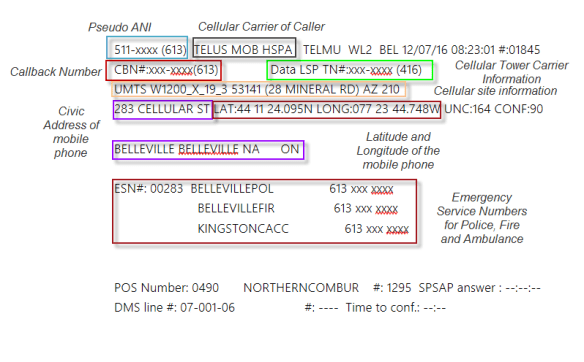
The second incident involves a dispatching error. In a previous post on 911 and mobile phones I shared an example of what is typically seen at the PSAP. Here’s a variant on that example with what the dispatcher saw:

PSAP terminal no markup

In this incident, the dispatcher sent resources to the address of the cell tower (28 Mineral Rd in this example) as the location of the mobile phone had not yet populated in the ALI database.

The Case of the Relocated Consumer

The third example involves a consumer with a home VoIP service. The consumer moved from a major city to a remote area, and neglected to update their address information with the carrier. When they placed a 911 call, they were connected to emergency services at their old address. Without a built-in method for reassigning the call to the correct PSAP, the staff relied on their wits and contacted a friend in the police service who’s brother – also a police officer – was near the caller and was able to coordinate a response.

The Cases of the Swapped Suffixes and Dizzying Directionals

The fourth and final scenario isn’t a specific case, because it’s too common. When you provide addresses, be very careful for suffixes like “street”, “avenue”, “circle”, etc., as in many areas the same road name will exist but with different suffixes. Mixing up or omitting directionals like “north” or “west” is also too common. Be really careful if you have craziness like “Maple Court East West” or “North Main Street Southwest”. Dispatching emergency services to the wrong location can have terrible consequences.

Your Goal

When you’re deploying SfB – or any phone system or line for that matter – take an extra moment to ensure the address is correct and clear. In the US, you can use the USPS address format to make sure your suffixes and directionals are clearly expressed.

911 and Mobile Phones

In my previous post I talk about how e911 services can use ANI and ALI information to know where you’re calling from when you’re on an analog circuit. Now let’s consider what happens when you call from your mobile phone instead of an analog landline.

Mobile Challenges

When you call 911 from a mobile phone, several challenges arise when trying to determine your location. Since you could be just about anywhere, it cannot be assumed that you are at your home or “billing” address. Instead, the telco needs to sort out your location. There are two different location determinations that need to be made.

Routing your call to the correct PSAP

The telco needs to connect your emergency call to the correct PSAP. This could be a simple determination if you’re in the middle of a large geographic region service by one PSAP. It could be a losing cause if you’re near a jurisdictional boundary, especially if your mobile is connected to a tower in the neighbouring jurisdiction. Two neighbouring counties may know how to re-route your call if you wind up talking to the wrong PSAP, however that may be more complicated if national boundaries are involved.

Providing your location to first responders

Once the telco has routed your call to the (hopefully!) correct PSAP, the PSAP needs to know where you’re located so that first responders can be dispatched.

PSAPs and Pizza are not the same

John Oliver has a brilliant segment on YouTube where they stand in a PSAP and order pizza using a smartphone app. The app knows exactly where they are. The PSAP call taker doesn’t get the same results.

Why the different results? When you use an app to order pizza, the app has full access to the location gizmos like GPS in your smartphone. Your mobile call to 911 doesn’t, since there’s no standards or protocols in place for your phone to report its location to the PSAP. The 911 infrastructure just isn’t advanced enough to receive that location information.

Instead, it’s up to the telco to try to establish your location. It does this by calculating the length of time it takes a signal from your phone to reach a cell tower. This tells the tower how far away from it you are, but does not give a reasonable direction. Assuming you are near multiple towers, up to 4 are used. More towers means better accuracy.

A tower will have a very rough idea of your direction. Most towers have 3 or 4 antennas pointing in different directions, and their coverage areas are far too broad to be of use.

Once the telco has calculated your latitude and longitude, this information needs to be provided to the PSAP. The methodology for this seems like a Rube Goldberg machine: the telco creates a fake phone number for you, called a Pseudo-ANI. It provides this Pseudo-ANI to the PSAP as your phone number. Then, the telco performs an emergency update of the ALI database with a Pseudo-ALI that contains your latitude, longitude, and as much civic address information as can be determined. The PSAP uses the Pseudo-ANI to lookup the Pseduo-ALI, and now they have a location for you. All of this takes time to determine, so there will a period where the PSAP doesn’t have an address for you. Typically the Telco has 45 seconds to populate the Psuedo-ALI, and must update it every 30 seconds.

Mobile 911 service is really a kludge to be “backward compatible” with exisitng 911 infrastructure designed for analog phones.

Here’s what the PSAP will see once the telco will see when the information is provided (my labels are in italics, and refer to the nearest coloured box):

PSAP terminalNext up, we’ll have a look at how VoIP Systems can use 3rd party “next generation” services and ugly workarounds to also provide location information to PSAPs.

And do make sure you watch that John Oliver segment, it’s great stuff.


911 Background and Basics

Emergency calling is a part of every SfB deployment I’m part of, and yet it seems to be an area that most people don’t have a good background on. This makes understanding capabilities and limitations a bit of a challenge. Over the next handful of posts, I’ll cover the background behind 911, some basics on how 911 works with boring analog home phones, traditional TDM business phones, mobiles, and then we’ll through SfB into the mix.

Let’s start by talking about an analog home phone, or a single business analog line like for a fax machine. When you sign up with your telco for this line, you provide them with an address for service, and that address is where the line terminates. There is no option for you to move the line, so the telco can build a large list of names, addresses, and phone numbers, and be very confident in the static nature of that list, and thus its accuracy.

I won’t address MLTS, or Multi-Line Telephone Systems, aka a traditional PBX connected to the telco via PRIs. For the purposes of how 911 works, they’re largely treated as a collection of virtual analog lines, and there’s not much different about how that’s handled – you assign locations to numbers, and the telco enters that information into their databases.

In a 911 (vs e911) scenario, when you call 911, no address or telephone number information is provided. The caller has to provide this information. Once your location is established, that operator has to transfer your call to the correct PSAP – Public Safety Answering Point – local to you. That’s never fun when you’re in distress, so in most regions of North America we’ve progressed to e911 – e for enhanced – where your information can be automatically passed on.

With e911, the address that you provided to the telco is put into a database along with your phone number. Now when you call 911, the telco can use this information to route you to the correct PSAP, and the operator at the PSAP can see your information on their screen. As a safety measure, they’ll almost always verify your address with you. When your number is automatically display at the PSAP, it’s referred to as the ANI, or Automatic Number Identification. . The PSAP then takes your ANI and performs a database lookup to retrieve the civic address. This is called the ALI, or Automatic Location Identification.

Though very similar, ANI and Caller ID aren’t the same thing. Caller ID is for customers and can be blocked. ANI is for telco use. You can block your Caller ID, you cannot block ANI.

This system works very well with static analog systems, where a pair of wires physically terminates at the address you provided. It falls apart completely when the phone becomes mobile, either VoIP or cellular. In my next post, we’ll consider how cellular/mobile e911 can work (and fail!) and why the pizza company knows more about your location than your PSAP.

Main Number Handling: Response Groups, pt 6 – Interactive Response Groups

We’ve setup and explored almost all of the functionality that Response Groups have to offer. The remaining part is Interactive Response Groups. You may know these as IVR, or Interactive Voice Response, or call trees.

Interactive Response Groups allows you to play a message, and have the caller press a key or say a response, in order to direct them to the most appropriate Queue.

Configuration Differences vs Hunt Groups

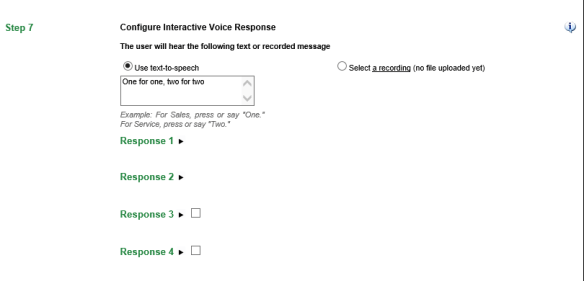
In comparison to Hunt Groups only Step 7 in the configuration process differs. In Step 7 for Hunt Groups, you simple select a Queue to send the call to. For Interactive Response Groups you need to specify, at a minimum:

  • A welcome message, either icky text-to-speech or a recording
  • Two options for your callers to choose from, along with Queues to deliver them to

With the response details collapsed, Step 7 looks like this

Step 7 collapsed


Note that Responses 3 and 4 are optional, use the checkbox to enable them.

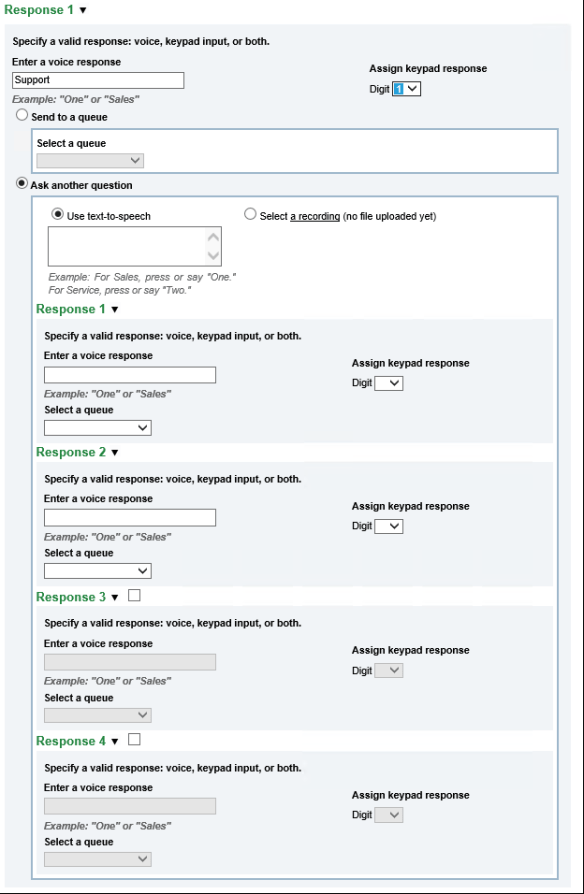
The configuration options within each Response are the same. First, you specify what response from your caller corresponds to this Response option:

Response 1

You can configure keypresses of 0-9, *, #, or nothing. You can also provide voice-recognized words for your callers to use. Note that a blank keypress means your callers must use a voice response. Given that crummy cell phone calls can interfere with speech recognition, you should always include a keypress option. For voice recognition options, you can include multiple responses separated by a comma. For example:

Response 1 multianswer

If you want to offer more level of questions, you can choose to ask another question instead of sending a call to a queue

 Full Response Expand

Here again, you must provide at least two options, and you have an option to provide up to four.

With the four “level one” options, and then 4 more “level 2” options, you can ask you callers a maximum of two questions, and direct them to 16 different Queues based on their response. In my experience, that’s more than sufficient to prevent annoying your callers, but to also get them to the right agent. If you need more options, you can use PowerShell to configure more, Anthony Caragol provides a great overview of that process. That doesn’t look like fun, and if you build a mess and hand it off to a co-worker, I’m pretty confident you won’t be getting any Christmas cards from them. Worse would be if you build a mess, and then have to come back and change it yourself in several months.

You might also consider Call Flow Manager which provides a much better interface and allows for more options.

However, be aware that if you configure a Response Group that has more options than your GUI of choice, you must resort to Powershell. Planning your IVR carefully means happier callers, and happier you. If you find yourself being forced into PowerShell to manage your IVR Response Groups, I’d say that’s a pretty strong indicator that you should have a look at contact center software.

When you’re configuring multiple layers, note that you don’t have to have two layers for every option. For example, if your first level question is “Sales or Support”, you can send calls for the sales team off to the Sales Queue, and then ask  a 2nd level question for those who chose Support.

There is a lot of flexibility in the Interactive portion of Response Groups versus a standard Hunt Group. Plan carefully to keep yourself happy when you to support what you’ve built!


Main Number Handling: Response Groups, pt 5 – Timers

In my previous posts on Response Groups in my Main Number Handling series, I only lightly touched the area of timers on Groups and Queues as I feel they are better discussed together. As a refresher, the Group has an “Alert Time” value that has a default of 20 seconds, but can be set anywhere between 10 to 180 seconds:

AlertTime

Queues have a “Time-out Period” that also has a default of 20 seconds, and can be set from 10 to 65535 seconds – (about 18 hours!):

QueueTimeout

Note that the Queue time-out isn’t active unless you enable it. Not enabling a time-out causes the Queue to send the call to Groups forever – which probably means until the caller gets annoyed and hangs up. Be nice to your callers, and configure a timeout.

When a call is processed by a Workflow and send to a Queue, the Queue first determines if there is an overflow scenario – too many calls in the queue – based on the overflow settings. If not, the call will be sent to the first group listed in the “Groups” ordered list of the Queue.

Within the Group that has been selected to handle the call, a set of Agents will be identified based on the Routing Method you configured and the presence status of the Agents in the Group. The call will be offered to those Agents until

  • Someone answers the call
  • The Alert time expires

If no agent answers the call, the call is sent back to the Queue level for handling

  • If the Queue time-out is not enabled, or is enabled but has not yet expired:
    • The call will be sent to the next group in the Groups section of the Queue.
    • If the Queue has sent the call to all of the Groups in the list, it begins again at the top.
    • If there is only one Group, the call is sent to that Group again. They may notice a slightly longer delay in between rings, but otherwise their phones will ring continuously.
  • If the Queue time-out is enabled and has expired, the Call Action for the time-out takes place.

Let’s look at a couple of timer examples, assuming in all cases that nobody answers the call.


If the Queue time-out and Group Alert time are both set to 20 seconds, the Agents selected by the Group will ring for 20 seconds, then the Queue timeout action will apply.

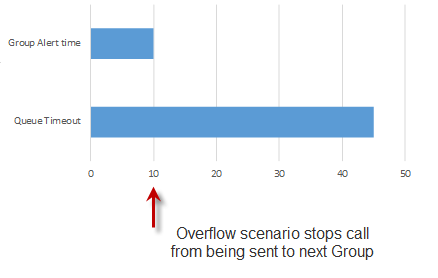
If the Queue time-out is set to 20 seconds, and the Group Alert time is set to 30 seconds, the Agents selected by the Group will ring for 30 seconds, then the Queue timeout action will apply. The Queue time-out doesn’t overrule or short circuit the Group Alert time, the Group is allowed to ring for the duration of the Alert time:

Group greater than Queue

If the Queue time-out is set to 30 seconds, and the Group Alert time for the only group is set to 12 seconds, the Agents selected by the Group will ring for 12 seconds, then be sent back to the Queue. Since the Queue timer hasn’t expired, it will be sent back to the Group for another 12 seconds. The call will return to the Queue, and since there are 6 seconds remaining, the call will be sent back to the Group where it will ring the Agents for another 12 seconds. The Agents ring for a total of 36 seconds.

Group 3x for Queue

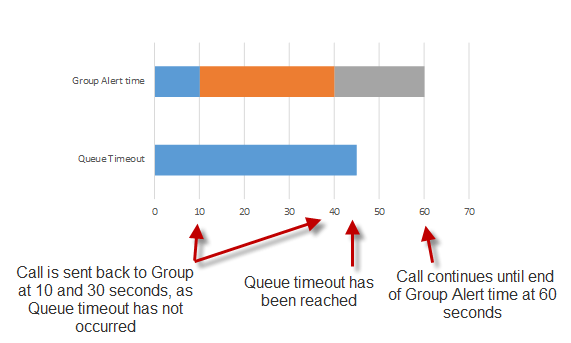
If the Queue has a Group list with multiple groups, each Group can have its own Alert time. Let’s say we have a Queue with a time-out of 45 seconds. The top Group in the list has an Alert time of 10 seconds, the second Group has an alert time of 30 seconds, and the third group has an alert time of 20 seconds. The call will be offered to the first Group, return to the Queue after 10 seconds and then be sent to the second Group. It’ll ring there for 30 seconds, then return to the Queue. 40 seconds have passed, meaning 5 seconds remain in the Queue time-out. The call is sent to the third Group where it rings for 20 seconds, then returns to the Queue. 60 seconds have passed, which exceeds the Queue timeout value of 45 seconds, and the timeout call action is taken.

Group different timers

Plan your timeouts carefully, otherwise you may wind up with too much time elapsing before a call is handled by the time-out call actions, especially if you use a number of different groups with different Alert times.

Something I didn’t mention in the above example are the queue overflow settings:

QueueOverflow

If these are enabled, the number of calls in the Queue is compared against the maximum. If the Queue is in an overflow state AND the action is toe Forward the oldest Call, the call will not be send to a Group for handling, and the overflow call actions will take place.

Exception

I’m hopeful that this overview of Queue and Group timers and how they relate to each other helps you understand how to configure your own timer values. My whiteboard has a dotted grid pattern on it, and if I’m planning a complex Queue/Group scenario, I’ll often plot out the combinations of timer values to ensure that what I’m building meets the requirements I’ve gathered. You could use graph paper, Excel bar charts, or even plain paper or whiteboard surfaces with a ruler. Testing all of your timer scenarios can be maddening at best, especially if you are allowing calls to queue for minutes (or hours). A little bit of time drawing out your timers can help ensure that you only have to test once.

Main Number Handling – Response Groups Pt 4 – Workflow Details

In the last post, we covered the essentials that you need to get a Workflow (and your Response Group) up and running. In this post, we’ll cover the full seven steps to configure a Response Group.

Before we begin, a caution:

The Response Group Configuration Tool can hiccup every once in a while, especially if you are creating a number of Response Groups at the same time. I recommend that you  configure the bare minimum of SIP Address, Display Name, and Queue, then hit save.  Come back and edit the Workflow after that.

If you need to step away from the tool mid-build, or have configured some particularly cool and detailed settings, hit save often.

And lastly, you must have already defined the Queue that you will assign to handle calls. Saving after you configure the SIP Address, Display Name, and Queue will save you from getting to the end of the page, and doing a facepalm because you can’t save your Workflow config without a Queue to assign.


Step 1: Activate and Name the Workflow

Let’s break this one down into three areas.

The core of the Workflow
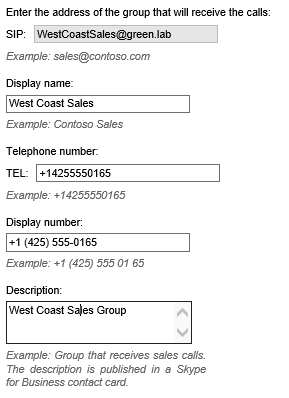
CoreActivateName

We covered SIP Address and Display name in the previous post. Telephone number is straightforward. Note the formatting here, they’ve included the tel: for you, unlike for user LineURIs. Display number should be the Telephone number, but formatted to however local users are used to seeing the number. Description is any text that you wish, and note that this text is published on the Contact Card for the Workflow object.

Workflow objects aren’t much different from user objects in Skype for Business from a contact list perspective. They are searchable, clickable, have contact cards, and you can add them to your contact list and favorite them.

Workflow Management

CoreWorkflowManagement


You have a managed or unmanaged Workflow. Setting a workflow to managed allows you to delegate the administration of the entire Response Group – Workflow, Queue, and Group – to one of more Skype for Business users. This is awesome, because it means that IT is no longer required to make every little tweak to the Response Group once it’s set up.

I think this is a terrible description of the function, because it affects Workflows, Queues and Groups.

Once you’ve delegated management of a Response Group, the manager can use the Skype for Business Control Panel and the Response Group Administrator Tool to manage things like Workflow hours, Queues and Groups, messages, schedules and IVR workflows – all the stuff that IT guys don’t want to do. They cannot create or delete workflows, or change the SIP address and telephone number – all the stuff that would break things that IT would then have to fix.

Note that when Response Group is set to Managed, the Queues and Groups cannot be shared with any other Response Group, even if they have the same manager. This makes a lot of sense, if one manager has created Queues for their business unit, another business unit manager shouldn’t be able to use or modify that Queue for their own purposes. You can assign multiple managers to a Response Group, if you need to.

The default is Unmanaged, which means that only members of the CSResponseGroupAdministrator group can create or edit Response Groups. It’s probably a bad idea to simply add a user like the manager of your account department to this group, it grants them too many permissions and then break all your stuff.

Activation, Federation, and Anonymity
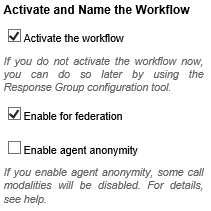
CoreActivationFederationAnonymitiy

Activation is straight-forward. Deactivating the Workflow means your Response Group isn’t going to take calls, but the number and configuration remain assigned. I use this often when I need to preconfigure a Response Group, but don’t want calls coming in to agents quite yet.

Turning Federation on means that users in Federated organizations can place a Skype call to the Response Group instead of needing to call via the PSTN. Since you can always call via the PSTN, turning this off offers no security benefit. If you do leave it on, make sure you test from a Federated client as well as the PSTN. I’ve seen some firewalls prevent a Federated caller from getting to a voicemail from a Queue timeout, but PSTN callers work just fine.

Enable Agent Anonymity is our last option. As the italic text from Microsoft indicates, this does limit some functionality. What it does do, is allow a user to place a call as the Workflow, so that their personal details are not revealed. This is great for helpdesk scenarios, where you don’t want people finding out how to contact your help desk staff individually and directly.

Gotcha! If a user is home on one pool, and a Response Group is on another, the Anonymity function is not available. The Skype for Business Windows client is the only client that I’m aware of that can do Anonymous calls – no phones currently support this function.

The limitations that Microsoft is referring to are minor for phone calls, and typically involve other modalities. For example, you can’t start an anonymous call with IM or video, you have to start with voice and then add the other modalities. If your goal was to have an IM session, it seems like overkill to have to phone the other person before you can flip IM on… Anonymous calls do not support conferencing, screensharing, file transfer, whiteboards, and recording.

Step 2: Select a Language

Use the drop-down to indicate what language you want the Response Group service to use for speech recognition and text-to-speech.

Step 3: Configure a Welcome Message

Step3Welcome

You can choose to play a welcome message to callers, either text-to-speech or something you record. Text-to-speech is great for testing, but not very professional sounding. You can use Audacity or the Windows sound recorder to record a WAV or WMA format greeting, and upload it here. Greetings that you’ve uploaded remain available. You can record all of your greetings at one time, upload them, and then select them as you need them. I’ve seen “closed unexpectedly due to weather” or special holiday greetings used.

Greig has a comprehensive post on audio formats on his blog. I either remember that he’s done this work and refer to it, or I find it in the top results when I do a search.

Step 4: Specify Your Business Hours

This section lets you configure your timezone and business hours, and set actions for when you are outside of your business hours.
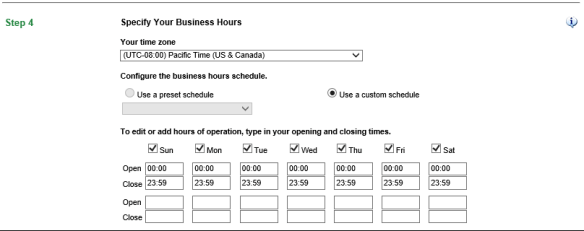
Step4Hours

You can define preset schedules via Powershell and select them here, or you can select “use a custom schedule” and enter your hours in the table. Note that opening hours start at the beginning of the minute, and closing hours end at the end of the minute. When you see 00:00 to 23:59 as defaults, that’s a full 24 hour day. You have two open and close times available, which lets you close over lunch time (or nap time).

There options for you to play a “sorry, we’re closed” message, these are the same as the greeting.

Step4OutsideMessage

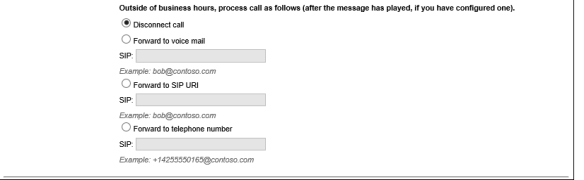
Finally, there are options for how to handle the call after-hours, these are self-explanatory. If you’re going to disconnect the call, please be kind and tell the caller to call back later in the after-hours message.
Step4Action

Step 5: Specify Your Holidays

This option is similar to the after-hours configuration, but is for entire days versus hours or minutes. You configure “holiday sets” via Powershell, but please don’t do this unless you have an irrational love for PowerShell.  These two tools the Holiday Set Editor and Lync Tools will save your sanity.

Step 6: Configure a Queue

This is where you pick the Queue that you want this Workflow to deliver calls to. If your Queue isn’t here, you likely started creating or editing the Workflow before the Queue was in the Skype for Business database. You can pick another Queue, save the Workflow, then edit it again to pick the correct Queue. If you haven’t yet created a Queue, you’ll need to start your Workflow configuration again.

Step 7: Configure Music on Hold

Response Groups come with a default music on hold that will play when users are in the Queue. You can configure your own music, by uploading the file here. There are no options for having a voice pop in every few seconds to remind people about how important their call is. If you want to do this, you’ll need to splice together your messages and your music file. Audacity can handle this for you.

I’ve seen a couple of organizations who have a recording of ringback that they use as hold music. This is illegal in some jurisdictions, but it’s also pretty annoying as the caller has no idea that they’ve been Queued unless you have a greeting. Be nice, configure a greeting, and play the default music or another music file suitable for callers to your organization.

Up next: Response Group Timers and Group Routing Method

I’ve talked a bit already about the two timers in Queues and Groups, as well as the Group Routing Method. I feel that these items need at least one post of their own to get a good feel of how they work together, so that will be covered more in an upcoming post.