Sorting Through Magic Quadrant Cautions for Teams

The November 2023 Gartner Magic Quadrant for Unified Communications as a Service noted the following as a caution for Teams:

The addition of the Teams Phone Mobile along with pay-as-you-go calling plans and Operator Connect program for PSTN connectivity for Teams remains an area of uncertainty among organizations about which PSTN connectivity option is a best fit for their situation. Gartner clients often indicate that they are not clear about the Operator Connect offering, and how it differs from Direct Routing or Microsoft Calling Plans.

I think that’s a fair assessment, with Microsoft having recently rolled out a handful of new and expanded offerings there are plenty of options and they do have overlap and nuances. There are two main themes in this caution: how to connect “voice things” to Teams, and how calling plan licensing works. Let’s take those apart and see if we can clear up any confusion. I’ll also score things on categories of cost/billing, administration, technical complexity, coverage, and features.

Connecting Voice Things to Teams

There are five ways to connect “voice things” to Teams: Calling Plans, Operator Connect, Teams Phone Mobile, Direct Routing, and SIP gateway.

Operator Connect

Let’s start with Operator Connect, or OC for short. With OC, telcos partner with Microsoft to plumb their services directly in to Teams. You can review the list of telcos that can provide various services to various countries. There are a few global players, many regionals, and some national. You contract directly with these telcos for service, and they bill you directly. OC telcos set their own billing plans and rates.

Since OC telcos are plumbed directly in to Teams there’s no equipment to own or manage and thus no configuration time for that equipment. Your phone numbers are available to manage in TAC or via PowerShell, and each telco will offer a portal with varying levels of functionality. When you’re selecting a telco for OC, it’s worth asking about their portal features and getting a demo, especially around features like obtaining new numbers and configuring emergency addresses.

Calling Plans

Calling Plans, or CP for short, can be thought of as “OC by Microsoft”. Microsoft is your telco in this case, which means fewer relationships and bills to deal with. CP is also the fastest to set up, as you can acquire CP licenses in the same fashion as any other Microsoft license. You can be making and receiving calls within minutes. Number management is fully baked into Teams, and indeed it’s sometimes a challenge to understand what is a “Teams” thing and what is a “telco” thing – not that you have to, though. This easy-to-use management is excellent for “accidental administrators” in smaller organizations.

Microsoft has a number of different billing/licensing options for CP. Service is available in a number of countries, but OC from other telcos has the edge here.

Teams Phone Mobile

Teams Phone Mobile isn’t to be confused with the Teams app running on a mobile device. Teams Phone Mobile is a niche subset of OC provided by mobile carriers. Here, your mobile phone number is also your Teams number. For company owned devices this can save complexity and cost. For users who are always (or often) on the go and who are probably tempted to use their native mobile phone carrier for business anyway (*cough* sales guys *cough*) this simplifies things greatly for them, and prevents customer confusion since they no longer have two numbers.

This is a poor option for BYOD devices, that’s be left to “mobile carrier is personal, Teams app is work”. Availability is growing, however you may be limited to choice of mobile carriers.

Direct Routing

When it was being developed, Direct Routing (“DR”) was called “bring your own carrier” or “bring your own trunk”, which is still a great marketing tag line. With DR you connect a Session Border Controller (“SBC”) appliance to Teams, and then you connect anything you want to the SBC. This gives you monstrous amounts of flexibility that CP and OC can’t touch, at the cost of additional complexity and hardware. DR is how you integrate Teams with existing PBXs, other on-prem systems like paging, elevator phones and the like, basic SIP devices, as well as analog devices that you still have kicking around. You are responsible for providing your own carrier services to connect to the SBC, which means you can provide PSTN services to Teams anywhere in the world.

There are plenty of options for SBCs that work with Teams. They can be physical appliances, VMs, or cloud native services. They can be on-prem, in your data center, in a VM in Azure, Azure appliances, or owned/administrated/hosted by your carrier as part of your service – “SBC as a Service”. SBCs can come in high-availability pairs or clusters, and you can (should!) configure primary and backup units.

Owning and operating your own SBCs is not straight forward. There are different enough that any Microsoft or network technical staff will have a tough time properly configuring them. Partners are your friend here. You can also take advantage of SBCaaS with your telco, though you’ll lose much of the advanced functionality that makes the DR solution so attractive in the first place.

Direct Routing is also a requirement to take advantage of the Survivable Branch Appliance (“SBA”). The SBA can provide basic survivable telephony to a location should there be a network connectivity or Teams outage.

SIP Gateway

When an organization selects CP or OC for PSTN services, they’re left with a missing piece of the puzzle if they have analog or SIP devices that need to be connected. This could be paging systems or blue-light emergency phones, or the organization may have a number of existing analog or SIP phones that they don’t yet want to abandon. The only solution used to be deployment of an SBC, and then Microsoft introduced the SIP Gateway. The SIP Gateway lets you connect these SIP and analog (through an ATA or gateway, an “analog to SIP adaptor”) to Teams. This is only for voice endpoints, so you can’t add analog lines from a telco or do faxing.

SIP Gateway is an excellent choice for things like paging or those blue light phones. Some organizations that have a number of existing SIP phones that they don’t want to replace for financial reasons should carefully consider the total cost of doing so. Re-using existing SIP devices (which can include certain Cisco models as well as a number of other generic SIP phones) has a high administration cost as these devices cannot be managed through Teams the same as a Teams native phone. Each phone will need to be visited for a firmware change and registration to the SIP gateway. There’s a labor cost there, possibly a firmware/license cost for each device, and overall lower functionality for call functions, including dynamic e911.

Mix and Match

You’ve probably picked up from some of the above points that it’s possible to run a mix of all of the above options. This provides you with excellent flexibility and ability. Some common mix and match scenarios might be Direct Routing in the US with a handful of staff in the UK on calling plans. Or you may have Operator Connect everywhere but India, and select Direct Routing there to ease compliance with telecom regulations. Direct Routing is a requirement to take advantage of the SBA, however other locations – and even other users at the SBA location who don’t need the survivability – can be on other solutions.

I’ve also seen an organization deploy Direct Routing while they do a long-term migration from their existing PBXs while keeping full interoperability in place between the two systems. Once the migration is complete and the PBXs retired, they can strategically move some or all users to CP or OC services.

Voice Thing Licensing

When you’re licensing Teams for voice, there are two considerations. The first is that you need “Teams Phone System” for your users (or the equivalent license for shared phones). This is included in E5 licensing, otherwise “Teams Phone System” is available as an extra license to light up E3/E1 and F-license users. Devices that aren’t associated with a user get a “shared device license” – use this for common area phones, or paging gateways connected via SIP Gateway.

The second part is the PSTN access or “dial tone”. With OC, DR, and Teams Phone Mobile you obtain these services from your telco. For Calling Plans, you obtain those licenses from Microsoft. There are a couple of options:

  • Domestic Calling Plan,
  • Domestic and International Calling Plan,
  • Pay-as-you-go Calling Plan,
  • Communication Credits.

Domestic call plan gets a number of minutes per user per month. The quantity of minutes can vary per country, and some countries have a couple of different options. Typically this is something like 3000 minutes. These minutes are pooled between all users with the identical plan, in the same country.

Domestic and International Calling Plan combines your domestic minutes with international minutes, typically something like 600. Pooling rules apply here, too.

Pay-as-you-go is a base license per user per month with no minutes associated, and any minutes are billed against Communication Credits (see the next item below) or you’re on the New Commerce Experience in your M365 tenant, this is billed after the fact. This is a great option for users who rarely call, and when your overall minute pool is large enough you wouldn’t be able to make use of any minutes if you were to assign a domestic calling plan.

Communication Credits are a pre-paid credit. You can allow your users to use these credits to dial internationally when they only have a domestic calling plan, to place calls when minute pools have expired, or to place calls as a pay-as-you-go user. Communication Credits are typically tied to a credit card and automatically reload to your specified amount when they expire. Communication credits are also used for things like inbound calls to your toll-free numbers, and to dial out from Teams meetings if you’ve permitted your users to do that.

Your best course of action to decide which license to use is to pull date from your existing system. If you can’t do that, there is excellent reporting available in Teams where you can track usage. If you’ve got a pile of minutes left at the end of each month you may be able to bump some (or all) users down to pay-as-you-go. If you’re running out of minutes and burning into communication credits, you may decide to bump heavy minute users up to domestic or domestic and international calling plans. If you’re doing a phased rollout of Teams, keep an eye on this report to establish what adjustments you should make to your license purchases for future users.

The Scorecard

I promised a scorecard for comparison of the various options, so here it is, emoji style:

 Calling PlansOperator ConnectTeams Phone MobileDirect Routing
Cost😑😑😑😑
Billing – combined with Microsoft or additional to a different organization😊😒😒😒
Administration effort😊😑😑😒
Technical complexity😊😊😊😒
Coverage (countries with service)😑😊😑😊
Features/Capabilities😑😑😑😊

Scorecard notes:

Cost comparisons between the various solutions is far too complex to give a “this one!” answer. License/user/number count, provider contract terms, and your negotiation skills will all factor into this. Make sure you consider the cost of things like SBC upkeep if you’re comparing something against Direct Routing.

Billing – this is a yes/no, with Calling Plans winning because it’s just an additional Microsoft license on your existing bill.

Administration effort – Calling Plans wins here because everything is so tightly integrated. OC is a close second place, but may not be so close if your operator decides to make things complicated for you in their portal or for things like obtaining new numbers.

Technical complexity – DR is the loser here with SBCs and their upkeep, and a more complex Teams configuration. This all goes away with CP and OC

Coverage is an ever-changing factor. CP have the least global coverage. OC leverages many telcos existing networks, where Direct Routing lets you hook anything up, anywhere.

Features/capabilities – This isn’t calling features like call forward or transfer. Rather it’s things like your ability to control who can call internationally, or to further restrict who can call *where* internationally.

Still have questions? Give me a shout in the comments!

Emergency Call Notifications and “Conferenced In”

The Teams Emergency Calling Policy is a powerful and it’s an important one to understand. There is a Global policy that always applies, or custom policies can be created and assigned directly to users (these will take precedence over the Global policy) or custom policies can be created and assigned to a network site (under Locations > Network Topology, these will take precedence over Global and user assigned).

One of the more interesting bits in the Emergency Calling Policy is this one:

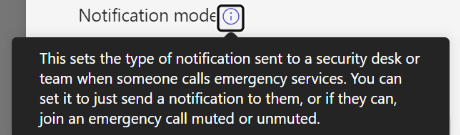
The notification mode has 4 settings. “None” is pretty straightforward. “Send notification only” will send an IM to the users and/or groups specified at the bottom of the screenshot. The other two are a bit more complex. Clicking on the info button beside “Notification mode” gets us this:

Which doesn’t do a great job of explaining things.

The learn article for this policy provides this:

Which seems much better – the value of more space for the explanation, I guess. A bit further down the page in the article we see this:

This seems a bit off to me, specifically the phrasing “a user or group”. First, there’s no type of group in M365 or Teams that has a phone number. Second, if you want to include a Teams user, add their name to the users/groups section. What you should be putting in here is a PSTN phone number, in E.164 format (+14258675309, for example). That will allow a single number – perhaps external from the organization – to also be conferenced into the call.

The caller ID that shows is the name and DID of the user who placed the emergency call – all caller ID policies, etc., don’t apply to emergency calls. Within Teams, users who are being notified will see this:

We see the photo of the user who placed the emergency call (left), we see the big red symbol indicating the PSAP (right), and at the top we see that we are starting this call muted and we can unmute. At the bottom we can see the phone number of the person placing the emergency call. If the caller’s location has been determined inside your facilities or if they’ve entered/confirmed their location outside your facilities, that address would also show here.

Standing on my Soapbox with Tales of Caution

I feel that the ability to be conferenced into an emergency call is a bit of a double-edged sword. Consider these points:

  • You may want someone like a receptionist to receive the IM alert so they can be prepared to assist by letting emergency personnel in and directing them to the caller.
  • You (and the receptionist from the temp agency who’s covering this week) likely don’t want the receptionist to be conferenced into a live emergency called, muted or not. That’s a high stress, possibly quite traumatic experience. Consider carefully who will receive calls! They should be trained for emergency situations.
  • I know an unreasonable number of emergency services personnel. Everyone that I’ve asked about whether it would be beneficial for other parties to be conference in and able to speak said “NO!”. The call taker at the PSAP is busy running their call tree to ascertain what’s going on, and they have seconds to complete that and get the call send out to responders. The very last thing they need is to be interrupted with “hey Jim, it’s Sam, what’s going on?” or whatever.
    • If you do allow users to unmuted in the conference, they need to be aware of the call taker’s process and should not interrupt them. When they do unmute, they should give their name and explain to the call taker that they’re conferenced in “Operator this is Jim with Contoso Security, I’ve been conferenced into the call.” Then pause to let the call taker factor that in, and work Jim in to the call taking process – don’t flood the call taker with information.
    • Have a policy for who will unmute. Put yourself back on mute when you’re not talking so that background noise isn’t added to the call.
    • Do not use the emergency call to coordinate your internal response. Use radios, mobile phones, PA systems, or whatever else you need. Don’t take over the emergency call.
  • Recall from point 7 from the learn article above, that the PSTN number cannot unmute.

Take your time with this policy’s capabilities. If your organization hasn’t fully baked their policy on who might be conferenced in and how, then start with just the IM notifications.

Revisiting Restrictions on Outbound Calling, Especially With Calling Plans.

Back in June 2022 I wrote about the various ways that you can restrict where a user can call. That post has led to a couple of conversations, so I wanted to come back to this topic and revisit things, especially one significant gotcha.

To summarize, there are two places that you can restrict where users can call. The first is with your carrier, the second is configuration within Teams. These hold true for Operator Connect, Calling Plans, and Direct Routing. My March post covered Direct Routing nicely, and Operator Connect is even more basic. The spot where confusion can come into the picture is with Calling Plans.

With Calling Plans, Microsoft is your carrier. My statement above of “The first [places where you can restrict calling] is with your carrier” for Calling Plans is your calling plan license:

With a “Domestic Calling Plan”, you can call your own country/region. Note that for the US and Canada, they’re treated as the same region. Calls from the US to Canada are included in the Domestic Calling Plan, and vice versa.

With a “Domestic and International Calling Plan”, you can call your own country/region and many/most other countries. There are a few exceptions for premium (read: expensive because of connectivity) or unfriendly territories.

With a “Pay-as-you-go calling plan”, your ability to restrict things is the same as the Domestic and International Plan. The difference here is that you’re paying a per-minute charge instead of the “per user per month” minute allotment.

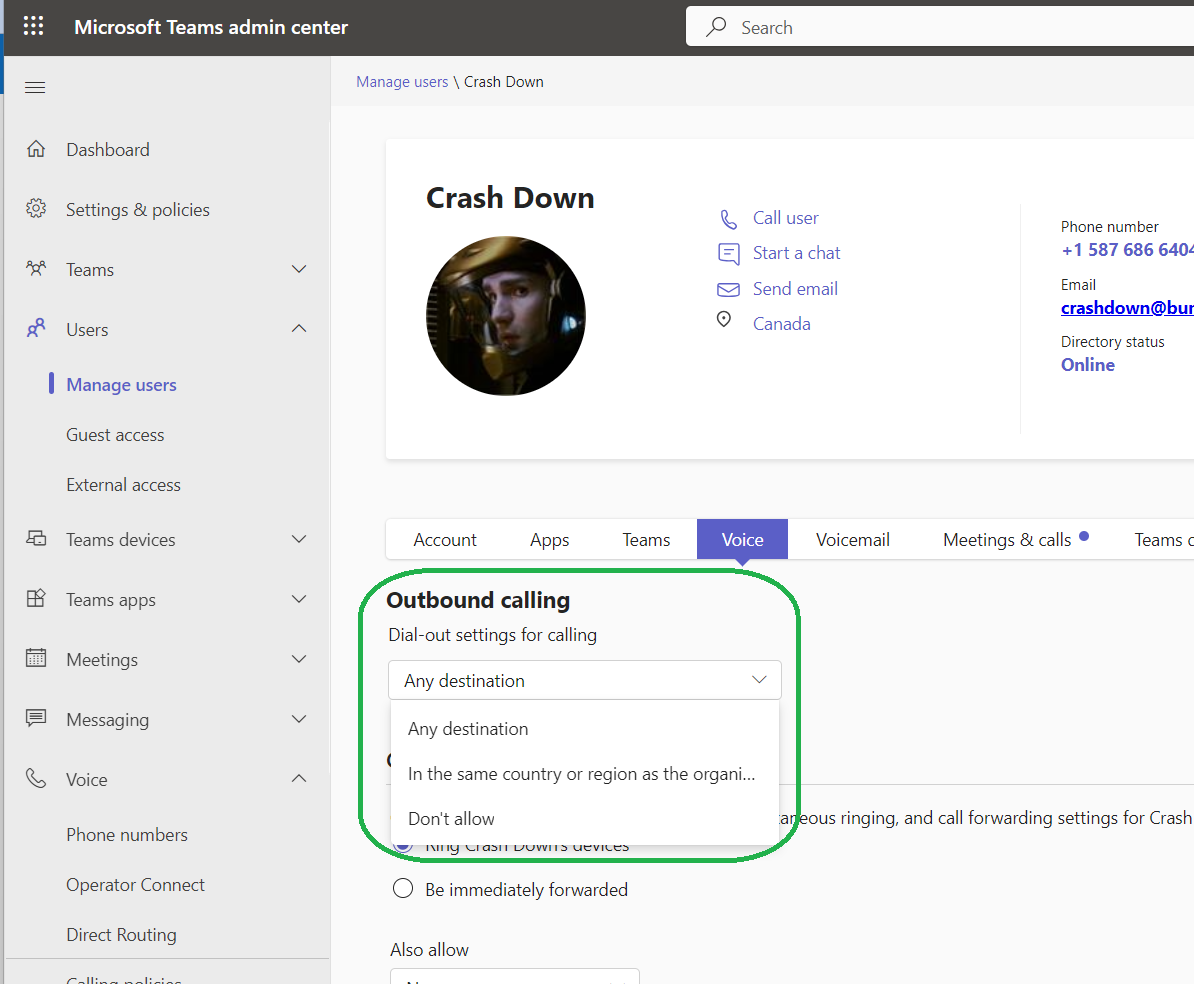
Now what about Teams configuration? Well, under each user in Teams Admin Center, there is this:

And it’s super confusing because it says it’s for calling, but there’s an option of “In the country or region as the organizer”. That makes it sound like this drop-down is perhaps for outbound calling for meetings.

Well guess what? It’s for both! For a phone call, the organizer is the person placing the call. For a meeting, the organizer is the person who sent out the invite.

Okay cool, but there’s more, especially for the US/Canada folks. If you apply the “In the same country or region…” setting, a calling plan user will only be able to make calls within their own country. That doesn’t line up with Domestic Calling Plan, which bundles the US and Canada together. I had a conversation with one person who reported that they had issues placing toll free calls with this restriction in place, but I’ve been unable to duplicate their findings. Perhaps that was a bug that has been worked out, either in Teams or at the or the toll-free provider’s system.

Microsoft does mention this on learn.microsoft.com:

Configuring Multiple Numbers for a User

My last post talked about how it was possible to have a user able to use multiple numbers for inbound and outbound calls.

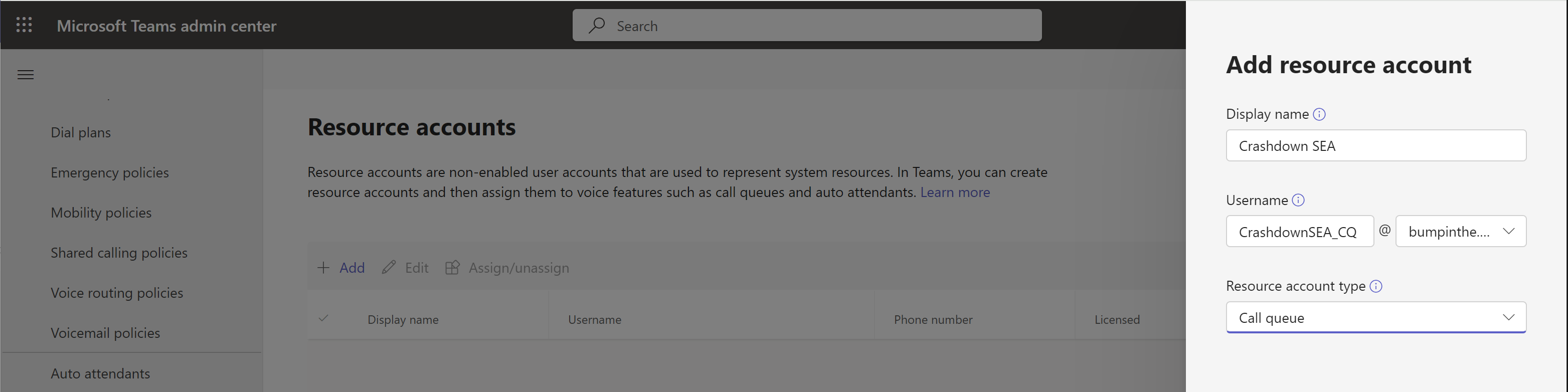
Step 1: Resource Account

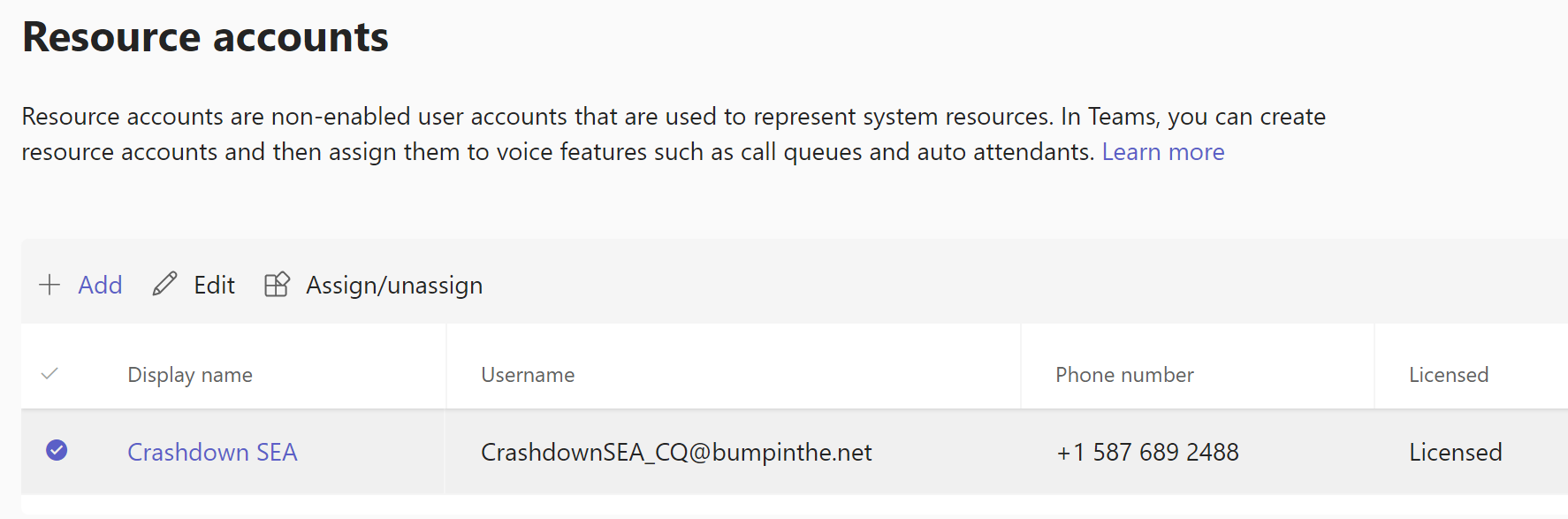
The first step is configuration of the Teams Call Queue, which means first creating a Resource account. Here’s the Resource account config for Crashdown’s Seattle number:

After creating that in Teams, hop over to M365 admin center to license it:

On this licensing step, if you’re using calling plans you’d also need to add a calling plan license. I’m using direct routing, so no need for that here.

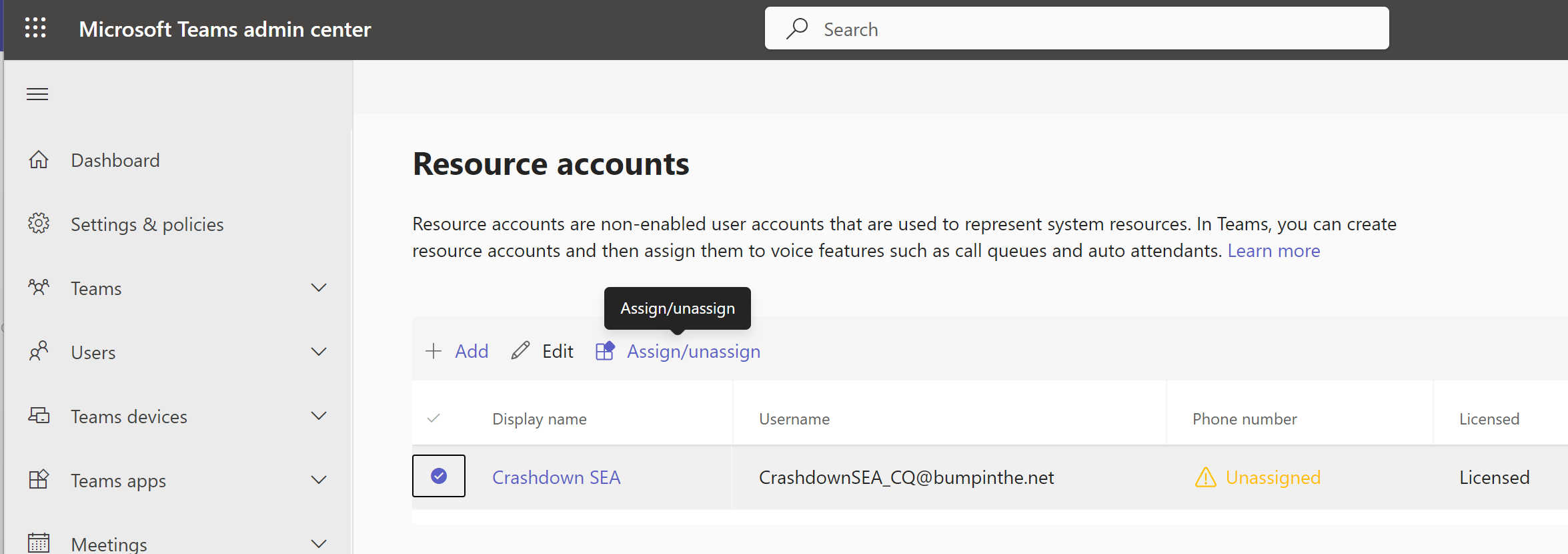
Back in Teams, the Resource account shows as licensed:

And now we can assign our phone number

And our resource account is done:

Step 2: Call Queue

Now we need to create a call queue.

Click the “+ Add” button,

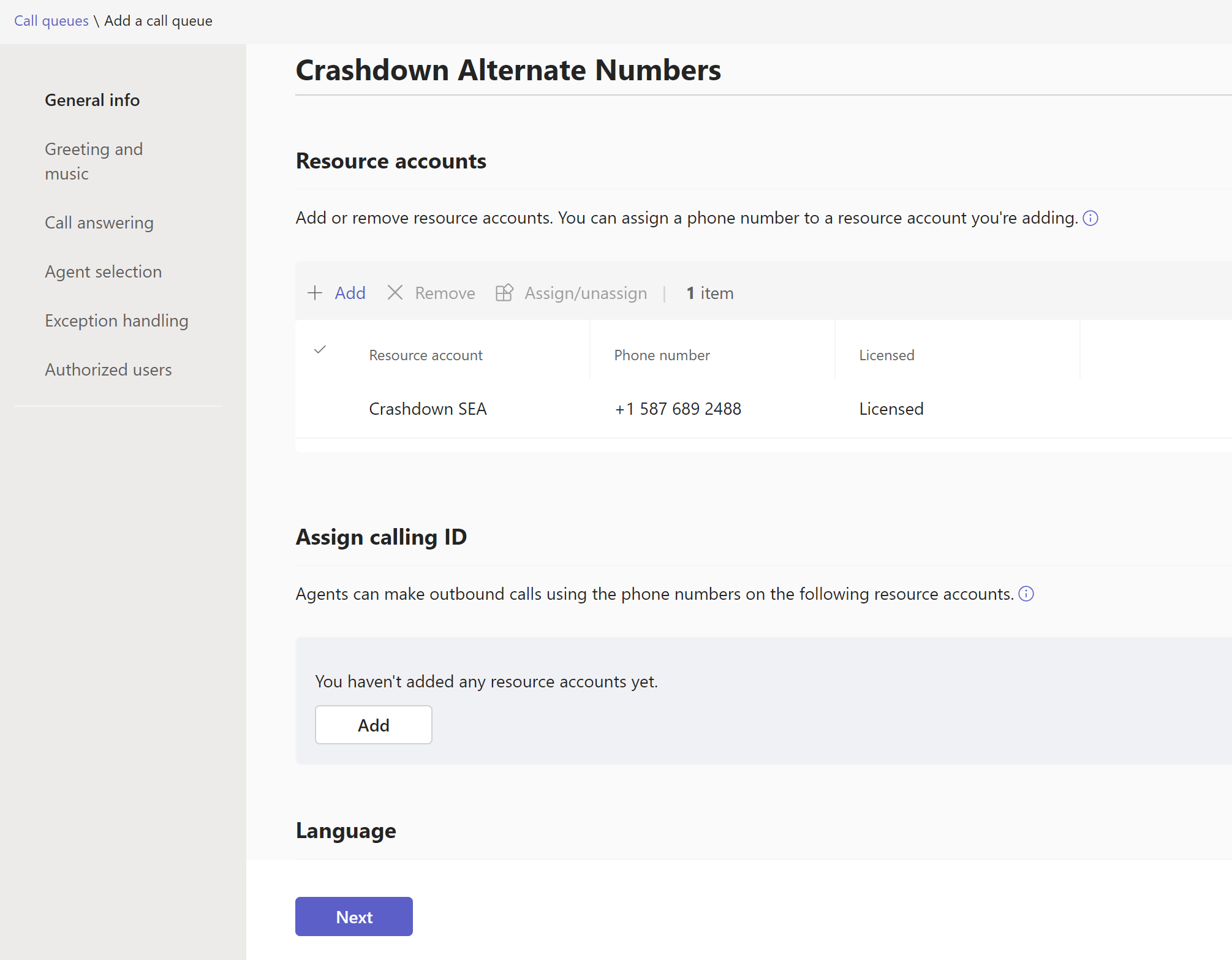
then enter a name (here, “Crashdown Alternate Numbers”), then click the “+ Add” button on this page to assign the resource account we just created to this call queue (yea, I don’t like the varied usage of “Add”, “New”, “Assign” and so on either).

Click the “add” button for Assign calling ID and add the same resource account again here too. This step allows the agents to call out as this call queue:


On the next page you probably want to leave the “Greeting” as no greeting. Music on hold default is the “spa music” default. You might want to change this to something else if this sounds weird to callers.

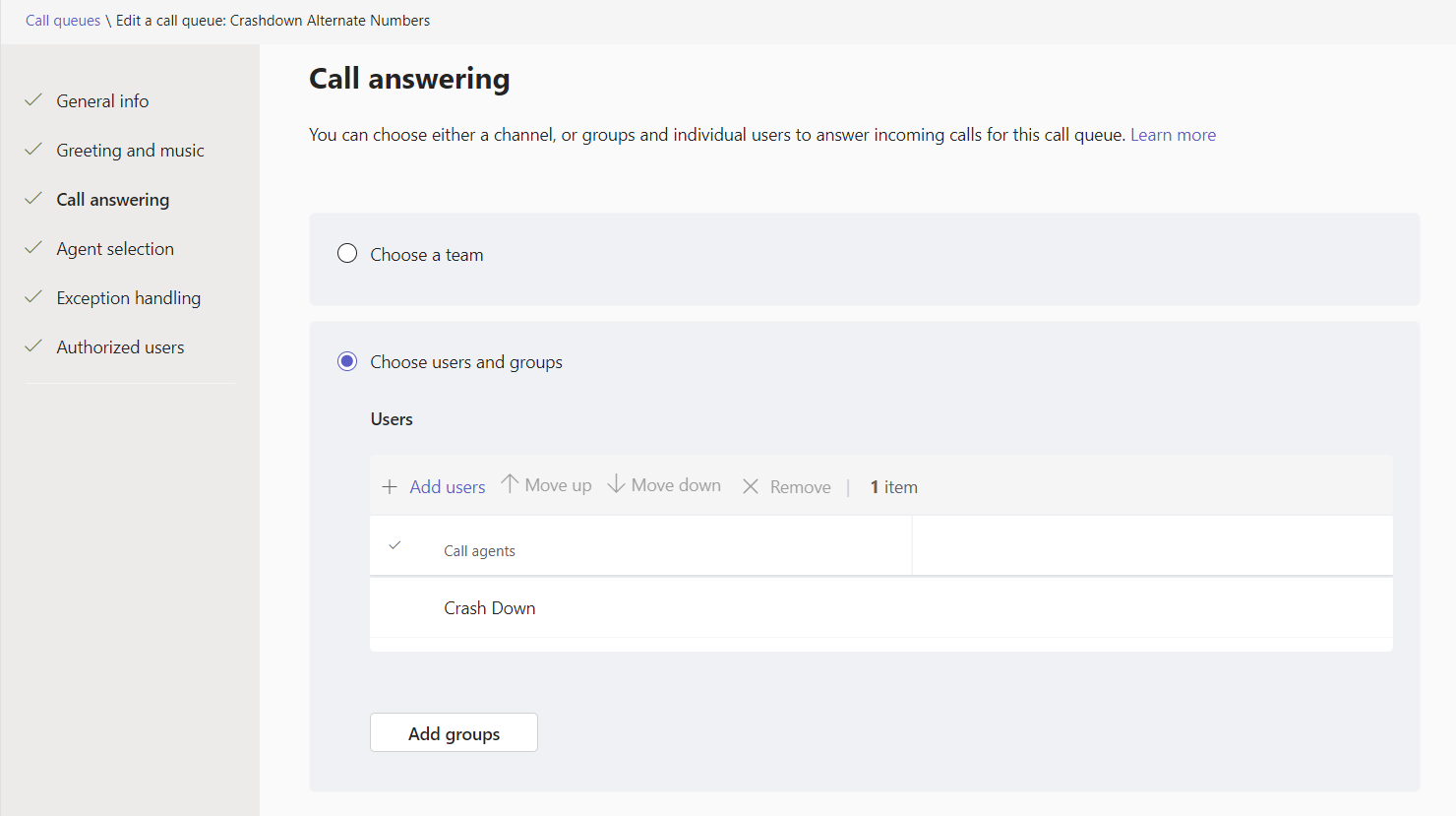
On the Call Answering tab, add the user:

Agent selection options can be left as defaults:

Set the exception handling for the Call timeout to 30 seconds (or whatever the user’s preference is), and the timeout to redirect to their personal voicemail.

And hit submit.

Inbound calls to this number will look like this:

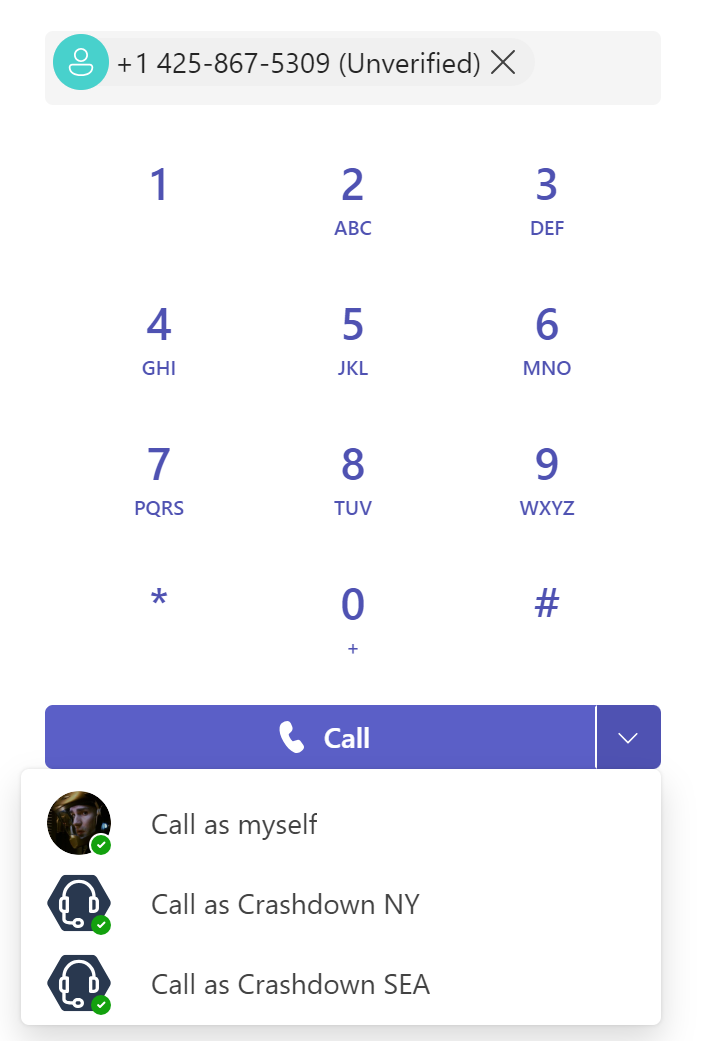
and for outbound calls, the user can click on the down arrow on the Call button and select which account to place the call as:

In this screenshot, I’ve already added another number for Crashdown in New York.

And you’re done!

How to Give a User Multiple Numbers

Most of the phone functionality in Teams is based on a user having just one phone number. For some users, it would be beneficial to have multiple phone numbers for receiving and placing calls. The particular example I’m thinking of is a sales person who lives in one area, but covers multiple areas – possibly even different countries. While there’s no user configuration for this, it IS possible to get much of this functionality by leveraging call queues.

There are three (or maybe four) things that we need to consider and configure: Outbound calling and phone number, inbound calling and phone number, and voicemail.

The Basics

This solution involves a Teams Call Queue, which means that you will need to create a resource account and call queue object. You’ll need to assign a phone number to the Resource Account from the area where you want the additional number. If this is service by Calling Plans, you’ll also need a Calling Plan license for the resource account.

Inbound Calling

The configuration here is fairly straight forward. Add the user as an agent in the call queue. When the number for the resource account associated with the call queue is called, the user’s/agent’s Teams will ring. Even better, it’ll ring with a toast that indicates the call it to the additional number. Note that the callers will hear the default “hold music” here rather than regular ringing. You can upload any audio file you want to replace this.

Outbound Calling

When you’re added as an agent in a call queue, you aren’t automatically able to place outbound calls using the name and number of that call queue. For that capability, the admin also needs to add the resource account to the “Assign Calling ID” section, right below the initial resource account assignment. Now when an agent places a call, there’s a drop down to select which number you want to place the call as. Note that at present, placing calls from your call history does not expose this drop-down. You’ll need to copy/paste the number into the dialpad.

Voicemail

You’ve got two options for voicemail here. The more complex one is to create an M365 group and configure the timeout action on the call queue to send calls to this group. The more straight-forward solution is to have the timeout action send the call to the user’s mailbox, so that everything is in one spot.

Multiple Additional Numbers

If you want to have more than one additional number, you don’t need to build out additional call queues. Instead, create an additional resource account and assign it to the call queue.

Advanced Call Handling

One area where this solution falls down, is when you want to take advantage of any advanced call handling – simultaneous ring, delegates, and the like. You can’t take advantage of those features with the solution I’ve described above as the user is never called directly, and these features require the user to be called directly and not as a call queue agent.

This shouldn’t be that big of an issue for most. Simring is rarely used with such excellent mobile clients, and the delegation functions could be solved by adding the other parties as agents in the call queue as well. If you absolutely must have this functionality, you can configure the call queue timeout value to 0 seconds and configure it to send calls to the user. This will allow all of the advanced user-level call handling, however it will no longer give the user the special toast/ring notification that the call is for their alternate number.

You could also build an auto attendant to handle the inbound calls, this will give you some richer call handling possibilities. For outbound calls, add the auto attendant’s resource account to the “Assign Calling ID” section of the call queue configuration – you would still need to build a call queue for this function.

Update: Private Line

An update here in March 2024 – private line functionality has been added to Teams. With this capability, a user can be assigned a second phone number. This does not address the above scenarios however. Private line is only for inbound calls, and will always ring through to the user – it will not follow any advanced call handling scenarios. It does provide for distinct notification in the client when ringing, however. Private line is best suited for scenarios where a call must absolutely reach the user (or their voicemail), and where that number should be kept confidential.

What Happens When You Use a VPN with Teams

Microsoft recommends that Teams media traffic bypasses (or split-tunnels) VPNs. There are several reasons for this, so lets walk through the impact and some of the concerns that I’ve heard from customers.

Wonky Paths

The best path for your Teams media traffic is the shortest path possible. That could be directly to the other endpoint for 2 party calls, or it could be to the Teams cloud. VPNs interfere with this direct path. Consider a user who’s in LA, VPNd through New York. That’s an extra cross-continent trip, assuming that the traffic does egress to the Internet directly in New York and not go somewhere else first (I’ve seen stranger things!). If they’re placing a PSTN call to a local number, that traffic now needs to come across the continent.

If you’re travelling internationally and are connected via VPN, this path is even worse. If our user travels to Japan, they’re now VPNd back to New York. If they’re calling a local Japan number, that traffic now needs to come back across the world a second time.

Why would a user not just drop their VPN to resolve this? I’ve seen “always-on” configurations, and the user may need the VPN up to access an internal application during the call.

Bandwidth

A user who connects directly to the Internet has their bandwidth limited by their local connection (wifi, 5G/LTE or wired ethernet) and the ISP’s relatively short connection to the Microsoft network. A VPNd user now needs to add limitations at the VPN head-end, in additional to the one or two (or more) legs across the continent/world.

Latency/Processing Delays

This used to be a much larger concern than it is with modern hardware and encryption algorithms today, but it’s not a zero impact. Simply stated, it takes time for your device and the VPN headend to encrypt and decrypt your packets.

Packet Fragmentation

We’re getting pretty low down into the weeds of ethernet here, so I’ll trying to keep things less technical. Ethernet packets have maximum sizes that can vary at different points in the network. When a packet is too large, it gets broken into smaller packets. That can result in latency from processing, but also jitter if the packets don’t arrive in a nice smooth sequence so they can be reassembled. Encrypting packets generates a new packet with a larger size, which can contribute to this fragmentation.

DNS Resolution Woes

Teams uses Anycast DNS and a host (ahem, sorry) of other DNS techniques to help a client find the best resources in the Teams cloud. VPNs can, allegedly for security reasons, insist that the endpoints get its DNS resolution from the VPN head end. That breaks the intent behind how Microsoft has architected things, and results in the Teams client connecting to what can be a suboptimal resource. Consider our user in Japan, who is trying to host Teams meetings while on the road. Not only does their VPN dump their traffic to the Internet in New York, they’re receiving New York DNS records. This impact isn’t significant when the VPN is in place anyway, but it IS significant if the VPN is being bypassed for Teams traffic but the DNS resolution is still from New York.

Inspection Rejection

One of the concerns that VPNs are supposed to address is security, and so traffic is often heavily scanned as it reaches the VPN head end. No security software out there is smart enough to decrypt Teams traffic, scan it appropriately, and then re-encrypt is. Attempts to do so result in added latency, as well as dropped/rejected traffic because the security software doesn’t understand what it’s looking at. It’s a terrible experience to try and troubleshoot security systems that only *sometimes* reject Teams traffic.

Emergency Calling and Network Topology

It’s not so much the VPN that is the issue here, this is more of a cautionary tale on Emergency Calling configuration. You must NOT include your VPN IP range(s) in your LIS/Emergency Locations. Whatever the street address of your VPN headend (and thus the VPN IP range(s)), your caller is not there.

You should, however, include your VPN ranges in your Network Topology. Network Topology is where policies are assigned to network locations based on subnet. This should be done as its own site. What do I mean by that? If your VPN head end device is in your headquarters building, your VPN IP range(s) should NOT be assigned to the “HQ” site. Instead, create a “VPN – HQ” site and assign the IP ranges there. This lets you assign different policies to the VPN users vs HQ users.

Call Quality Analytics and Diagnostics

The Call Quality Dashboard (CQD) and other places in Teams can use a “building file” that lets Teams intelligently label and filter your facilities according to network subnets. It’s much nicer to see “HQ 2nd floor” than “10.10.11.27/24”.

When you build out this file to upload, you should again separate your VPN range(s) from HQ or whatever other building hosts the head end device. Otherwise, poor quality VPN calls with affect the quality rating and reports for the HQ building. It’s misleading.

Also, you should be aware that when you VPN, Teams can no longer establish if you’re using wired or wifi connectivity. As such, any metrics from these connections are reported as wired, which can mess with your reporting. There’s no real work around here, however you can minimize the impact of this by setting up VPN range(s) as separate sites.

Security Concerns

Alright, so that’s the technical impact of using a VPN with Teams. On to layer 8 of the OSI model, aka People, Policies, & Politics! There are a number of concerns that I hear from organizations about why they must have Teams traffic use a VPN. Most, if not all, of these concerns are based on legacy network design where there’s a firmly defined edge to the network. Remote users needed to access internal resources, and thou shalt not publish internal resources openly to the Internet, so users had to VPN. That’s a fair position, but it’s also an outdated position. Teams isn’t on your orgs internal network, and security has evolved significantly from this model.

There’s no point in “scanning” Teams traffic on an internal device before sending it to the cloud. Teams traffi is encrypted. No firewall or IDP system out there can decrypt, scan, and re-encrypt Teams traffic, and no firewall or IDP system out there could properly understand that traffic anyway, and they have zero knowledge of the inner workings of the Teams cloud, so would be unable to understand what it was protecting. Teams traffic is secured by Microsoft, and your dashboard/control panel for that is provided to you by Microsoft via policies, labels, reports, etc..

Final Guidance

My final guidance from my soapbox is, bypass/split tunnel Teams from your VPN. (While you’re at it, bypass everything else M365 too). It cannot add value, it does not add security, it breaks things, it decreases media quality, and it interferes with proper management and reporting.

You can review Microsoft 365 IP Address and URL web service – Microsoft 365 Enterprise | Microsoft Learn to find the IP addresses and URLs that you can use to configure your bypass. Some security vendors will provide you with a “M365” object that implements these for you to make things easy peasy. Note that while Microsoft does their best to not make changes to this list, some changes are inevitable. Keep an eye on your M365 Notification Center for insight into future changes. And finally, Introducing cloud.microsoft: a unified domain for Microsoft 365 apps and services – Microsoft Community Hub will no doubt bring changed and ultimately simplification to this area.

Handling Multi-lingual Auto Attendants (and Call Queues)

It’s not uncommon for an organization to want to provide services in multiple languages. While Teams auto attendants and call queues each have a language setting, you can only set one language for each call queue or auto attendant.

About Call Queues and Languages

While call queues do have a language that you can set, there isn’t yet much that can take advantage of the language setting – text to speech greetings and voicemail transcription at this point. Interestingly, every language I selected could handle both that language and English, however pronunciation of words that exist in both languages was done according to the language selector. It may seem like a great cheat to configure your call queue for a non-English language (French, for example) and then have it handle both English and French duties, however this can lead to unintended outcomes. Aviation is spelled the same in English and French, however the pronunciations are quite different!

Language Selection in Call Queue Configuration

The solution here is straightforward – create one call queue per language and assign users as agents in the appropriate call queue(s). Set the language on each call queue appropriately.

About Auto Attendants and Languages

Auto attendants have a variety of prompts and greetings, as well as voice input instead of keypad input. Mixing languages within one auto attendant would be a mess for pronunciation, prompts, and speech enablement for call flow options (dos vs two vs deux for the default of speaking the option number). The solution is to have one auto attendant for each language, especially since the call flow may be different for each language. That does lead to the problem of how to get callers to the appropriate auto attendant for their language.

The non-technical solution is to have completely separate auto attendants, each with their own phone number. Your website, marketing, etc., can indicate which phone number should be called for service in each language. In situations where you need a caller to choose their language, I recommend the following two solutions:

Two or Three Languages

In your auto attendant for your main language, record a greeting such as “Welcome to Contoso. Pour un service en français, appuyez sur un. Para servicio en español, presione dos. For sales, press three. For support, press four. For our location and hours of operation, press five.” Have option 1 send the caller to a French auto attendant and have option 2 send the caller to a Spanish call queue.

I specifically say here to record a greeting. The text-to-speech option would use the language the auto attendant is configured for, in this case English. Having the English auto attendant try to read French and Spanish will sound terrible. You could try to bodge things into place with interesting spelling, but it’ll still sound terrible. Find one or more people in your office who speak the other languages well and have them record the entire greeting (if possible) or just their portion of the greeting if not. You might also try Azure Cognitive Services Speech to generate the greeting segments in each language, edit them together, and upload that.

Four or More Language

If you have more than two or three languages, you’ll burn through the quantity of call handling options just in redirecting callers to their preferred language. If you have 4 languages and 8 menu options, you’re out of luck for doing that within one auto attendant. Changing your menu options will also quickly become a nightmare of greeting audio file recording and editing. Instead, create an auto attendant that is solely to direct the caller to the auto attendant that’s in their preferred language, and build one auto attendant for each language.

Editing Greeting Recordings

And finally, if you’re looking for a excellent (and free!) tool for recording and editing your greeting recordings, I recommend Audacity. While there is WAY more functionality in Audacity than you require, it is amazingly capable of editing your files, as well as exporting them to a variety of different file types. Help and support is excellent, and given the popularity of Audacity, you’ll very likely find what you’re after with a quick Internet search.

Ensuring Direct Routing Backup Call Paths Work When You Need Them To

Few things are worse than your backup solution not working when the primary fails. If you use Direct Routing to connect Teams to the PSTN, you likely have two paths for these calls. If you don’t, it’s something you should consider!

If you own your own SBCs, these may be located in two different offices, or hosted in two different Azure regions, or some combination of the two. If you use Direct Routing as a Service where your carrier provides the SBCs, they like have an “east coast” and “west coast” type of configuration.

OutBound Calling

Within Teams, you are in control of your outbound call flow. You can set your Voice Routing Policy to include one PSTN Usage with both SBCs listed for a “round-robin” scenario:

Or you may have your Voice Routing Policy contain two PSTN Usages, each with a single SBC. The PSTN Usages are ordered, giving you a Primary-Backup relationship (you could add more, but let’s Keep It Simple, System administrator!):

If you have the first scenario, your outbound calls will round-robin between the two paths and you’ll know the backup path is working. If you have the second scenario, you would need to periodically test the backup path by taking down the primary SBC. Yuck, nobody wants to do that, plus if you’re using DRaaS the provider isn’t going to do that for you (nor can you trigger it by deleting the SBC config from Teams, but double yuck, why would you want to do that!)

What you can do is create a second Voice Routing Policy that has the PSTN Usages listed in the opposite order. If you have users in cities that broadly match the “east/west” or whatever geography of the SBCs, you can assign this policy to the other group of users. If not, you could select a few IT staff.

There’s a catch with both of these options. While they’ll send traffic over both of your paths when everything is working, they’ll also happily send traffic over just one path should the other go down, and NOT tell you. You’d need to add other services or monitoring packages to help here, so what’s an admin to do?

The Solution

The solution here is to setup two additional Voice Routing Policies, each with one usage and one SBC. These get assigned to your IT staff, or to some other staff members who regularly makes but can tolerate things breaking. These staff are your “canaries in the coal mine”, and they can alert you when a call path is unavailable.

Inbound Call Paths

For inbound call handling, you are at the mercy of your PSTN provider. They will need to configure your inbound calls for round-robin, or assign numbers to have alternate SBC priorities.

Is this solution perfect? No, not by any means. The biggest flaw here is that there is no alerting (apart from the canary users). While monitoring and alert is ideal, the ideas outlined here can ensure that all of your call paths are regularly used and are ordinarily fully functional.

Inclement Weather or Special Function/Night Mode Auto Attendant Configuration

A function from PBXs that’s not available to the same degree in Teams is a “night mode” button. This button would be on a receptionist’s or supervisor’s phone, and would trigger the PBX to use the “night mode” or “after hours” greeting and configuration instead of the business hours greeting and configuration. While Teams does have scheduling available that can do this automatically, this function is handy when there’s a one-time special event. That may be planned, such as a company BBQ, or it may not be in the event of a building evacuation or being closed due to inclement weather.

Teams now offers “Authorized Users” who can be delegated certain permissions to an auto attendant. That allows a non-admin user the ability to adjust greetings but not the schedule. Honestly this isn’t a bad thing, scheduling setup isn’t something that should be open assigned to non-admins.

If changing the greeting isn’t sufficient, that leaves us back with IT needing to take action. Rather than adjusting schedules and greetings, I recommend use (or is it maybe abuse?) of the Holiday settings.

The holiday schedule for an auto attendant is the first thing that’s checked when it receives a call. If the current time falls within an active holiday, the appropriate holiday call flow takes place. If not, the current time is checked against the after-hours schedule, and then finally the default call flow is used.

We can take advantage of this by setting up a “Special Event” holiday, with a custom greeting and schedule. Calls during the company BBQ will follow this schedule. We could also create another holiday called “Inclement Weather” with an appropriate greeting. When the organization will be closed because of the inclement weather, the schedule for that holiday can be updated, and it will be the call flow that is used.

Here’s an example inclement weather greeting.

In your auto attendant, select Call flows during holidays, then click the +Add button:

Now in the Holiday drop down, select “Add”

Give your “holiday” a name, then set the start and end dates and times. Note here that I’ve picked a date in the past. You must have at least one date/time for your holiday, however since this is for future use at an unknown time, I can’t put the actual event time here. If this was a company special event like that BBQ, I could put the actual date and time here.

Enter a name for your holiday call setting (I’ve also called it Inclement Weather), and what call flow you want. In this case, I want to play a greeting and disconnect the caller. You may want to offer other options for the caller, after all Teams allows you to work from any location and staff may be able to work from home.

Now should a decision be made to close the organization due to inclement weather, IT can edit the holiday schedule to be in effect, and the inclement weather call flow will be selected.

How to Properly Architect a Main Number/Reception Number

When I’m working with clients to migrate from their existing phone system to Teams, that phone system can sometimes be pretty old. And with old phone systems come old phone system habits. Those habits don’t translate well into Teams. One of the biggest items is how to set up the reception phone – or now, the reception user.

Old School

In older systems, reception is a phone on a desk, and that phone owns the main phone number. The receptionist doesn’t get their own phone or their own number. The phone rings, they pick up the handset, mash a few buttons for a transfer, and done. That phone might have some extra buttons for line appearances for frequently called users. It might also have a headset attached to the phone. In some cases, the headset plugs into an external box, so the main receptionist can unplug their headset and wander the office, or ensure that nobody else uses their headset (for hygiene and fit/adjustment reasons).

Trying to bring that scenario into Teams is like putting a round peg into a square hole. Or maybe a round peg into no hole at all – you need a really big hammer to try and make it work, and you’re left with a mess.

Teams is Different

Everything in M365 is integrated – M365 account, email access & address, Teams channels and phone number assigned. A receptionist could not use the reception phone number as their own phone number without the implementation being messy – anyone needing to cover the reception desk needs to be able to access the receptionists accounts. Email is no longer an infrequently used, separate application. The person in the reception role likely needs their own network, email, and Teams account for Intranet, chat, and HR/payroll purposes. Messy.

Let’s also layer on modern security. The reception account should be MFA enabled. As a key account in the organization, logging and monitoring for odd behavior should be in place. All of this become challenging (and messy).

If the organization is larger and has multiple people answering the reception number, things really start spiraling out of control and get very messy.

The Solution

The people who work at reception get their own full user accounts. The reception function or role is best implemented as a Call Queue, with the reception staff added as agents to the call queue. Each reception user now has their own full M365 account, with appropriate security measures like MFA.

Call queues allow agents to place outbound calls as the call queue (vs their own account and phone number), further keeping “receptionist staff” and “the reception function” apart.

Reception voicemails go to an M365 group mailbox (vs the receptionist’s mailbox), where multiple people can be granted access.

What Devices to Use

For a small office with one receptionist, they get the Teams client and a nice headset. A mid-range phone with a shared device license should also be configured as an agent in the call queue. This allows the phone to be answered if the PC is rebooting, locked, the headset battery is dead, etc.. It also allows someone else to cover the reception desk/phone during the receptionists breaks without needing to logout and login as a different user on the PC. The shared device account needs to be configured with a Caller ID policy so that calls are placed with the call queue number.

In a busier or larger office, that phone can be a higher-end model that can accept one or more sidecars to facilitate transfers and viewing presence of frequently-contacted users.

Multiple users could also be added to the reception queue. The organization can take advantage of the call distribution methods like “serial” to have one user be the primary call taker, and other be their backup. I’ve seen accounting staff often added here for this purpose.

If that “phone on the desk” does not have a side car, then a shared device license would be suitable. If the phone has a sidecar, the users on that sidecar are usually administered through the Teams desktop client. You can logon to the Teams client to do this. An in-private web session lets a user do this without logging out of their own Teams app.