
Call Queue – Call Routing and Agent Option Pain Points

The last two posts covered the options available for distributing calls to agents in a call queue. In the first of those, I mentioned that there are some gotchas that can cause you some pain. Let’s cover those, and provide a few tips and tricks to make life easier.

Presence-based routing is a hot-topic for some of my colleagues. One has been bitten by having a Call Queue trigger the timeout action because no agents were available. Why? They were all either in meetings, or had populated their calendars, causing their presence to be “busy” or “in a meeting”. This could be a legitimate scenario and a good use of the overflow options (to another queue or to voicemail, perhaps), but is probably sub-optimal if all of your agents have items populated in their calendars. Perhaps they’re staff at a Microsoft partner and have their time allocated for various projects and tasks throughout the day, but need to be agents in a support queue. Turning presence-based routing off would make sense here. On the other hand, if your agents are less calendar focused, perhaps they’re helpdesk staff, then presence based routing would make sense. There’s no point in ringing a helpdesk agent who’s on a call to take another call!

Round Robin and Serial routing need to have an ordered list of agents. That’s in another spot in the Call Queue configuration in Teams Admin Center, and it gives you three options:
 

For round robin and serial, you will want to add only users here. There’s no way to prioritize agents in a group, or in multiple groups. (And choosing Team here is an entirely different set of blog posts!)

Call Agent alert time seems straight forward enough. Ring an agent for x seconds, and then move on to the next agent, again for x seconds. If you have a timeout configured for the queue, the timeout action will only take place at the end of a full agent alert time. For example, if your queue timeout is 20 seconds, but the agent alert time is 15 seconds, the first agent will ring for 15 seconds, then the next agent will ring for 15 seconds, then the timeout action will trigger.

When cycling between agents, the caller doesn’t notice anything different in the ringback that they hear. Agents will see the call come and then go. If for some reason an agent is offered the call again – maybe they’re the only ones that are Available and you’re using presence based routing – the ringing will stop briefly and then start again.

If you have an agent alert time that’s less that a queue timeout value and you’re using Attendant mode, all of your agents will ring for the alert time, then ringing will stop, and then it will start again. This is annoying, so sync up those timers to get rid of this.

If you’re coming from the Skype for Business world and are familiar with Response Groups, you’ll notice some similarities with call queues, and a few differences. First off, SfB has an Attendant routing mode. The Teams equivalent to that is “Attendant with presence-based routing off”. SfB has a mode called Parallel, and that is Teams “Attendant mode with presence-based routing on”. You’ll also note that there aren’t any IVR options or schedules in Call Queues. If you need those, you should build an Auto Attendant, and have the auto attendant send calls to the call queue(s). Why this change? I’m not certain, but it likely had to do with Auto Attendants being an Exchange item that SfB (and other systems) could take advantage of, and now Teams has Auto Attendants, not Exchange. It doesn’t make a lot of sense to have schedules and IVR functionality in both Auto Attendants and Call Queues, when you can easily snap them together into whatever combination of objects you’d like.

And finally, the docs article for call queues is FULL of all sorts of different exceptions and limitations and recommendations. Make sure you read through the exceptions and limitations. I don’t put a lot of weight in the recommendations like “use presence based routing” as there’s no explanation as to WHY that is recommended. And as explained above, there are legit reasons to not use it. Similarly, there’s a recommendation to use longest-idle or round robin, and yet I can list out a handful of reasons to use other methods without too much effort. If you’re not sure about these, run a proof of concept and try them out.
Call Queues – Presence-Based Routing, Agent Opt-out, Agent Alert Time. What do I pick?

In a recent post, I covered the 4 methods that can be used to assign calls to agents of a Call Queue. In this post, we’ll continue with the rest of the configuration bits that can affect call distribution. Unlike the 4 methods, there’s no information buttons beside these options to help explain.

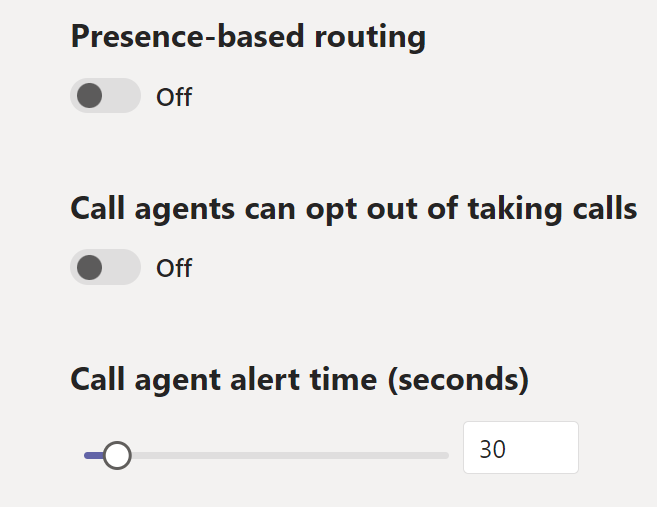
First up is Presence-based routing. This one is fairly easy – if you turn this on, only agents who are Available are offered calls. Agents who are in any other presence state will be skipped.

Next is a setting that allows agents to opt-out of being offered calls. This is done via the Teams client, and is a couple of clicks deep in to the options menu. The choices for the user are to receive or to not receive calls. There’s no option to set an expiry or schedule for this timer. In my experience, users will opt out of the queue and forget to opt back in. If your agents need to set different statuses for breaks or wrap-up time after handling a call, you can fudge these instead by setting presence to away or busy, and using the expiry timers there. Or, consider one of the many contact center options for Teams.

And finally, Agent Alert Time. This setting is used to establish how long a call is used by the serial and round robin options to determine when the call should move to ring the next agent in the list.

Up next is tips, tricks, and gotchas when configuring these settings

Call Queues – Call Routing and Agent Selection

Call Queue Agent Selection is the section of Call Queue configuration where you establish how calls to the queue are assigned to your various agents. There’s a lot of flexibility here, along with some ways you can inadvertently cause some issues.

Let’s run through the four routing methods. Note that each one has an information hotspot beside it to help explain what they do.

  • Attendant Routing is where a call to the queue rings all of the agents at the same time.
  • Serial Routing will ring the agents in your agent list (more on that in a future post) one at a time, from the start of the list down. The next call will start again with the first agent in the list. This is a great option for things like a receptionist who might be away from their desk or on another call. You can have the call move on to the next agent – say someone in accounting – and then have the next call start again with the receptionist.
  • Round Robin is similar to Serial Routing in that it starts at the top of the list and moves down, however call assignment keeps moving down the agent list and does not return to the start for each call. This is a great option to spread calls between multiple people in a relatively even fashion.
  • Longest Idle assigns the call to the agent who has been available (in terms of their presence) the longest. I feel this option is poorly named. It has nothing to do with a user being idle, but rather the user being available. “Longest available” would be a better name. The term “idle” is also used in Microsoft documentation on presence to refer to how long someone has been inactive on their computer, including when they flip into the “away” state.  Here’s what the information button says about longest idle:

Up next, we’ll cover Presence-based routing, agent opt-out, and agent alert time.

Call Queues – Who can be an agent

Call Queues are the modern, online version of SfB Response Groups. A call comes in to the organization, and is queued and distributed to “agents” based on a number of factors.

One question that I get often is “who can be an agent in a call queue?”

The short answer is that only users can be agents. This means that Common Area Phones and Meeting Rooms cannot be agents. Well, they can, if you license them as a user. However, if you take advantage of the lower priced CAP or MeetingRoom licenses, then they cannot be agents in a Call Queue.

There are some other restrictions.

If you’re using a Direct Routing number for your Call Queue, your agents must be Teams users. If you use a Calling Plan number, you can use Teams, Skype for Business Online, and Skype for Business Server users.

If you want Teams agents, the agents must be in Teams Only mode. Calls are only handled by Teams apps when a user is in Teams Only.

Bonus: SfB Server Response Groups only offered calls to desktop clients, not mobile. That’s awesome if you assume that everyone who might be an agent is permanently planted in a chair in front of a desk, but that’s not reality! Call Queues allow calls to be offered to users logged on to a number of different devices – including mobiles – check out this doc for details.

(Note: this post has been edited to update it with capabilities made available soon after publication date. While I don’t normally update past blogs with new information, I felt it made sense given the timelines involved.

Updates are coming fast and furious at times from Microsoft. If you have thoughts on revising historical posts (or not!) I’d love to hear from you – hit me up in the comment section or find me on twitter @bumpinthenet)

Surviving the Skype for Business to Teams Transition, for the Organization

By now you’ve probably seen and heard all kinds of rumors, leaks, plans, guidance, announcements, and roadmaps for Skype for Business and Teams. Well, here’s one more! In this post, I’ll focus on what I think organizations should be doing over the next couple of years.

Yup. Years. One of the first things that you should do, is Keep Calm and Skype (for Business) On. There is no “end of life”, “sunset” or “get off or else” date for SfB.

If you visit the Microsoft product lifecycle pages, you can see that SfB Server 2015 is in mainstream support until October 2020, and extended support until October 2025. We know that Skype for Business Server 2019 is coming later this year, and that’ll take you a few more years out for mainstream and extended support. At Ignite last year, an attendee asked if SfB Server 2019 was the last planned version, and the response was that was “unlikely”.

If you’re looking at SfB Server 2019, be aware that there are a few changes. Alas, the list of changes keeps changing, so until the product is finalized there will continue to be some speculation. You can view the Ignite announcement from last year as a general guide to what to expect, though it has been announced that Standard Edition will be available for SfB Server 2019.

So what kind of things should an organization be thinking about then? Well, in case you’ve missed it, Microsoft recommends that you pilot Teams. I have to agree. I was iffy a year ago, but the product has seen massive feature updates since then, with many more to come. The collaboration experience of working within Teams is entirely different that other application and platform combinations from Microsoft and other parties. I find myself spending more time in Teams. If you’re not currently piloting teams, check out https://teamsdemo.office.com and then start your evaluation.

Teams features compliance, security, extensibility, collaboration and mobility stories that are unmatched by other platforms.

If you’re wondering when Teams will have all of the features that you current get in SfB Online, check out this page.

If you’re looking for guidance on how to pilot Teams, this is the spot along with this page.

And if user adoption is important to you (that’s a rhetorical statement! User experience, training and adoption are key!) follow Karuana Gatimu on twitter. Karuana is the Patterns, Practices & Adoption PM in Microsoft Teams, and is a wealth of knowledge.