Is this the end of Exchange UM?

In a post on the MS Exchange Team blog, the Exchange team lays out alternatives to a service that is being discontinued. The service in question is using a SBC (session border controller) to connect a 3rd Party PBX (Avaya, Cisco, Mitel, anything not SfB) to Exchange UM online. The sunset date for this service is July 2018. The alternatives listed were to move to SfB, use an API, or to use a different voicemail system.

A couple of days ago, an update was provided that indicated that the 3rd option, to use an API, was no longer recommended. After some time, the wording was changed to indicate that it was only recommended as an interim solution. A little bit later, the post vanished. Throughout, there was anger and confusion expressed online over the change in guidance, and the lack of notice provided. Some people have since reported that they’d be informed that the post was an error.

What are we to make of this? First, if the post was in error, I find it challenging to believe that the content was in error, vs the timing of the post.

I say this, because Exchange UM is going away. Let’s look at the facts:

  • SfB is the #1 voice platform that uses Exchange UM. SfB Online has its own voicemail platform now, including auto-attendant functionality.
  • I went looking to see the last time a feature was added to, or updated in, Exchange UM. I went waaaay back, far enough back that I was convinced that the Exchange team would really appreciate it if someone could take UM responsibility off their hands.
  • According to https://products.office.com/en-us/exchange/microsoft-exchange-server-licensing-licensing-overview users should have an Exchange Enterprise CAL to utilize Unified Message. For organizations who only needed the license for UM, this was a tough payment to make.

The leaked/early announcement that 3rd Party PBX support via API was no longer recommended is, to me, the nail in the ExUM coffin. If the only recommended solutions from the Exchange team are “move to SfB” and “go find another voicemail platform”, then I can’t see that ExUM is sticking around.

Getting rid of Exchange UM online is a huge task. Microsoft is slowly chipping away at the number of organizations doing 3rd party integrations, to make the eventual service termination have the least impact possible. Providing this kind of guidance before service termination plans are finalized and announced is smart. It allows Microsoft to track their success in reducing the use of the services. If the use of the services is too high, they can adjust the messaging and deprecation tactics to increase the number of organizations pursuing alternatives. Dates for service termination can also be adjusted much more easily on internal roadmaps that haven’t been announced.

I expect that we’ll see more details once the specific features for SfB Server and Exchange Server 2019 are released, though online roadmaps may have a different timeline than their on-prem counterparts.

Microsoft did provide one year of notice before the planned retirement of the “SBC to Exchange UM” solution. While I expect at least a similar amount of notice before the loss of all 3rd party connectivity to Exum, I would also expect to see a block put in place on new organizations using this functionality, while those using it are encouraged to find alternate solutions.

If you are an organization with a 3rd party PBX and you are using Exchange UM online, you should be proactive and consider your possible next steps now. Don’t wait for Microsoft to re-post this announcement, you’ll only have less time to plan.

If you are an organization with a 3rd party PBX and you’re considering using Exchange UM online, you should move quickly to avoid any block that may be put into place. You must also consider this as an interim solution while you migrate to another (like SfB) lest you suffer the indignity of having to migrate off of a solution that you’ve just rolled out.

In either case, there’s no need to panic, but you do need to make sure you’ve got this on your roadmap. You can keep an eye on here for updates on this, as well as the pending 2019 release of SfB and Exchange.

 

TLS 1.2 and Skype for Business

By now you’re probably heard a lot of grumblings about the insecure nature of TLS 1.0 and and 1.1, and that everyone should be moving to TLS 1.2. Let’s talk about TLS 1.2, SfB, Office 365, and related things.

What’s TLS?

TLS stands for Transport Layer Security. TLS is the successor to SSL, Secure Socket Layer. You can read a nice multi-part overview of SSL/TLS here
that includes details on vulnerabilities and attacks. In a nutshell, TLS is the protocol used to encrypt your stuff.

The challenge

IT has an ongoing challenge of ensuring that related systems are at compatible levels. With TLS, the idea is to enable TLS 1.2 AND disable earlier, less secure versions. It’s plain silly to leave the less secure versions enabled, unless you’re still in transition to TLS 1.2 and need the lower levels for compatibility.

About PCI Compliance

When people say PCI, they probably really mean PCI DSS, or the Payment Card Industry Data Security Standard. These are the rules that credit card processing companies say you need to follow. They’re a good read, and probably worth following even if you don’t process payments via card. You can read more here https://www.pcisecuritystandards.org/

SfB and TLS

At present, SfB does not support TLS 1.2. Microsoft is late to this party. You can expect an up-coming update to permit SfB to run on TLS 1.2 with less secure levels disabled. A word of caution however – if you have third party software for something like a call center, user/number management, e911, or whatever, make sure that it also works in a TLS 1.2-only environment.

LPE

LPE is Lync Phone Edition, the software and hardware standard for the previous edition of phones. Common model numbers are the Polycom CX500, CX600 and CX3000. HP and Aastra also make some models. All LPE phones run the same software, based on a super old version of Windows CE. This version does NOT support TLS 1.2, so if you need to run only TLS 1.2 now, your LPE devices need to be replaced. There was rumour in the past that Microsoft was looking at updating the LPEs to be able to run TLS 1.2, however I’ve not seen any official word or any updates that they’re still looking at the issue.

PLEASE don’t be one of those organizations that buys a pile of cheap used LPEs. You’ll only regret it when you have to replace them, deploy a new phone management solution, and retrain your users.

O365

There is a tonne of material on Office 365 TLS 1.2 here  that you should review. While this article is relatively short, it’s chock full of links to more detailed resources.

More SfB and TLS 1.2 news here when it’s available…

Office Online Server/Office Web App Server Pool Certificates

I’m working on a deployment that’s using a farm of OOS servers behind a load balancer (actually, behind a high-availability pair of load balancers!) for high-availability. If you’re just using one server, this is a great guide to what you need to implement. If you’re using a farm with 2 or more servers behind a load balancer, there are a few more considerations.

To start with, the subject name on the certificate needs to be the URL that you’re defining in the SfB topology. You might use oos.example.com, for example. Now the fun part – the first SAN listed on your certificate also needs to be oos.example.com.

Everything will work at this point, but you don’t have a very good high-availability story. The load balancer will need to be configured to monitor each server in the farm to determine if the server is functional. Otherwise, a server could stop functioning and the load balancer would continue to send traffic to it – that’s no good. The load balancer will most likely monitor the servers by trying to access https://oosnode1.example.com/hosting/discovery (and the same thing for oosnode2, etc.), and watching for a 200 OK to be returned.

Most load balancers have setup wizards that will set the monitoring up for you as part of the configuration process for OOS, SfB, Exchange, SharePoint, and more. Check the vendor’s website.

In order for the HTTPS request to oosnode1.example.com to success, oosnode1.example.com needs to be a SAN on the certificate. The same holds true for the other servers in the farm.

You could cheat and monitor your OOS servers by using HTTP and thus not require a certificate. This is a bad thing to do. You should be monitoring the actual URL that will be accessed on the server for a true indication of the server status.

To summarize, your OOS certificate needs to have:

Subject Name (SN) of the URL you will use in the SfB topology, such as oos.example.com

The first Subject Alternate Name (SAN) needs to be the same as the SN.

Then, you’ll need a SAN entry for each server in the farm, such as oosnode1.example.com and oosnode2.example.com.


Teams And SfB, (oh my) but no Lions or Tigers

Ignite 2017 has wrapped up, and for those interested in Skype for Business and Teams, it was either exciting or frightening. Microsoft is very definitely about to unleash a bump in the net, but there’s no reason to be afraid!

Over the next couple of posts, I’ll recap what was announced in the SfB and Teams space at Ignite – and since Ignite, then I’ll cover what this means for organizations using, or thinking about using, SfB and Teams. Finally, I’ll wrap with a bit of a strategy for IT Pros who might be wondering what just hit them, and what’s next.

Teams is NOT Replacing Skype for Business. (Yet)

There was some discussion prior to Ignite, fueled by an accidentally-released banner message for some Office 365 users, that Teams was replacing Skype. For some, panic ensued. The reality is that Teams is not capable of replacing Skype for Business, and as there is no Teams server for on-premises deployments, Teams could not replace SfB on-prem.

Presentations at Ignite and in the roadmap released shortly after, made Microsoft’s intentions clear: while Teams is the future of Microsoft’s “Cloud first, Mobile First” strategy, Skype for Business is not going away.

Skype for Business Server Roadmap

The next version of on-prem SfB, Skype for Business Server 2019, was announced at Ignite. The highlights of the next version are:

  • There will only be one edition, with Standard Edition being eliminated.
  • There is no director role.
  • There is no PChat role.
  • Only Server 2016 and SQL Server 2016 will be supported.
  • No in-place upgrades.
  • Upgrades from 2013 and 2015 are supported, and as in the past, only two versions are supported in an environment.
  • The 2019 client will be C2R only, no more MSI

SfBS 2019 is based on the SfB Online code, which will allow for a significantly improved hybrid interoperability story. This is also likely behind some of the role removals outlined above.

For Teams, the roadmap announced in late October is all about driving toward feature parity with Skype for Business, including:

  • Better IM chat controls
  • Contact Groups
  • Unified Presence between SfB and Teams
  • Federated Chat
  • Tonnes of updates to the meeting experience
  • Most SfB calling features brought to Teams
  • Support for calls between Skype Consumer and Teams

You can see the full roadmap here

Up next: Guidance for organizations.

Main Number Handling – PSTN number as a Response Group IVR Destination

In my last post, I covered how to have a Response Group Queue overflow/timeout action send a call to a PSTN number. That means you can send a call to an analog phone (maybe a cordless one), a mobile, or any other PSTN number. That’s awesome for overflow and timeouts, but there’s still a hole in Response Group functionality: how can an IVR option deliver a call to a PSTN destination?

Every once in a while, you need to get creative in your solutions to meet end-user requirements. The solution here is tricky to figure out, but simple to configure once you know what to do.

To review, a Response Group IVR is when someone calls a workflow number, hears options, and presses a corresponding key. The native workflow options are to deliver the call to a Queue, or to ask another series of questions. There is no option to deliver a call to a PSTN number.

If we look deeper at the Queue configuration, the only place to specify a PSTN number is in the overflow and timeout options. If we could set the workflow to deliver a call to a Queue, and set the Queue to overflow immediately to a telephone number, we’d be set. We can do that by setting the Maximum number of calls in the Queue configuration to zero:

Queueoverflow0

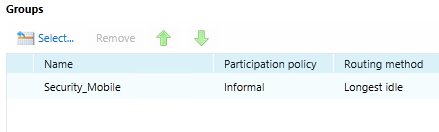
And if you try the call, it will not work. As it turns out, a Queue will error out if there is no Group assigned to the Queue. The fix is simple: create a user in AD, enable them for SfB and enable Enterprise Voice, create a new Response Group group and assign the new user as an Agent. Assign that Group to the Queue:

Group in Queue

And things will work – a call to the IVR, where the caller selects the option for the mobile number, will be forwarded to that mobile phone immediately. The Queue process throws an error when it see there isn’t a Group with at least one Agent assigned, it never gets far enough in the process to look at the overflow options.

I don’t recommend that you use a real user’s SfB account for this. Create a fake account, and make sure you add comments or notes to indicate the purpose of the account, so that it’s not deleted or changed.

If you’re going to use this solution for a number of different workflows, you can use a more generic name for the User and Group, and use the same User and Group for all the Queues, as the destination is configured in the Queue.


Main Number Handling – Putting it all Together, Response Group Calls to a non-SfB number

A few years ago, I worked with a two different organizations who had the same scenario.  They had a main number for the security department. This number was for a Response Group Workflow, which would ring the security staff and a couple of additional phones in the security area, such as the break room.

That worked well when there was someone in the security office to answer the call, but it meant that calls would go to voicemail if there were no security staff in office. This happened often, especially in the one organization that was closed at night and the security staff member had to do patrols.

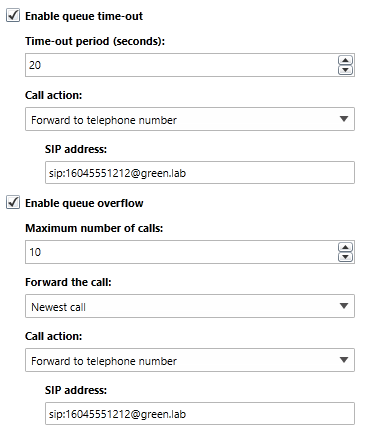
The solution for both was to setup the Response Group Queue timeout and overflow actions to “forward to telephone number”:

call action PSTN

Note the formation for the telephone number – you need to enter it as if it’s a SIP address, with your SIP domain after the @.

Yes, all of my lab environment domain names are colors! I set the desktop background of all the servers to be the domain name color, which helps me stay straight on which environment I’m connected to.

Okay, that’s cool, we can forward calls to a mobile or analog or any other phone as a timeout action on a queue. Tune in next blog post, where I show you how to send a call to any PSTN destination from a Response Group IVR.

Main Number Handling – Putting it all Together in Large Offices, reception coverage

In the previous post, I covered how to have a receptionist have first kick at answering a call, then for the call to be handled by an Auto Attendant if they weren’t available. You might want to have a backup for the receptionist if they’re not able to answer the phone. The easy solution is to also add this person to the Response Group group as an Agent. The trick here is to specify the two agents, and set the Routing Method to Serial in the Group configuration:

Serial Agents

Wit this setup, calls will always first ring “AApple”, then after the Alert Time has expired, the call will go to “BBlueberry”, and finally to the overflow destination. Be sure to watch your Queue and Group timers as discussed here to make sure your call doesn’t bounce around between the users.

This solution works well if you only need a main person and one backup. If you need a main group and a backup group, you would configure two groups, and then create an ordered list in the Queue settings:

Reception Queue

Make sure that the sum of the Group timeout values equals the Queue timeout value, otherwise your call with ring “Reception_Main”, then “Reception_Backup”, and then “Reception_Main” again. For example, I might set the Reception_Main group to 10 seconds, the Reception_Backup group to 15 seconds, and the Queue timeout to 25 seconds.

You can include the users in the “Reception_Main” group as agents in “Reception_Backup” if you want the users in the main group to be able to answer the call if it’s ringing the backup group.

I’ve seen this approach used for a shipping/receiving door buzzer. The driver pushed the door buzzer, which automatically dialed the Response Group (this behaviour was configured in an AudioCodes MediaPack). The Response Group had the shipper/receiver as the main group, and then some other nearby staff who could act as their backup.

Up next: Sending a call from a Response Group to a PSTN or other PBX phone

Main Number Handling – Putting it all Together in Larger Offices

I previously covered some simple solutions for main number handling for smaller offices. Now let’s have a look at larger offices.

I’ve worked with several organizations that prefer a human voice answer the phone wherever possible, and when that can’t happen they would allow the call to handled by an Auto Attendant.

The simplest way to configure this is to have the main number be a response group workflow. The receptionist is added as an agent. In the Queue, set the timeout (and optionally the max calls) overflow destination to the SIP address of your Auto Attendant. Callers now ring the agents when they first call, and then get the Auto Attendant if no agent can take their call.

Up next, some scenarios where you might want to add a second group of agents.

Outbound Caller ID Overrides and Anonymous Calling

A common request that we get is to mask or change the caller ID of an outbound call. This might be because the caller is a VIP and doesn’t want to be harassed, or they might be a support rep and any returned calls should go to a queue or main number. You might also be calling from a number that doesn’t belong to the carrier you’re sending the call over. There are a handful of ways to handle this scenario in SfB.

Using a number that doesn’t belong to the carrier you’re sending the call over can have some odd results. They may allow it, they may block it, or they may override it with another number, usually your billing telephone number (the “BTN”) for the trunk. The BTN is usually not taken from a customer’s block of DIDs, may not have a caller ID string or 911 address associated with it, and typically is not assigned to any endpoints, so sending the BTN as the caller ID won’t help anyone that you’re calling.

You can use the “Suppress caller ID” and “Alternate Caller ID” on a route  to set a number of your choosing. This would apply to all calls using  this route. If you want to override some users’ numbers and not others, you’ll need a of duplicate your voice policy, usage, and route, and then set the override on one route. Repeat this exercise if you have different users that need to send a different number. If you need more flexibility than this, check the other options. On the plus side, this solution doesn’t care which trunk/gateway the call is routed to.

A Trunk Translation rule gives you more flexibility than the alternate Caller ID solution. You can set a series of translation rules using regular expressions on the Trunk Configuration (you could cheat and do so globally if you’re in a small organization, but you’ll just wind up undoing and redoing all of your work if you expand).

The use of regular expressions means that you can easily handle multiple translations per trunk without needing all those extra voice policies, usages, and routes. You also get the flexibility of regular expressions to match and change only certain parts of a number and leaving the rest, like 236-551-xxxx to 236-555-xxxx.

If you have multiple trunks/gateways, you’ll need to configure appropriate rules on all of the gateways.

Trunk Translation is generally seen when performing Least Cost Routing (aka Toll Bypass), such as when a user from the UK calls a number in New York. The New York telco may not like the UK number, so you can configure translation rules so that the call appears to be from the New  York office. You lose the personal DID of the caller, but the call will go through. I’ve also used this when a different carrier is providing a backup trunk, and they won’t allow the numbers from the first carrier.

The two above options are configured by administrators, are generally deployed because of telco requirements, and aren’t very flexible. It’s possible to use some other calling features to allow your users to be in control.

Delegation, also known as Boss/Admin, allows an assistant to answer calls and place calls on behalf of their boss. This functionality can be used to allow a user to selectively mask their number with another, when they choose. I’ve typically seen this setup for VIPs, when they want the recipient to see some alternate number – maybe there assistant, or an auto attendant.

To implement this, you’ll need to setup a dummy “boss”. Delegate the dummy boss account to the real boss. Now the real boss can place calls as the dummy boss. Next, if you don’t want returned calls to simply get a busy signal or dummy boss’s voicemail, setup the dummy boss to forward all calls to the assistant, or the auto-attendant.

Don’t setup delegation between a boss and their assistant to be two-way. Weird things can happen!

The gotchas with this solution are mainly around client support. Not all clients support calling on behalf of someone else, especially mobile.

You can also use a Response Group that’s configured to have Agent Anonymity. This gives users who are agents in that Response Group to place calls on behalf of the Response Group. See my Main Number Handling posts on Response Groups for details on how to do this. This solution has even more limitations that the Boss/Admin option above. Client support is limited to the Windows client, and your users will need to be homed on the same pool that the Response Group is homed on. This is a good solution is good if the users are already agents in the Response Group (such as on a helpdesk), but otherwise I wouldn’t bother with this one.

And lastly, Ken Lasko outlines how to implement *67 in Skype for Business here.

If you’ve got any other solutions for number privacy, hit me up in the comments!

Inserting a PSTN usage into a Voice Policy

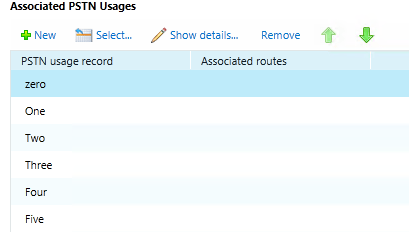
Voice Policies are assigned to users, and they control what a user is permitted to do in terms of voice functionality and calling. The “calling” part is determined by an ordered list of PSTN Usages within the Voice Policy.

Usages in VoicePolicy

The PSTN Usages are evaluated from top to bottom, until a call completes or the end of the list is reached.

If you’re using the Control Panel GUI and have just a few PSTN Usages and Voice Policies, it’s straight forward to edit this list. However, in the land of PowerShell, your only options are to remove a PSTN Usage, or to add one. The add function appends the PSTN Usage to the end of the list of usages, which isn’t ideal given that this is an ordered list.

I recent had to insert a new PSTN Usages into a large number of Voice Policies, and wrote this script to do that.

It’s straight forward to use. Create your new PSTN Usage, then run something like this:

Insert-PSTNUsage -CsVoicePolicy <VoicePolicy> -AddUsage <UsagetoAdd> -Priority <Priority>

where:

-CsVoicePolicy is the Voice Policy that you want to add the PSTN Usage to.

-AddUsage is the PSTN Usage that you want to add to the Voice Policy

-Priority is where the PSTN Usage should be added to the list of existing PSTN Usages. 0 is the start, and if you enter a value larger than the number of existing PSTN Usages, it’ll append to the end.

For example:

Insert-PSTNUsage -CsVoicePolicy VancouverStaff -AddUsage LongDistance -Priority 5 -verbose

This script returns no output to the console unless you use -verbose, in which case it will output the same information that’s also recorded to a log file:

Adding PstnUsage: LongDistance
To CsVoicePolicy: VancouverStaff
At priority: 2
Current Number of Usages: 6
Current Usages: zero One Two Three Four Five
Usages before insertion point: zero One
Usages after insertion point: Two Three Four Five
Restore Command: Set-CsVoicePolicy test -PstnUsages zero,One,Two,Three,Four,Five
Resulting in new usages: zero One LongDistance Two Three Four Five

  • The first three items are simply logging the parameters that you’ve provided.
  • Current Number of Usages is the number of PSTN Usages assigned to the Voice Policy before insertion.
  • Current Usages: a list of PSTN Usages assigned to the Voice Policy before insertion
  • Usages before insertion point and Usage after insertion point: Lists of usages before and after the spot where the new PSTN Usage will be inserted
  • Restore Command: this is a command that you can cut and paste into a PowerShell session to undo the Insert-CsPstnUsage command. The ability to back out your changes is something that I always like! (It might have wrapped in the above output, it’s not wrapped in the log file).
  • Resulting in new usages: this is a Get of the new list of PSTN Usages in the Voice Policy so that you can check your work.

I hope you find this useful, and I welcome your feedback!