
Teams Auto Attendants have a scheduling feature, which includes providing alternate call handling options during holidays. This isn’t well explained, and the flow within Teams Admin Center isn’t…. flowy. Once you understand a couple of key nuances, lightbulbs start going off.
If we have an Auto Attendant (AA) called “BumpinTheNetHQ” and want to setup Christmas and New Years holidays, we’ll see something like this in TAC:
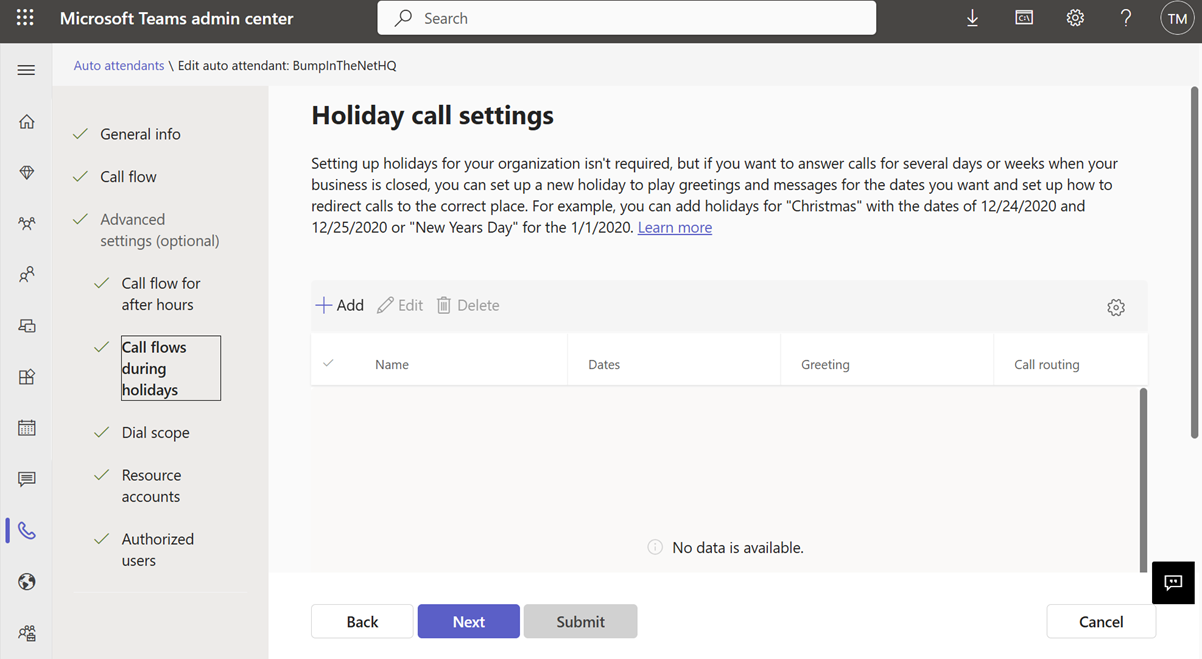
Now if we click “+Add” we are prompted for a name for our holiday call setting, a spot to pick a Holiday, and then call handling things like a greeting and where to route/how to handle the call:

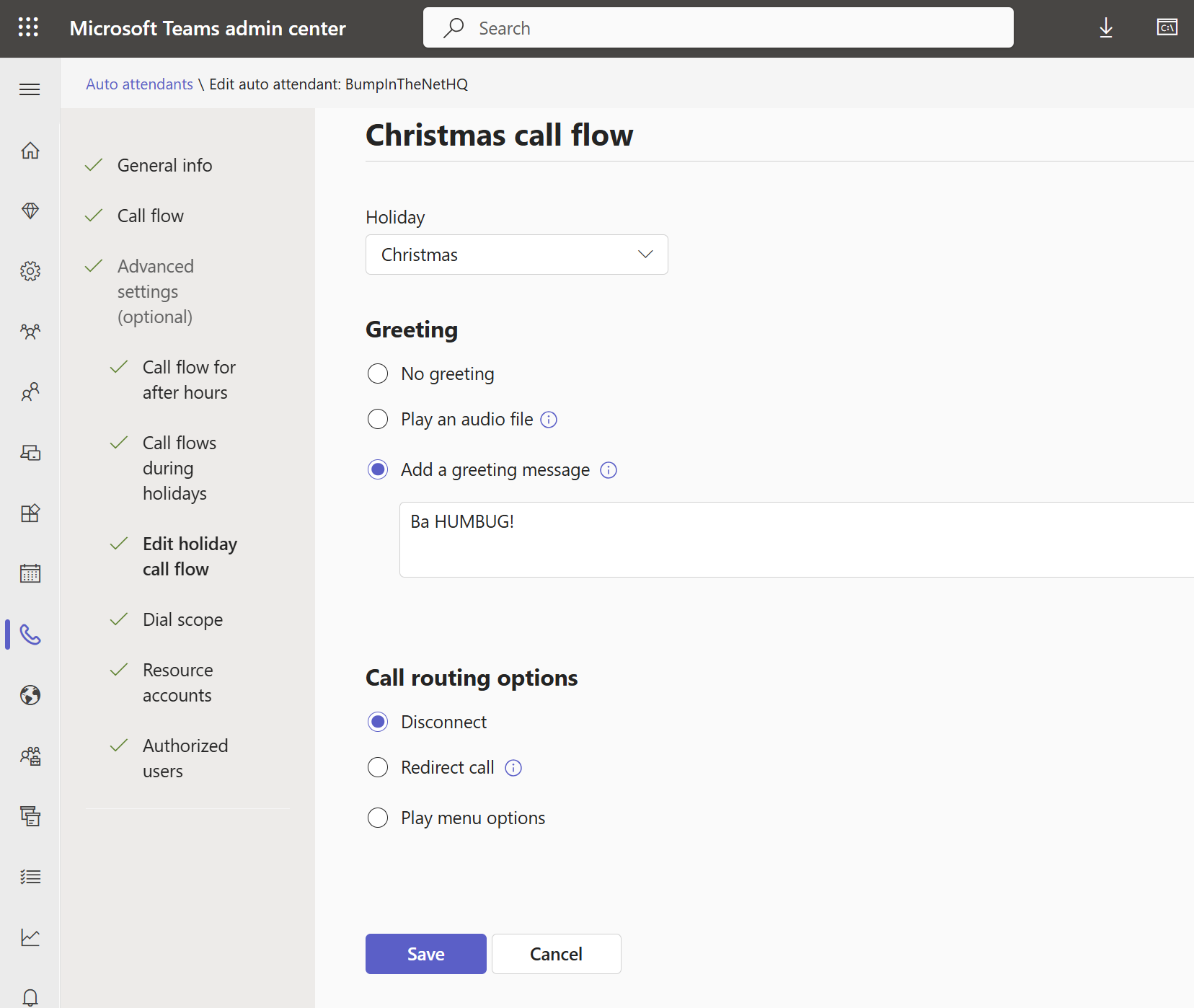
For the name of you holiday call setting, you should make it descriptive. In this case, I’m building the call flow for Christmas. I’ve included the “call flow” bit rather than just calling this Christmas, as I find it helps me keep all of the various uses of “Christmas” straight – especially if I’m working in PowerShell.
Note that you CAN edit this name, which is fantastic for tidying up to keep things a bit more understandable.
Here I’ve also assigned a “Holiday” called Christmas (more on that later!) and I’ve configured the Auto Attendant to speak “Ba Humbug!” before disconnecting the caller:
And if I click save, I am back at the Holiday call settings page:

I can click +Add and configure a New Years call flow as well:

Giving me this for Holiday Call Settings:
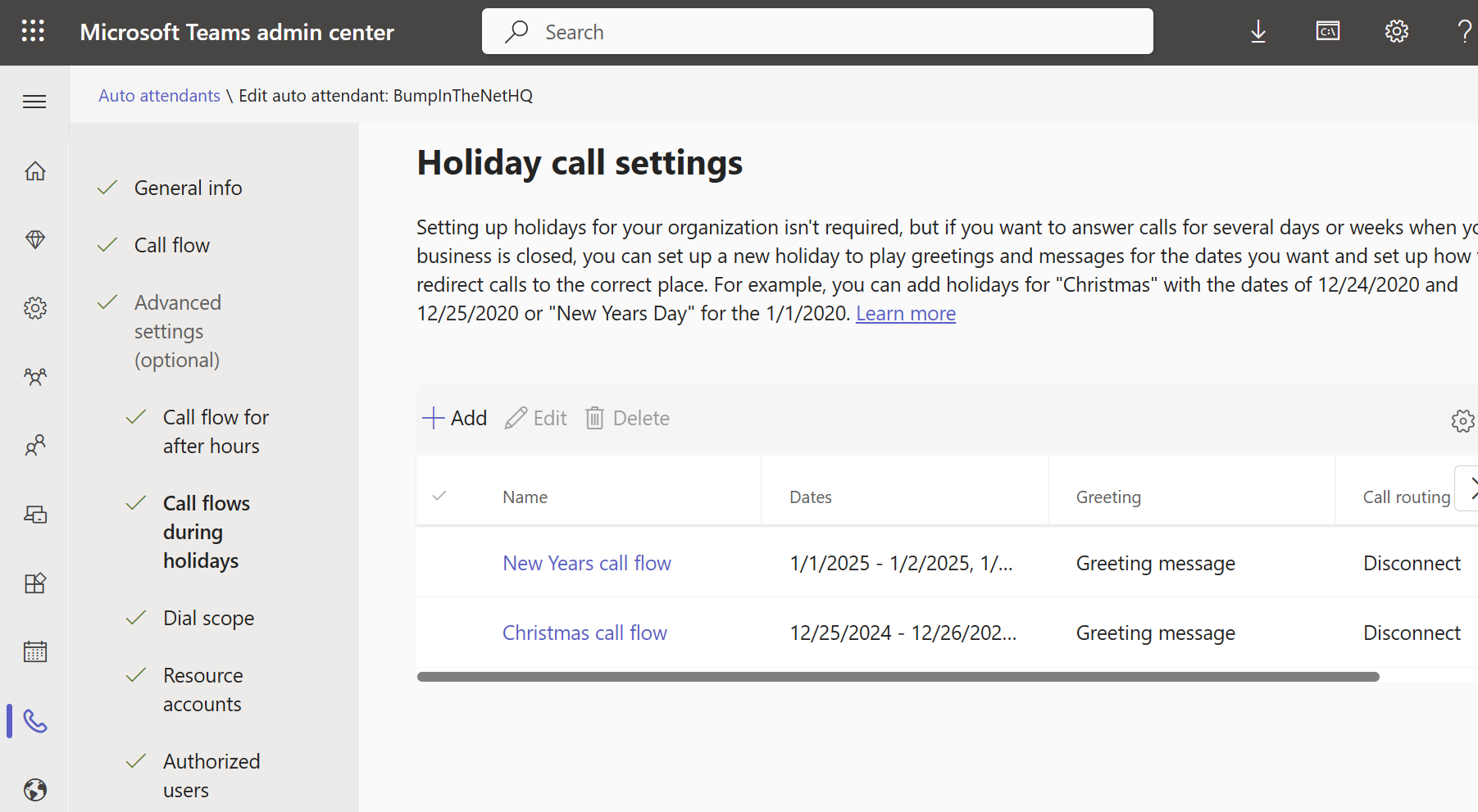
And this is “later”, so let’s talk about this Holiday drop down:

When you’re using this dropdown, you are presented with a list of ALL holidays configured in your Teams tenant, as well as an option to create a new Holiday:
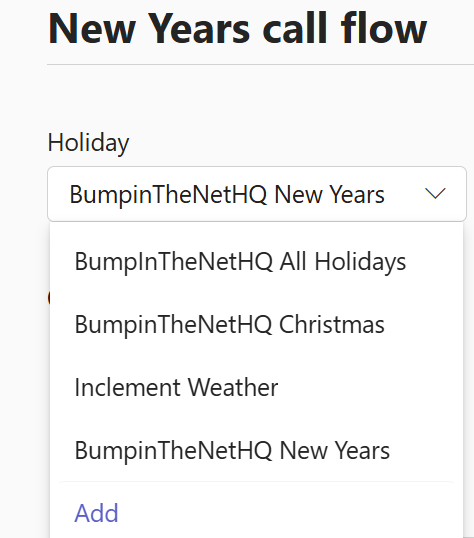
Note that I’ve got the name of my Auto Attendant at the front of the Holiday name. That’s important to have as your different Auto Attendants for different departments may all have different schedules for the same holiday.
You can better administer Holidays through the Holiday section of the Voice menu on the left menu. Here we can see a list of all of the Holidays configured in Teams, plus the start of the dates that are configured for that Holiday. Note that you don’t get to see times here, and a long list of Holiday Dates may not fit on your screen.

Note that you CAN rename Holidays, just as with call settings.
We haven’t talked about times yet, or about multiple dates for a Holiday, so clicking on BumpinTheNetHQ Christmas gets us this:
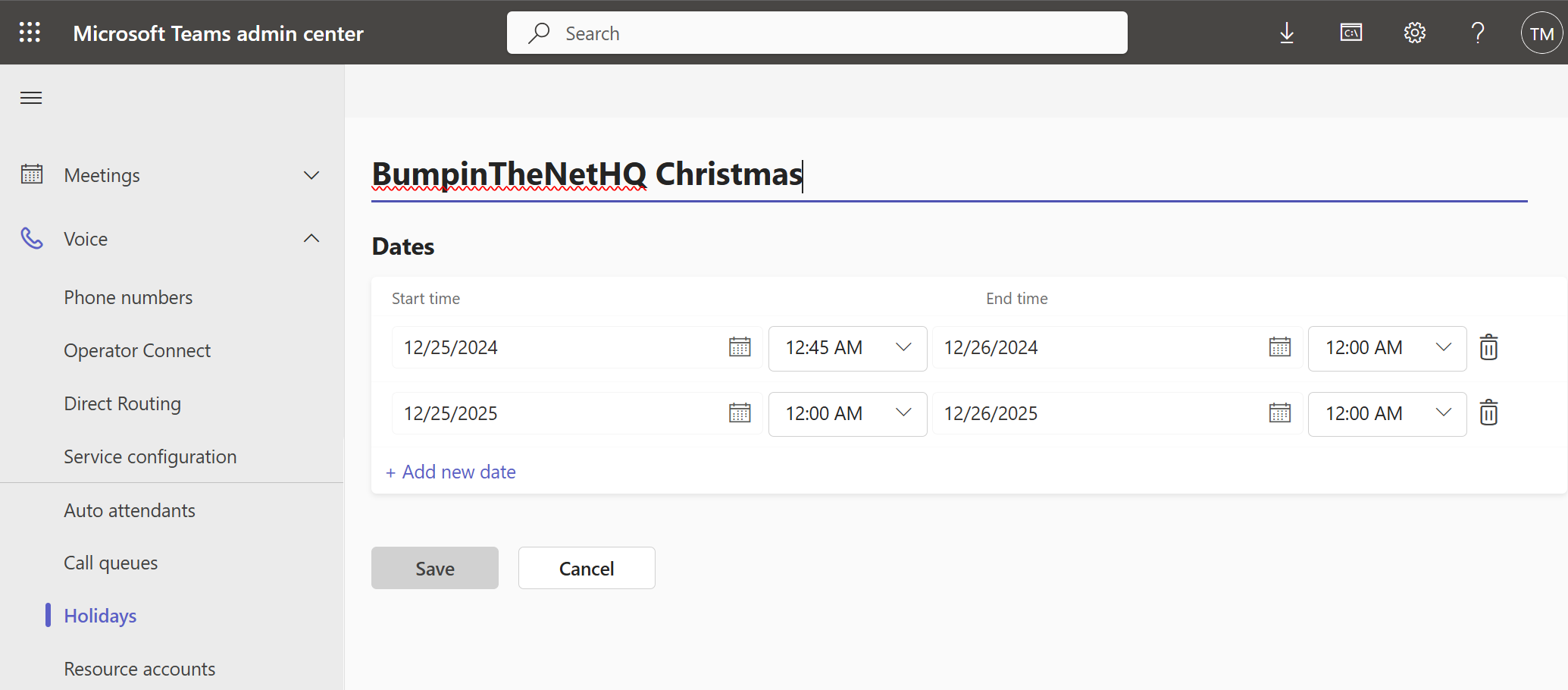
I’ve defined Christmas for two years here, and I’ve also fiddled with the start time for Christmas 2024. If your organization (or department) closes early on Christmas eve, you could set the start time to 12/24/2024 and 2:00pm, for example. You can also cheat ahead and configure multiple years’ worth of holidays. Just be sure to put a reminder in your admin schedule/runbook/Outlook/whatever so that you remember to come back and update them (unless you plan on winning the lottery before they run out, in which case it’s not your problem!)
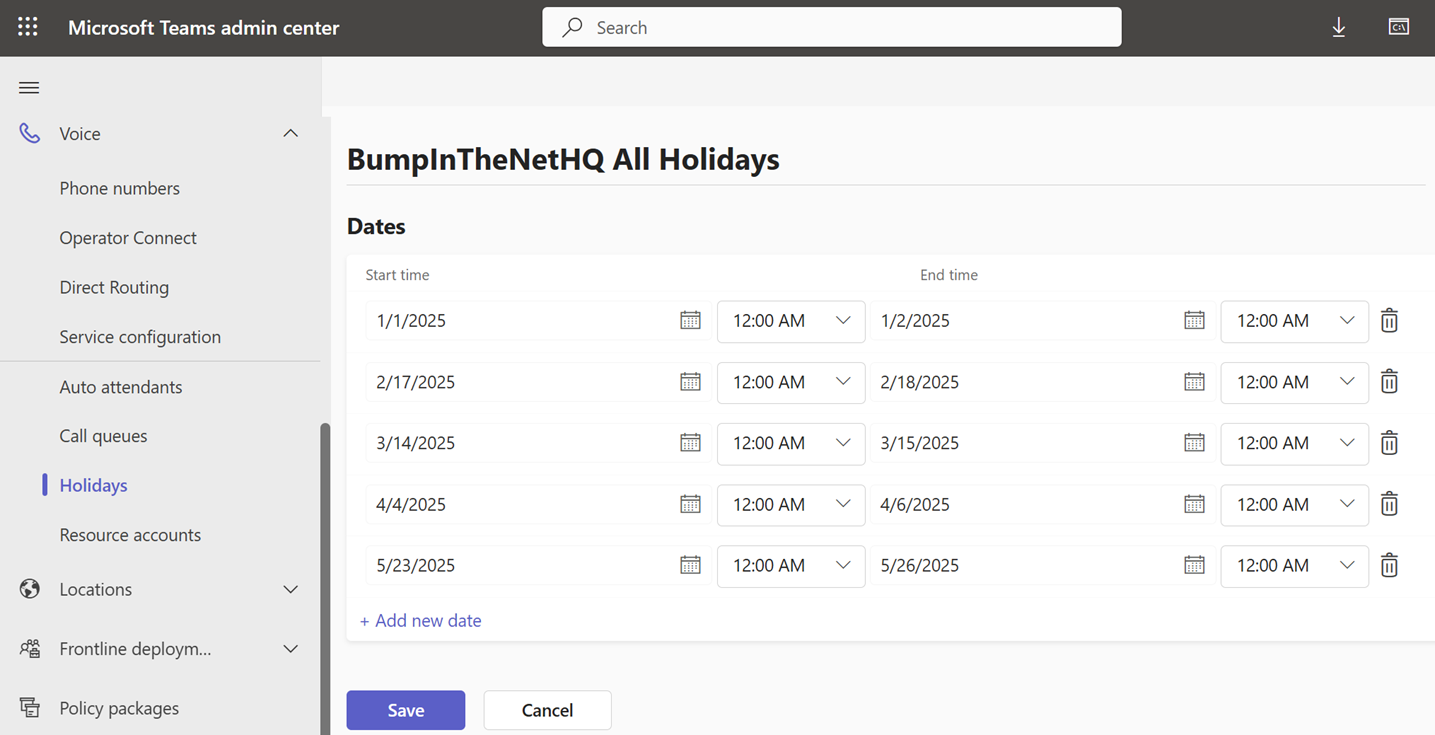
Eagle-eyed readers will have spotted the “BumpinTheNetHQ All Holidays” Holiday. Above, we have different call handling for our Christmas (Ba Humbug!) and New Years (the countdown message) Holidays. This is very flexible for different greetings and handling if that’s desired for your Holidays. However, if you don’t differentiate between Holidays with how they’re handled – say you just play a “we’re closed for the holiday, please leave a message and we’ll get back to you” greeting and dump the caller into voicemail for every Holiday – you would wind up having to manually duplicate (or dive into PowerShell) all of your call flow options. I’m using simple greetings and “disconnect” as an example here, but if you have a number of options “Press 1 for xxx, Press 2 for yyy…” that’s a lot of work to create and maintain.
Instead, you can build something like the “BumpInTheNet All Holidays” Holiday:
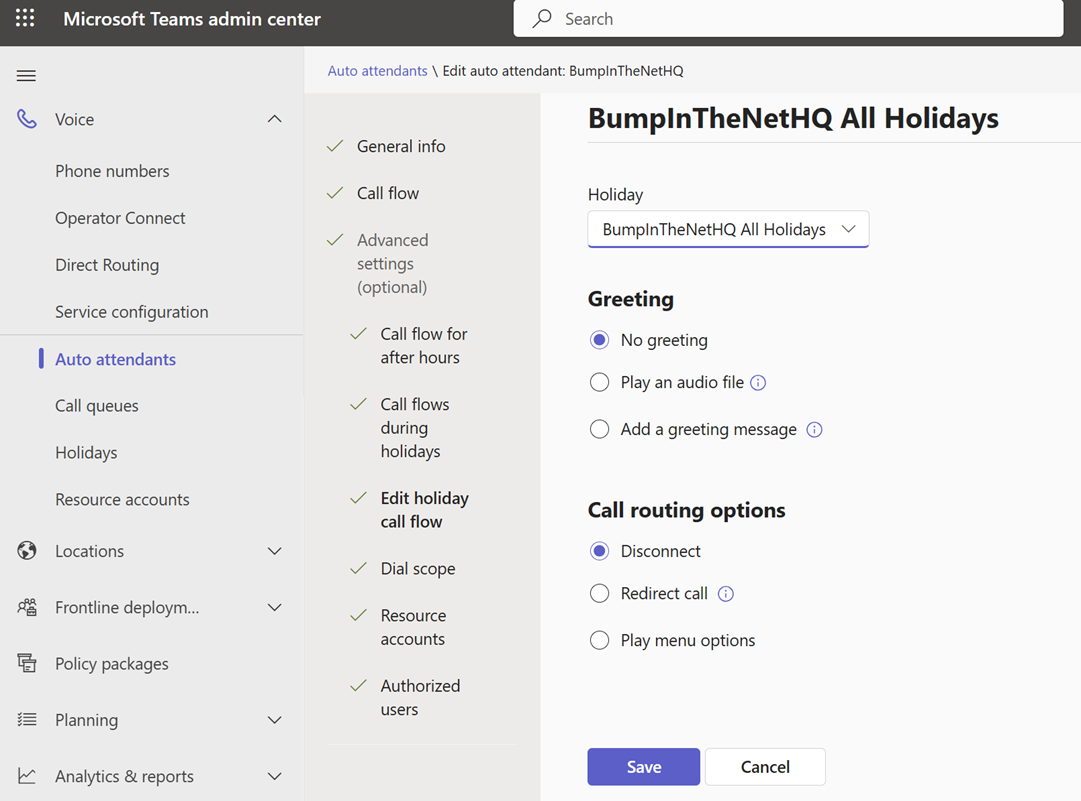
And use that with your single holiday call setting. Here we’ll just unceremoniously disconnect all callers on the above holidays:
The downside to this approach is that there is no description for each of the day/time entries in the Holiday. Some are obvious, some aren’t, especially if you are an international or multicultural organization.
Let’s just back to the “BumpIntheNetHQ” prefix on all of my holidays to reinforce that – every Auto Attendant will have an option to pick any existing Holiday that’s defined in a tenant. Starting the name of the Holiday with the name of the Auto Attendant that it applies to, or the department or team or whatever if there are multiple AAs that share the same exact Holiday set, will prevent a lot of grief.
If you’re just starting out with your Teams deployment, please spend some time building out a couple of Auto Attendants with a bunch of different Holiday structures so that you can understand how they work before you start deploying. You don’t need a phone number to call an Auto Attendant, you can call by name. You also don’t need to play a bunch of different menu options (unless you’re exploring those) – keep it simple and play a silly fun message to let you know where you wound up, and then just disconnect the call.
If you’re a visual/flow-chart type of person, here’s a visual of how these bits connect:

Or if you prefer the “one Holiday call settings, many Holiday date/time entries” approach:

 Bump in the net