
My previous post dealt with having calls to a Teams number forwarded to a destination outside of Teams. What about if we want a number forwarded to a different destination that in our own Teams environment? You might want to do this for a departed employee to ensure calls to their number don’t get missed. You might merge two or more Auto Attendants in to one but still want all of the phone numbers to work. Easy peasy!
Fun fact, unassigned number rules work for calls from the PSTN, but also from within Teams. All your bases are covered, with the exception of a federated call or chat.
In Skype for Business this function was handled via the CsUnassignedNumber policies. In Teams, it’s handled by policies with the unwieldy name of CsTeamsUnassignedNumberTreatment.
While unassigned number handling can be configured in PowerShell if you’re doing a large number of rules, it’s otherwise easier to use TAC, especially for viewing what the rules are.
In TAC, you’ll find what you’re after under Voice, then “Routing rules”. That’s easy to overlook as “routing” is used in so many other places.
If you click Add, you get a pane that has these items:
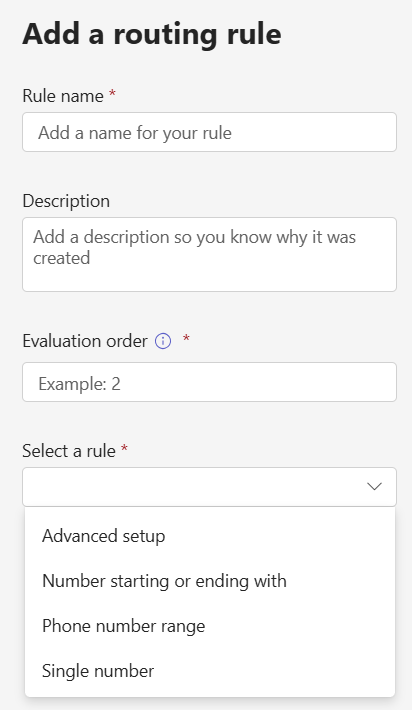
Rather than throw any name and description in, plan out a bit of a naming standard. You’ll thank yourself later once you’ve got a few dozen rules. Something like “+1 425 8675309 to David” isn’t as meaningful as “1 435 8675309 to DSmith at Contoso.com” with a description of “1 425 8675309 used to belong to Jenny Jones. Ticket 342352” is much better. Note the inclusion of your ticket number so that you can find more details (and so you don’t have to write the full story here).
Evaluation order is next. The rules are evaluated from top to bottom, and evaluation order establishes where this rule will go. You can’t insert a rule by using an evalution order that’s identical to an existing one, you will need to pick an unused number. You can sort the rules after to wiggle everything in to the right spot.
And finally, we have the 4 rule types:
Advanced Setup lets you dive into Regex (more on step 2 in a bit!)
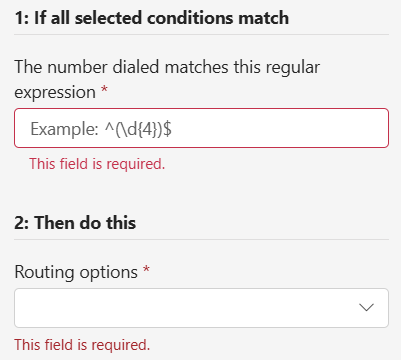
Number starting or ending with is a nicer version of Advanced, where the full capabilities of regex aren’t required. Just for fun, when you hit Okay and this rule hits the rules list, it’s in Regex format. Resistance is futile, you cannot escape Regex…

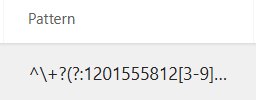
Phone number range is similar, and also generates Regex, which can get pretty gnarly for ranges:
And the final option is a single number, which is wonderfully, elegantly simple. Simple enough that I’ll skip the screenshot!
Step 2 is “then do this”, and your options are:

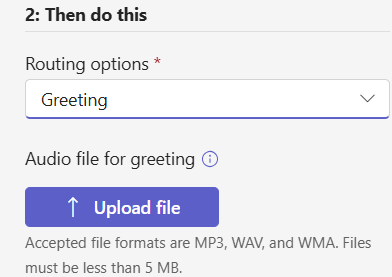
Greeting lets you play a greeting file (no text to speech here), and then the call is disconnected.
Your next option is “person in organization” which is pretty self explanatory: Jenny’s calls go to David, and that’s it.
The third option is a voice application, which is usually an Auto Attendant or Call Queue. If the first option of playing a greeting and disconnecting doesn’t work for you, you can use this option to send calls to an Auto Attendant, play a greeting (including text to speech) and then take some other action – let callers select from a menu of other options to handle their call.
And here’s something cool. The rules you build are processed in order, until there is a match. You can put very specific rules at the top, and less specific rules at the bottom, from the same range. For example +1 425 8675309 to send Jenny’s calls to David, and then +1 425 xxxxxxx to send that range of calls to an auto attendant.
But wait, there’s more! The unassigned numbers rules are the LAST thing that Teams does with a call before it sends back a “404 not found”. That means you can build a rule like +1 425 xxxxxxx to send all calls that hit it to an auto attendant. If Jenny still works for the organization, calls to +1 425 8675309 will reach Jenny and won’t ever make it to the unassigned rules. This is a great way to ensure that calls to an organization that may face large turnover are handled, without spending all day building and sorting rules.
 Bump in the net