
A topic that generates a bit of conversation when I’m working with customers who are new to Teams is the call handling/forwarding capabilities of Teams. In particular, the forwarding settings are available to users, and they’re also available within Teams Admin Center. Thankfully, they’re identical, though there are a few combinations of policies and settings that can make things appear and disappear, creating some confusion.
Teams users can access call forward settings under the dialpad where they’ll see an icon like this:

It may look slightly different for them, it changes depending on the current setting. They can click on this for some quick changes, or there’s an option for More Settings. Alternatively, they can click the … up near their profile picture, then Settings and finally Calls. These two options bring them to the same spot. Administrators can find these settings under the “voice” tab for the user in TAC.
The default settings look like this:
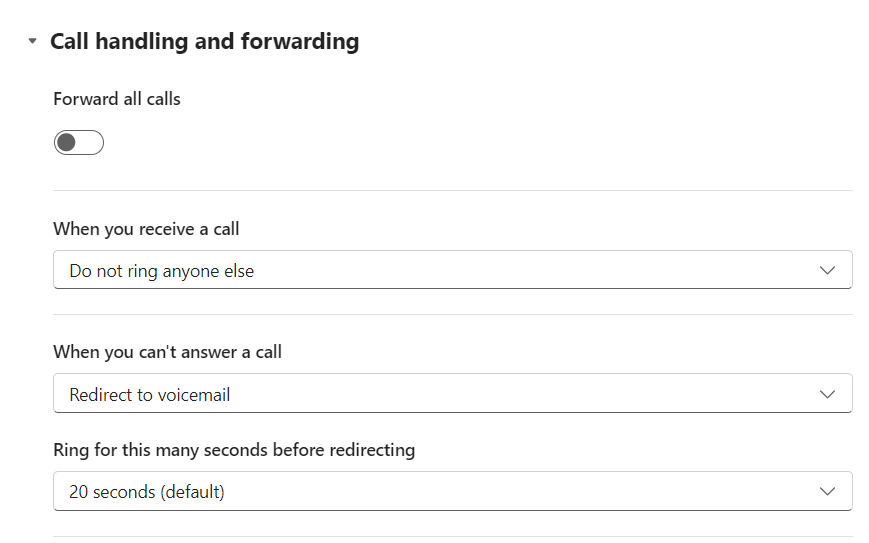
which is pretty straight forward.
You can choose to forward all calls with the slider at the top. This is an immediate forward to another user, number, or your voicemail, with no extra options. It’s pretty boring so I won’t pollute your screen with yet another screenshot.
The next option down sets whether your calls will only ring you, or if your calls will also ring someone else or some other device:
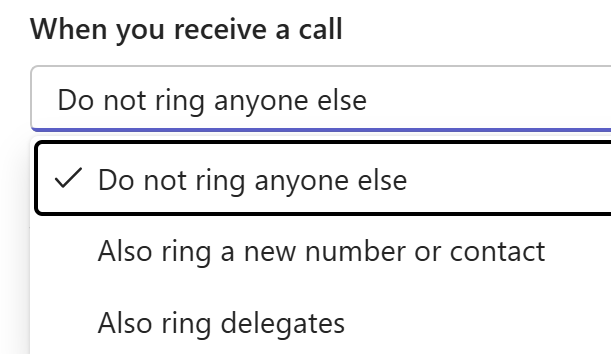
This is great for busy people with assistants or teams who can answer calls on their behalf, or if you need to have one of your own numbers ring as well as Teams. Way back when the Teams client didn’t exist and the SfB/Lync mobile client was… less than stellar for calls, it was common to simultaneously ring your mobile phone number when Teams rang. Now with the excellent features of Teams mobile client, use of this feature is pretty rare.
Not to digress away from our conversation on forwarding, but I should mention here that Teams has a “Team ring” for others who can answer calls on your behalf, and delegation which is similar but ads the ability to place calls on your behalf. In both cases, Teams will provide an indication that the call you’re getting is in fact for someone else, or is being sent on behalf of someone else.
Keen admins might notice two settings in Calling policies in TAC:

This functionality is interesting. It allows you to handle inbound calls that arrive via the PSTN to your phone number differently than Teams-to-Teams calls from another organization. When both are set to “Use default”, you have the options we’ve just discussed.
The PSTN dropdown offers these settings:

Use default is what we’ve just discussed.
Unanswered settings is the second part of what we’ve just discussed:

without the 20 seconds of ringing – calls will go straight off to voicemail, or whatever other destination is configured here.
Send to voicemail is… well, it sends calls straight off to voicemail. This is a useful setting should the “When you can’t answer a call” be set to something other than voicemail.
And finally, “Let users decide” puts these three options out of the Teams Policy and in to the hands of the user in their Teams client.
The Federated calls dropdown offers these options:

These three are the same as the PSTN option, alas there’s no “let the user decide” option. Not including that option here is a curious decision.
Flipping the PSTN option to let the user decide offers up some additional settings in the Teams client (green):

There are some curious labelling and presentation choices here. First “external” is confusing because PSTN and federated calls are external… Here, external means PSTN and does not include federated calls – recall that there isn’t a “let the user decide” option for federated calls, just three fixed options.
Turning this slider in this green box off means that the settings at the top (purple) will apply to all calls.
Turning this slider on means that federated call destinations are indicated in the client settings (purple), but which of those destinations will be used is a function of the Calling Policy (default, top of the purple; unanswered, bottom of the purple, or voicemail).
Not mentioned in any of the above is internal calls. Internal calls from Teams users in your own organization are handled by the settings in purple, always. Additionally, if you have phones, call boxes, or a PBX integrated with Teams via Direct Routing, these will fall under PSTN – Teams cannot discern if those devices are “yours” or “from the PSTN”.
Phew, that’s a bit of a plate of spaghetti. I did some cut and paste and marking, and if you’re a visual learner perhaps this will help:

Remember, the “Use unanswered settings” (orange) only cares about the destination and not the “ring for 20 seconds” part.
 Bump in the net